live_tv
Livestream Starting Soon
00
Hours
:
00
Minutes
:
00
Seconds
Up next in 10


Project management Accounting -5
Show More Show Less View Video Transcript
0:07
foreign
0:19
welcome back again uh so today we are going to start about those session
0:27
project management accounting so next topic is that create
0:34
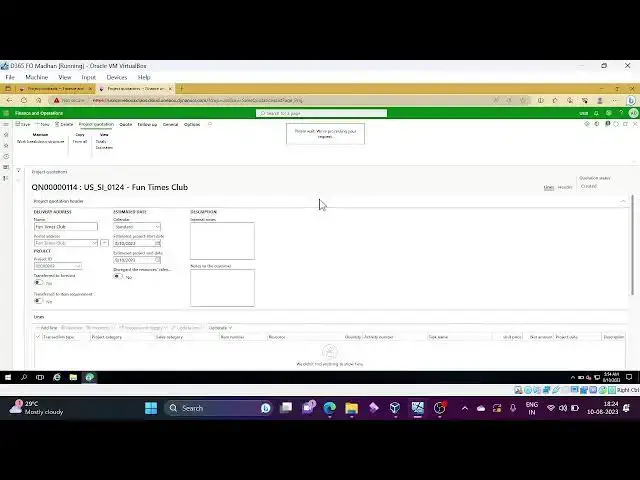
project quotation how to create the project quotation uh
0:39
how to defend the WBS work breakdown stretcher
0:45
then transfer estimate to code manually add some lines these are the
0:52
topics that we are going to discuss in this session and let's get started and
0:57
start with creating the project quotation to create the project quotation go to project management
1:05
accounting quotations project quotations
1:40
hmm
2:06
so before it's opened uh the project quotation from normally what are the
2:13
advantages of I'll explain for you of the advantages of project quotations
2:18
and uh quote the customer for work they want
2:24
performed like we need to quote uh the customer what uh
2:30
what the work is performed and different pricing we can defend the pricings and
2:43
and understand the margin cost and revenue build project plan has end rules
2:51
uh next quotation uh these are the few
2:56
advantages of quotation and quotation process it will be like this create
3:03
quotation in the create quotation what we need what we can do Define WBS build
3:09
timeline estimate each task as enrolls
3:15
as n resources build quotation line items manually or based on the WBS
3:21
different pricing and Analysis these are the things we will perform at the time of project creation and then sorry
3:31
project quotation creation then submit
3:37
then later on approve sent later on it is Client confirmation
3:44
from The Client confirmation if the code was for Prospect a customer must be
3:51
created so if the code is for the prospect a
3:57
customer is supposed to be created and then later on next step is transfer
4:04
transfer create a project transfer items uh as item requirement then transfer
4:12
code lines forecast transfer the WBS these are the
4:17
things at the time of this transfer step
5:06
foreign so next we are discussing about project creation how we can create the project
5:15
uh sorry project quotation uh how we need to create so go to Project
5:22
quotation form and click on new
5:49
here account type we will have two types Prospect and customer
5:54
and So currently I am going to take uh
6:03
so one more thing I want to explain here is that for Prospect uh project and not
6:09
have project for customer I need to have a project that means
6:18
hmm so here
6:24
project ID is the right So currently it is customer
6:29
if I change it to prospect um project ID not required
6:38
Okay then if I change it to customer project is required
6:45
so let's take the prospect and
6:51
select the prospect
7:02
I am taking Pine shopping as a prospect
7:21
clicking
7:44
and you can add the lines uh one by one manually
7:49
or second way is that click on work breakdown structure import the template
7:56
that is that two options we have I adding the line it is just add line and
8:03
select the transaction type and you can post the item
8:09
um have a expense Journal as well
8:14
if it is from the work break demonstrator click on the WBS
8:31
as in a calendar to the quotation before okay so calendar is missing
8:37
I'll take
8:51
foreign
9:02
[Music] ing in usmf instead of ussi okay no
9:09
issues maybe next uh next topic will change it
9:16
here we can add the lines and we can do
9:21
that whatever we want
9:27
we have import option here to import from the template itself
9:37
here templates itself not there
9:43
let me go to ussi so template is not there means we can
9:50
create it but currently I'm focusing on the project
9:57
quotation only so I'm not going to discuss about that template so to create
10:04
maybe in coming episodes I'll call that topics whenever needed
10:25
so here quotation let me take new
10:37
select Prospect
10:46
Okay click ok
10:54
opportunity we can select in the below general form
10:59
we can create it then add lines we can do manually but we
11:06
are discussing about work breakdown switch template so let's
11:11
do that
11:19
so here I can select
11:26
software maybe anything is there
11:38
ah okay I'll take one anyone
11:46
template
11:54
we can do it in two ways we can manually add the lines in the quotation or we can
12:02
get this from work breakdown structure using import template currently I'm
12:09
using import template
12:20
okay so you hear
12:26
you can add the resource as well if you want to add the resource for this
12:33
project management account project management you can add that
12:39
foreign
12:53
so once once this is done
13:11
here we have generate button and generate quotation lines from WBS
13:19
so we can generate the lines from the WBS
13:32
so see all the lines came here Whatever It Is defined in the
13:39
a template that we means WB is
13:45
then what else we need to do once we check the all the details you can submit
13:50
to the approval this is
14:02
I'm not sure what is the setup workflow setup behind this to whom it will send
14:09
the uh to whom it will send for approval let's check it out
14:44
okay before that we'll go to bad jobs
14:59
to check whether workflow badge jobs are running or not
15:04
oh
15:41
so it's waiting and executing stage
16:50
so it's run actually so it is auto completion workflow setup
16:58
so it's completed once the quotation is submitted then
17:04
what else we need to do uh review the quotation once review it is approved it
17:12
is auto created setup is there then
17:25
then go to quotation tab code tab and sorry code tab this one
17:34
and foreign
17:50
quotation actually but it is Prospect right so for for that we have one more
17:58
uh function
18:13
so now it is approved
18:21
so confirmation sorry next step it is confirmation then send quotation but
18:27
confirmation is grayed out because it is a prospect
18:32
for that purpose we need to go to uh
18:37
follow-up tab convert to customer that is also not enabled
18:49
Prospect only selected right hmm
19:10
so next is send quotation
19:49
so quotation sent then go to follow up tab
19:55
convert to customer we need to do because it is uh Prospect
20:43
I'm just taking time
21:21
it's taking more and more time
21:31
foreign
23:22
foreign
24:14
it's too bad actually
24:23
I think it's done now
24:31
okay it's done actually
24:38
the next step is confirm
25:30
once that is done we have transferred to project option
25:36
here whether you need you want to transfer to
25:43
the existing project or a new project that you can select in the Wizard form
25:50
so here existing or new project new project transfer quotation work
25:56
breakdown structure to the project that also you want to transfer if yes click
26:03
on next what type of project it is uh time and material or fixed price project or cost
26:12
investment or Time Project [Music] so I'm going with time and material
26:19
project and project contra
26:31
project contract I am selecting contains TMR
26:45
okay it's okay I'll select any one of them from the list
26:52
anyone from the list
26:59
then these uh you can check your transactions uh
27:12
then next
27:18
how many projects creating one existing zero right
27:35
then you can go to project that particular project and you can check the
27:41
wbes and the estimated details planned forecast details
27:48
those things you can do it
27:56
maybe if you go here
28:18
foreign
28:55
[Music]
29:00
created by created date and time
30:02
here this is the project ID
30:48
sorry I'm taking him in usmf
31:30
okay this is the one you can check uh
31:38
plan tab WBS will be transferred to the project as we
31:45
selected in the widget see this is the
31:52
this is the one and you can check the forecast details as
32:00
well forecast
32:06
all forecasts
32:13
okay from here and
32:18
next is that project management project uh template group actually
32:50
so project quotations
32:58
sorry under setup
33:07
project quotation template group
33:18
you can create the group here
33:27
maybe soft Ware group
33:36
it's just naming once this is done
34:16
here customer I am selecting this time
35:53
so I'm selecting the project group
36:00
project group and the project quotation I am selecting the
36:05
project ID and customer
36:16
let me check customer ID for this project so that I can assign uh
36:25
so that I can select the customer in the project quotation form
36:40
so it's still loading
37:07
project contract is this
37:19
in the project contract we can find the customer right so that's why I'm going
37:26
to project contract
37:33
and customer is this person
39:07
so same way you can add the line from add the lines from WBS or
39:15
you can create the manually you can create it manually and you have had the
39:20
header tab in that edit tab you can provide the group ID uh
39:29
group ID template name and active
39:38
in the setup form here you can select the template group
39:45
whatever you prepared and name you can provide here
39:53
and activate
40:00
connect with this so this is one thing and
40:07
any point I missed copy from WBS template generate
40:13
quotation lines from WBS to use template
40:18
new code
40:31
so the remaining things I already showed you like generating the
40:40
um click on the clicking on WBS and
40:46
generating the uh W lines from the WBS
40:52
so those steps you anyway I just explained in the uh
41:00
in the previous uh quotation
41:06
Maybe in the next topic I will cover time
41:13
sheet related project how to create timesheets submitting the timesheet
41:19
workflow approval how to copy the time sheet favorites assignments how we can
41:27
do these
41:33
entire timesheet related that out on that we are going to discuss and one
41:40
normally uh few uh normally few companies are most of the companies
41:46
they'll use uh d365 itself or their own
41:52
employees to book the time sheet timesheet is nothing but like how many
41:59
hours you booked for any particular project uh to track that timings and uh
42:07
on what task you worked we need to clock the time so
42:13
that topic I'll cover in the next session it will be
42:19
interesting and uh okay I'll stop here
42:26
maybe it's small thing but it's taken long time
42:32
because of system slowness um I'm okay with that because when when
42:40
system is slow like we can uh slowly proceed instead of
42:49
very quick run so if it is a processing for each step
42:55
also fine so if I click something and if you missed it and again you need to uh
43:03
backward and you need to check what I clicked but in this case it is system is
43:10
a bit slow maybe you can get what I am clicking
43:16
I think you understood uh we'll discuss other topic in the next
43:23
session maybe in this week
43:28
okay thank you bye
#Business Plans & Presentations
#Management
#Other