live_tv
Livestream Starting Soon
00
Hours
:
00
Minutes
:
00
Seconds
Up next in 10


Project management Accounting -15
Show More Show Less View Video Transcript
0:28
oh
0:42
hi everyone welcome back again today I am going to discuss about uh project
0:48
management account basic concepts in that uh we are going to talk about
0:58
uh
1:05
we are going to talk about project building and
1:15
payment so in the previous session we have discussed about billing rules and
1:21
different types of billing rules and it's time to in
1:30
voice and
1:58
payment
2:34
so okay so it's loading before loing I
2:40
today we are going to talk about understanding and creating the project
2:45
invoices and understanding and creating the uh project credit
2:51
noes and uh customer Advance review of invoice formats and
2:58
review the print settings those things we are going to talk in this
3:04
session and uh normally uh how the
3:10
project invoice overview uh process will be like this it
3:15
may be uh invoice proposal can be done from the contract level uh for example
3:22
of one contract having project one and two three and we can invoice R time
3:28
single invoice is for all the projects all the three projects under that
3:34
project contract and review and edit if you want to do anything you can do that
3:45
post after posting the journals uh you can invise that
3:50
journals so that is the normal process that project invo can be from done from
3:58
different places uh it is from specific project we have invis
4:05
proposal and specific contract we have proposal and we have project management
4:11
accounting under invoice we have invo proposal as well these are the places
4:16
where we can do the invoice and what happens if the uh when
4:24
we post the invoice uh when we post the invoice invoice print out is created
4:29
created multiple invoice formats for this can be configured so invoice will
4:36
be print print out in the invoice format that we have defined for that
4:42
particular invoice or project contract the project subledger is
4:48
impacted subledger uh project subledger anyway it will impact inv proposal
4:53
status is updated and project balances also will update
5:00
accounts receivable subledger has been outstanding invoice and once that is
5:06
done payment need to be registered and applied to that project invoice from the
5:12
AO GL also impact
5:24
okay so now starts let's start with
5:30
uh create project invoice proposal that we have did in previous sessions as well
5:37
how to do the invise
5:42
proposal so I'm in ussi
5:48
company project management
5:57
accounting project
6:09
inves in Wise
6:28
proposals
6:39
so from here you can create the invoice proposal without billing rule or invoice
6:46
proposal from building so I will go with invoice
6:52
proposal you can search with a particular project or contract level
6:59
if you want to go with the contract let's take the starting
7:09
one and here you have uh all the types of uh
7:15
transactions however whatever you want to do you can select those
7:28
transactions
7:33
so here select all you can do to select all the transactions or
7:40
individually you can select whatever the transactions requir so like
7:50
this clear all let me check how many projects are
7:58
there
8:13
so two projects let me take this one one transaction from this
8:19
project
8:25
and one transaction from this project
8:36
so I have selected two pro two transactions one is from one uh one six
8:44
project and another one is one 120 project so here you can see the lines
8:50
that we have selected uh in the invoice
8:57
proposal and you you can uh edit the sales price before you can pose the
9:05
invoice as well for example this is 3 you can change
9:13
it and we have uh suppose you missed one of the transaction that you're supposed
9:20
to select for this invis you can add the lines as well create fee uh one option
9:28
is there remove line view details to check the details of this line you have
9:34
different options you can see the transaction uh
9:39
details of this particular line so here it is 300 but we have changed it to
9:47
310 then once you review everything done you can post the
9:58
invoice before that let me take the contract what is the
10:04
contract this is the contract okay so post the
10:28
inv
10:48
okay once the posting is
10:54
done and go to contract
11:07
so in the contract level once the invoice is done it will go and hit in
11:14
the customer transaction as a invoice project invoice
11:20
so this is the funding source assigned to this particular project contract if
11:26
you go to this particular customer you can see the who
11:32
invoice and payment is as usual how you'll do in the uh a same way select
11:40
the customer and generate payment you need to select that open
11:48
invoices if you go here or uh you
11:53
can uh I think somewhere invoices I
12:02
guess sorry collect in the collect settle transactions you can see or you
12:07
can go to the transactions and whatever the transaction whatever the invoice that we
12:15
have booked we can see here if you go with open transactions so this is the
12:21
transactions transaction that we just posted if you want to see the vulture
12:27
you can see that customer is debited this is the invoice project invoice
12:32
customer customer is debited and project invoice Revenue
12:45
credited why it is uh two lines here for the project invis because we have
12:52
selected two different projects if you want to see those details I'm not not
12:59
sure whether here it is available or
13:05
not no you can go to original document you can see from
13:11
there so there are two projects selected so that's why it's showing different
13:25
amount so this is the one 122
13:40
okay so this is the way how uh project
13:46
invise can be done and payment is as usual from the year
13:53
prospective and next topic is Project credit notes and uh project credit note create
14:02
from the posted transaction posted project transaction from uh create from
14:10
an invoice Journal as well from the functions
14:16
Tab and uh we'll select the appropriate uh transaction then we'll create a
14:23
proposal invoice proposal so let's start with uh
14:32
for example why will do the credit note means for example actually we posted
14:39
when how Journal posted to the uh to the project wrongly and invo to correct it
14:47
we need to uh post credit note for
14:53
example I'll go with this way only
14:59
I'll go
15:04
to Project contract first from there I can select one
15:12
project so this is the contract we are discussing
15:20
about to this project sorry to this contract these many projects are
15:27
assigned I'm going with the first
15:50
project so from
15:56
here posted transactions for this
16:24
project see select the transaction here and
16:31
click on select for credit note select the line and click
16:39
okay okay once this is done you need to come
16:47
here I'll refresh
16:57
this
17:07
once one way is from here and I'll show the another way as
17:19
well another way is that from the project management uh you have transactions post
17:29
transactions and you can select the transaction which you want to do the
17:34
credit note and one more way is that invoice journals project invoice
17:43
journals like this this screen maybe you can go from
17:50
here or you can go from the project man from
17:56
here you have functions redit
18:04
node so these are very old transactions okay anyway
18:14
fine and you can select the specific transaction in
18:22
that okay done
18:43
okay once that is done let's go to the project invise
18:50
proposal new wi proposal and I'll select the
19:15
object don't
19:27
know okay let's try this
19:35
way one more
19:48
time and let
19:56
transactions 8:31 we poer this one maybe oh this
20:02
is chargeable it's not at invoice so
20:07
that's why it is not showing credit note let's try with proposal
20:14
first transaction dat okay I'll go with this
20:27
one
20:36
so how Journal uh posted and uh for the same invoice also
20:46
done okay once this is done you have option called Select Credit
20:54
note to reverse that invoice which which is wrongly
21:00
posted from the Min tab you have
21:07
transactions this is fully invo if it is not invoice this will be gr
21:17
out select it click okay refresh
21:27
it
21:41
once that is done again you need to do the invoice
21:49
proposal for the credit note that was
21:57
done so this
22:22
one okay once this is done
22:29
post it now you can see the uh customer transactions open
22:36
invoice for this credit note let's check
22:50
this so let's check the C
22:56
project
23:02
posted
23:13
transactions so we have two chargeable
23:25
now this is the project contract contct let's check the finding source for this
23:32
project contract this is the
23:43
customer and this
23:56
transactions see you can see positive or
24:03
negative okay customer if you go to the
24:12
Watchers customer is credited that means this is credit note
24:17
okay then so this is project project credit
24:26
note then project prepayment we'll we'll
24:32
discuss that topic create a customer Advance process for creating
24:40
advance and create Advance then invoice
24:45
apply that advance so we'll start with creating the
24:53
customer advance and we'll apply the advance towards the the
24:58
invoice and we'll create customer Advance based on the revenue so this is these are the things
25:07
we are going to discuss now let's close
25:16
this for example what will is that we'll post one hour
25:26
Journal this this
25:56
project
26:05
see sales price is
26:13
350 okay let's post
26:26
it okay so we posted one hour journal for
26:32
this project with uh 10 hours and price is
26:38
350 and we'll start with customer
26:43
Advance uh we have two options request a customer Advance request customer
26:48
Advance as percentage of uh Revenue budget this is manual and that is based
26:54
on Revenue budget we are going with this one first and
26:59
uh invoice date we can give the date and I'll give
27:10
here
27:22
5,000 okay 5,000 I given
27:47
then we'll post the
27:56
invoice
28:14
so after that invise
28:23
proposal The invise Proposal let me
28:33
so this is the one right that we just posted
28:42
and so I'm selecting this and we have advances and deduction if I select this
28:50
one500 it is uh minus value it is showing because uh my invoice is
28:59
3,00 my transaction value is 3,500 and Advance is 5,000 so we have split
29:07
Advance amount here so by this we can match both the
29:15
transaction as well as so with this we don't want this line and now the
29:23
net invoice amount is zero then click okay and post
29:30
the customer payment sorry customer
29:37
advance so we created customer adance we appli to the transaction as well and
29:44
posted the
29:56
inv okay next concept is Project budget based uh advance so let's check this
30:06
project whether budget is there or
30:26
not so project
30:37
budget so we have project budget of 4,20 and 30 90 is total
30:52
budget here customer advance
30:57
based on the revenue budget so here you need to
31:07
provide percentage of the budget that you want to custom
31:25
requested why to budget it is not coming
31:56
here
32:05
oh cost budget it is let me do
32:26
one
32:55
so I'm creating the budget for uh this one Revenue
33:06
purpose so workflow submitted let's wait
33:13
for
33:18
approval I think it is automatic
33:25
approve
33:55
for
34:19
okay it's
34:25
something
34:34
okay completed
34:55
now
35:12
okay that's done let's go with customer Advance
35:23
now see now it came this one and give the
35:29
[Music]
35:36
percentage now it schem percentage that you have
35:42
selected and post it then again do that in that's
35:55
it okay done next thing is that uh project
36:02
invoice setup project invoice
36:09
setup so there are different types of uh format invoice formats detail format
36:16
summary format summary category and custom detail of
36:23
summary so where we can assign the format means invoice format in the
36:30
contract level we can do that here Al not here where it
36:37
is uh funding source
36:43
here so we have invoice formats detail summary summary review by category and
36:51
one more is custom and or we can do from the invoice
36:58
proposal level in the invoice you have this option
37:07
okay okay
37:17
then you can change the contract level uh invoice format at any level and uh
37:26
one more thing is that from the invoice
37:32
proposals invoice level if there is any open invoice is
37:39
there
37:45
any so you can
37:52
do here as well Ed it and you can change the invoice
38:00
format at this
38:08
level you have invoice template format as
38:18
here okay
38:24
then then you have this option
38:30
print format invoice proposal here you can Define your uh new
38:39
format uh you can
38:55
mention lot one maybe you can do
39:03
that for example you can include this transaction in lot
39:09
one and
39:20
uh lot
39:25
two okay include it so this way you can move down also
39:32
you can do and print preview you can check it out how it it will it will
39:39
print this
39:55
invoice
40:55
for
41:42
so it's loading
41:54
now okay see this is the way it will
42:08
print say like this lot one lot two
42:16
okay so this is the way you can Define the format and if you come
42:24
back you can see the user defined format as well user defined means just we
42:33
created right that one detail invoice also you can try to print it out and
42:38
check how it is coming and summary details summary
42:44
invoice by category it will detail the summary by category level so you can
42:51
differentiate after uh by printing the invoices so you can do
42:59
that so next one is that print
43:04
settings so print settings it is in the
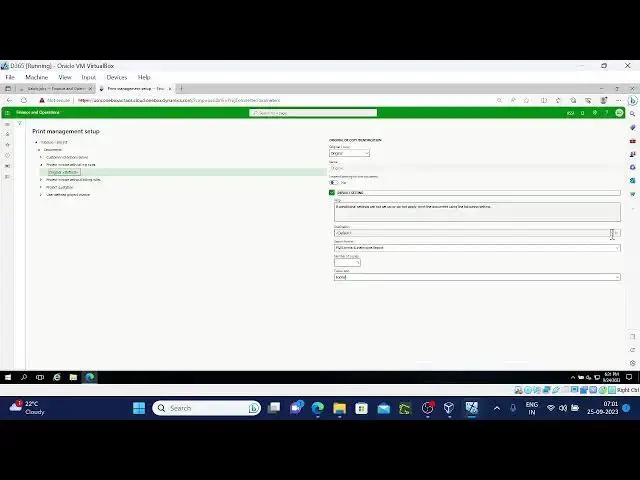
43:13
setup forms form
43:18
setup we have General tab here whatever requirement is there based on
43:25
that can select these things General and
43:33
inv and print
43:39
management so in the print management
43:48
uh here user defined
43:55
invoice you have these are the module documents
44:03
for the project management module for invoice
44:14
printing
44:22
uh for example without bu rule I given
44:30
here Pho okay given
44:40
photo destination you can give that email
44:54
ID
45:01
so I'm giving this
45:24
screen
45:32
building rule one also I'm selecting photo
45:42
one destination I'll give the
45:54
screen okay okay once this is
46:02
[Music] done project
46:15
contract you have print management here so you can see here module level
46:24
documents all the documents you have done from the parameter level sorry from
46:32
the setup level from setup this is what we just created and you can see the
46:40
transaction contract ID level as well these are again different documents at
46:47
the level so you can see here footer will not
46:54
be see here photo fter is there
47:03
but yeah
47:11
Pho I think for both I given footer
47:18
only so these levels also there we can edit we can edit it any point of this so
47:27
for example so this one we cannot edit here
47:37
module level you can do the edit as well
47:54
okay okay so General entire form setup it is
48:04
enter total uh all the module level and you
48:10
can see the contract level as well print management okay this is what
48:17
I want to discuss in this video maybe I'll come up with different topic in the
48:22
next session I hope it will help you it
48:29
is help you to understand the project management
48:35
module okay I'll stop here thank
48:47
you
#Business Finance
#Accounting & Auditing
#Billing & Invoicing