live_tv
Livestream Starting Soon
00
Hours
:
00
Minutes
:
00
Seconds
Up next in 10


INVOICE MATCHING VALIDATION
Show More Show Less View Video Transcript
0:25
hi everyone today we are going to discuss about invoice validation invoice matching
0:32
validation so to do that
0:40
let's open
0:47
presentation
1:05
not saved
1:14
[Music] foreign
1:35
Ty okay let's get started
1:46
first of all for invised matching validation uh to enable the invoice matching
1:54
validation you need to go to accounts payable parameters
2:05
invoice validation in the invoice validation
2:11
this is the field that you need to enable for invoice validation see if you
2:19
disable this all other fields has been created
2:24
so if you enable this field and invoice validation will be activated
2:30
and uh in invoice matching policies will be activated with the help of this field
2:39
once it is enabled you have post invites with
2:44
discrepancies if you want to allow the invoice with discrepancies then with an
2:53
approval then you need to select the required approval if suppose it is uh if
2:59
there is a discrepancies whatever the validation setup we did
3:04
even though discrepancies is there you need to take your take approval and you
3:11
need to post it then this supposed to be required approval
3:16
require approved automatically update uh invoice matching
3:23
status match status in the header automatically it will update the status
3:30
if you enable this it will automatically enable the status of the invoice
3:37
validation so we have uh three different types of
3:43
matchings we can say invoice total matching invoice total matching which
3:50
will match the totals of the invoice it's a purchase order
3:57
at the time of purchase order what is the in total
4:03
and it's supposed to match with the invoice total so I'll show you in the in Practical uh
4:11
for this concept so that you will get clear picture currently invoice total
4:17
matching is means purchase order total equal to
4:23
invoice total in simple words it is purchase order
4:28
total equal to invoice total so if you enable this field
4:36
then only it will activate the invoice total match
4:42
so I have are
4:47
tolerance limits as well for this if I need two larynx greater than
4:54
tolerance I'll use greater than otherwise greater than or less than so
4:59
it may be greater or less that anything is fine for with three percent three
5:06
percent tolerance for example 100 is the total invoice invoice total if it is 97
5:14
3 percent means three percent on 100
5:20
it is 3 rupees I guess so it is 97 till 97 it will allow you uh to pass the
5:28
invoice validation uh same way if you select the greater than or less than one
5:36
zero three hundred is the total one zero three till one zero three the invoice
5:41
validation will pause so I'll go with uh if greater than for this invoice
5:48
validation for matching validation will go with different way uh
5:55
so I'll give five percent greater than is my tolerance if 100 is
6:03
the total amount till 105 it will allow the invoice validation
6:11
to pass so So currently I am discussing only
6:17
inverse total matching so for invoice validation
6:23
to be applicable for the legal entity first you need to enable the matching
6:28
validation in the accounts payable parameters if there is any discrepancies if you
6:34
want to post it with an approval then you need to select
6:40
the required approval if the automatically invoice validation status
6:45
need to be updated then you need to enable this So currently we are discussing about
6:52
invoice total matching invoice totally if you want to perform invoice total
6:59
matching you need to activate this once it is activated if there is any
7:04
tolerance limit that you need to set you can provide is great if greater than
7:10
tolerance or greater than or equal to tolerance and so on percentage of the tolerance that you want to sell
7:18
and you have invoice matching set so invoice matching setup
7:24
it's under invoice matching setup invoice total tolerance
7:30
I have one more setup this is overall legal entity level set up in the
7:36
parameters and if you want to set the uh
7:41
individual vendor level for example this vendor I
7:47
have taken two percent uh same way
7:52
if I want to restrict another window with different percentage I can use it
7:59
normally if it is other vendors it is five percent tolerance but if I select
8:05
these windows it is two person tolerance while testing I'll explain you very
8:11
clearly so that you will get uh easily understood this is the setup you need to
8:17
perform um to do invoice validation so we are
8:23
discussing about the major concept invoice matching Concepts uh invoice
8:29
validation to perform the invoice validation what
8:35
is the first step you need to go to accounts payable parameters you need to
8:40
activate enable the invoice validation and uh if you want to do the uh
8:49
posting of the invoice with the discrepancies at the time if you with
8:56
the approval then you need to select the required approval option currently we
9:01
are discussing about invoice total matching so invoice total matching I enabled and I have given the tolerance
9:09
of five percent so this is the testing we did till now so sorry this is the
9:16
setup we did till now and coming to the testing testing part you need to get the clear
9:23
picture how it is working and what are the setups we did what is
9:30
the outcome from the setup so now setup we did now we are going to do testing
9:38
and what is the output whether we achieved what we expected or not that we
9:45
will come to know in the testing let's go and create the purchase order
10:16
hmm
10:29
I don't know why it is very slow
10:38
yeah so let's create new purchase order
10:51
I'm selecting the window
11:08
let's click on OK
11:32
foreign
12:03
so I'm taking a side
12:18
is
12:24
90 it is showing because of discount
12:32
save it
12:57
teeth are fine
13:03
so we are creating the new purchase order and we are confirming the purchase order
13:10
of this filling all the details
13:53
foreign [Music]
14:06
to confirm the purchase order
14:14
I can now it will be completed yeah it's confirmed now let's pause the product received
14:56
we are posting the product once it once once it is done we'll need
15:05
the in ways
15:10
there we can see the matching validations
16:03
foreign
16:17
let's start with the invoicing
16:53
see in the invoice tab I am giving uh
17:05
currently match status updated as passed because we selected
17:16
that's why it is
17:23
these two I'll change this to
17:32
hey come on
17:37
99
18:08
5 it's failed so if I take one zero four
18:25
something slow actually so we have selected that automatic uh
18:32
match status right so it's a bit slow
18:48
so 1 0 2 it's failed sorry one zero three one zero two
18:55
passed and if we go with
19:03
99 passed
19:14
one zero three it will go failed so because
19:20
why it is acting like that so let's check our
19:29
power before testing this
19:37
invoice validation
19:44
sorry
20:00
so in the usmf legal entity let's check the parameters
20:07
so in the invoice validation we have selected match invoice total
20:15
and if greater than tolerance is set as 5 percent
20:21
even we selected five percent in hundred five percent means 5 rupees it's
20:28
supposed to allow till 105. it's supposed to allow till until 105
20:35
but it allowed only till one zero two it
20:41
is passing when you select
20:46
when you give the unit price to one zero two
20:58
so if we select 0 to the total is one zero two then it
21:04
is passing and if you one zero three is failing because
21:13
this is parameter level even though we set it as five percent but if you go to
21:20
the tolerance limit for this particular vendor level you have different percentage of
21:27
Tolerance so here we selected for this window two
21:33
percent tolerance we have given so two percent of 100 rupees is one zero two
21:40
sorry two percent of 100 is 2 so that's why it is allowing greater
21:47
than tolerance that means till until
21:53
there will be no issue with the matching policies I it will pass the status
22:00
matching if you go with one zero three it will fail so here it's failed right
22:06
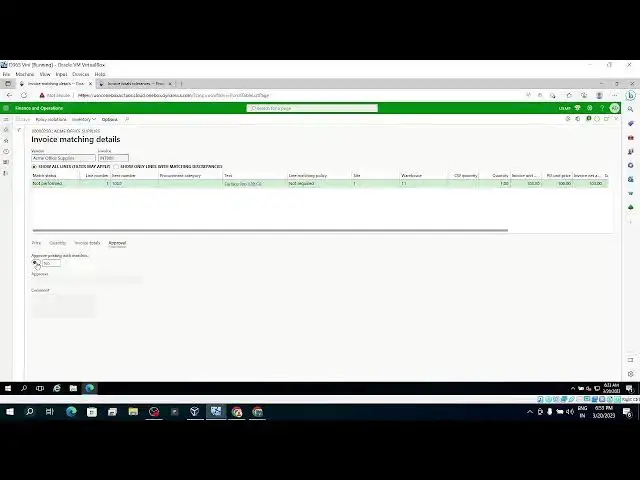
if you want to review the matching details in the review tab you have matching
22:13
details you can review how it's matched what is the
22:18
status of the match status of the invoice validation
22:24
everything all the details will be available here see here price
22:30
not performed because we didn't perform any price matching
22:37
then quantity not performed we didn't match the any quantity matching that's
22:43
why not perform we did only invoice total matching that's why it's showing
22:50
the match status so actually balance is one zero two
23:00
balance is one zero two and invoice amount is one zeroth sorry one zero
23:06
three and one zero three so total price variance amount is one zero sorry three
23:15
so that's why you click on invoice total matching you
23:22
will get all the things actual invoice total one zero three
23:28
expected invoice total hundred variance percentage is three percent failed
23:36
total discount there is no discount charges there is nothing sales tax nothing rounding of nothing so invoice
23:43
total 103 expected is hundred but three percent variance it's got failed this is
23:50
the uh details about uh your invoice here you can see uh tolerance percentage two
23:59
percent it will allow until two percent uh so I want this to be posted with an
24:08
approval see here matching status has been failed and I cannot post the invoice because my
24:19
matching validation has been failed if I if I try to post the invoice which was
24:29
failed in during the invoice validation
24:41
so it it will throw you an error message saying that
24:47
invoice int could not post because it contains
24:53
matching errors which must be approved so you need to approve your invoice
25:03
before if you need to take approval for matching discrepancies before posting
25:11
your invoice that is what it is saying so
25:21
you can click from here as so you can click matching details on the
25:29
top let's close it here
25:38
and go to approval tab
25:48
approve it
26:28
so here you need to approve this one once it is approved you can able to post
26:35
the in lies
27:12
I think some error is coming let me
27:42
know
28:06
I think this is
28:16
not this one
29:09
is very slow actually 319 today is 3 20. this is the one
29:35
so after uh taking the approval then you can post the invoice
30:06
so this is the uh
30:11
so this is one type of invoice validation that we discussed and
30:20
I'll start with charges matching
30:25
in another video another live session maybe today itself
30:34
so
30:40
once that is performed so that we'll go to next concept uh
30:47
two-way matching and three-way matching where which is very important
30:54
okay me
31:08
okay we will discuss other uh charges matching as well as two-way and
31:14
three-way matching in another video I'll close this one
31:19
next uh in next video I will going to explain those three ways of
#Management
#Billing & Invoicing
#Other