Up next in 10


Linux Directory Management
Show More Show Less View Video Transcript
0:00
now in this video we are going to see
0:02
how we are going to manage trajectories
0:04
so into our earlier videos we have
0:06
discussed all about the first so let us
0:08
begin with managing a directory now now
0:11
very first command we have that is
0:12
called as a CD CD command is changed in
0:15
our directory now if I want to change
0:18
your directory from one directory to
0:19
into the other directory I can use a CD
0:21
command either by defining a the
0:24
complete path of the directory where it
0:25
is located or just by immediate
0:28
directory we can move in by using the CD
0:30
command CD command itself can also be
0:33
used if I directly want to move into my
0:35
home directory now for example I'm using
0:38
or getting login the user 1 then user 1
0:41
if they wants directly move into its
0:43
home directory so that it can create a
0:45
directory or a false and create or save
0:48
any kind of content he can directly use
0:50
just CD command without following any
0:53
particular directory name or directory
0:55
path
0:55
same way if I want to create directory
0:58
of my own I can use the command called
1:01
as mkdir mkdir following with the
1:05
directory name so automatically it will
1:07
create a directory into the present
1:09
location same way if I want to create a
1:12
directory into a different path or
1:14
different location
1:15
I can go for mkdir space and the
1:19
location where you want to create your
1:21
directory and the third option we have
1:23
that is LS space hyphen and a so
1:27
basically in a space - L a will show you
1:30
all the hidden directories and the files
1:32
which you have located in to the present
1:34
directory now if I want to check how
1:36
many files are created and what are the
1:38
hidden files or directories we have into
1:41
our present directory we can see over
1:43
here by using LS space hyphen L a got it
1:47
the next week we are going to see is
1:49
like how we are going to use this
1:51
particular LS space - a for looking on
1:54
the hidden files which by default get
1:57
created when you create a directory and
1:59
you will also see all the details of
2:01
this particular directories as well like
2:03
you can see the time of creation of this
2:05
directory you might have the permissions
2:07
for this particular directories and the
2:09
owner name and group name every
2:10
what we generally we have into our
2:12
existing file or directory so basically
2:15
this dot and double dot by default get
2:18
created when you create a directory into
2:20
the Linux operating system what this dot
2:22
and double dot means dot here contains
2:26
the present directory
2:27
means if I have created a directory
2:29
named ABC so this is the directory where
2:33
I am so this is my current directory now
2:35
for example this ABC is created into a
2:39
lie parent directory which is /mnt so
2:42
this M&P is my parent directory where
2:45
this is my immediate parent or immediate
2:48
folder where I have located so this
2:50
particular directory is my parent
2:52
directory so it will show me the details
2:54
and deformations of my paring directly
2:56
by using double dot means present
2:58
directory and near the dot for my
3:00
immediate working directory so these are
3:03
the two generally hidden folders we
3:06
generally get into the directory when we
3:08
create so let us see how we generally
3:10
use it directly how we create a
3:12
directory and how we can find this
3:13
directories and their details so here I
3:16
am on desktop I can give the command
3:18
list and you can see there is no
3:20
directory created over here now if I
3:22
want to create a directory I can give
3:23
the command mkdir and in to mkdir i can
3:27
also define the name of the directory
3:29
which i want to create so i want to
3:31
create a directory with name dir one
3:34
that is directory one so you can see now
3:37
to the crease will create early desktop
3:38
along with that we can also choose see
3:40
this rectory into my terminal as well no
3:44
directory has been created now if I want
3:46
to create multiple directly at a time
3:48
like if I want to create directory to
3:50
directory three directory for I can add
3:53
it and you can see the directories are
3:56
created same way if I want to create a
3:59
directory or a file with space within
4:01
two words now for example I have a two
4:04
word of directory name iymp data but I
4:07
want a space in between so how I will be
4:10
doing is I need to define I am P and
4:13
backslash and one space between the
4:15
other word so other word is data so it
4:19
will create a directory with name
4:22
I am P space data
4:24
if you do not give this backslash and if
4:26
you give more than one space it will
4:28
treat both the word as two different
4:30
directory that's the reason just
4:32
understand it you need to give a
4:34
backslash and space after the first word
4:38
right so here we have created a
4:41
directory with name I MP data this is
4:43
how generally we created directory see
4:45
if I want to copy a directory I'll be
4:47
giving the copy command using CP space
4:50
hyphen r CP space hyphen r but before
4:54
the directory generally if I copy this
4:56
or if I try copying it by using the same
4:58
CP command which we have done earlier so
5:01
it will prompt me an error it's showing
5:04
you omitting directory so if I want to
5:06
copy a directory on same place or a
5:10
different place the concepts are
5:11
completely different as we have used
5:12
into the copying of file so I can check
5:15
it is being copied it is so Mullane
5:17
location with the different name called
5:19
as folder one same way we can rename a
5:23
particular trajectory for example I want
5:25
to rename my mp data and I want to paste
5:32
it same way well even renewing it I can
5:34
define in such a way and I want to
5:37
rename it basic one so I can check it
5:41
has been renamed Lee when we can check
5:43
it graphically right so this is how it's
5:46
a really big create of our directories
5:49
as well as we have seen how we can copy
5:51
directory and how we can move in
5:53
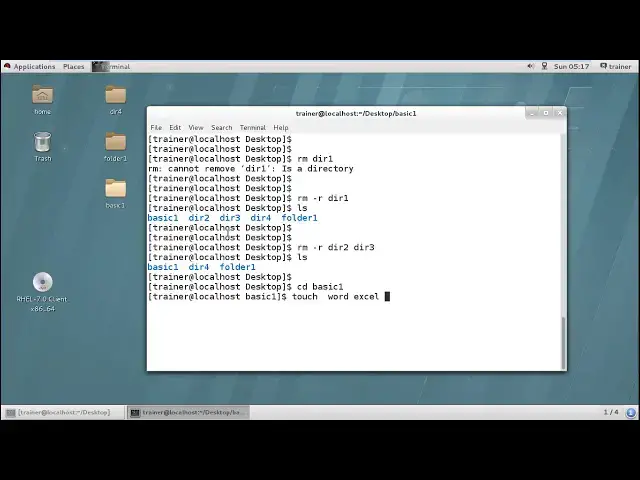
directory same way if I want to delete a
5:56
directory I'll be giving Lee come on RM
5:59
space - or because if I give command RM
6:02
and the directory name again it will
6:03
prompt manner that this is a directory
6:06
so for deleting a directory I'll be
6:11
giving the come on RM space life or not
6:15
directory one so you can find directory
6:19
one is delete it from here as well as we
6:22
cannot find it in the terminal as well
6:24
same way if I want to delete multiple
6:26
directories I can give the same command
6:28
RM space hyphen r dir to and dir
6:35
it will be deleted got it now he'll put
6:40
up we are not getting any confirmation
6:42
on our prompt but if suppose you have
6:45
anything into a directory for example
6:46
I'm moving into the basic one and I'm
6:49
going to create some touch files here so
6:53
I'm adding three different files which
6:56
are empty files Word Excel PowerPoint
6:58
and now I am trying to delete this
7:02
directory basic one
7:04
I'll give the same command it has been
7:11
deleted right so you can delete
7:14
particularly by using this RM commands
7:17
directly so if there if you have
7:19
particular file into the retreat will go
7:21
for recursive data and will delete
7:24
everything into the directory now if
7:27
suppose a same way if we have filled
7:29
some file along with the content for
7:31
example I am moving into the dir to ok
7:35
directory for is there 32 we have
7:38
already deleted I'm going to create a
7:40
firm cat while one add something into
7:45
the file demo file for RM come on I'm
7:52
going to hit enter
7:54
safety file move out of the file I can
7:59
on desktop LS come on again we are on
8:02
next open we are able to see the FDR for
8:06
again if I'm trying to delete this at
8:10
his men delete it so it doesn't matter
8:12
which kind of directory in which kind of
8:14
content you have recursive means it will
8:17
delete everything whatever you have
8:18
added into the directory so this is how
8:21
we have seen how we can manage the
8:23
directories and also we can see like if
8:27
suppose I am moving the directory and
8:28
what the content generally we do have so
8:31
into folder one if I give the command LS
8:33
so there is nothing as of now but as
8:37
discussed currently VTO that if I give
8:41
command at a space - L or LS space - al
8:47
that is list all
8:49
in details so you can see there are two
8:51
dots now this one and this one this dot
8:55
is the current directory which is your
8:58
folder 1 and this 2 dot contains the
9:01
permissions of your parent directory the
9:03
parent directory which you have that is
9:05
your desktop so this is the formation
9:09
you can check for the formation of your
9:11
parent directory it is
9:12
read/write/execute read and execute read
9:15
and execute here and this contains read
9:19
write execute read write execute and
9:21
read write execute this is to check the
9:23
next hop formation whether we have the
9:25
same formation on to it for that I'll
9:27
just step back from my folder and the
9:32
parent folder that is desktop let us
9:35
check about the next herb directory ll
9:38
or I'll just define a little come on so
9:41
you can check for next op they have the
9:45
same command which we have found over
9:47
here that means this double dot is
9:50
nothing but it is showing you this is my
9:52
parent directory which is having this
9:54
particular formation it is created by
9:56
this particular user along with this
9:58
memory location number right and while
10:01
the folder we have that is containing 2
10:03
and this has the permission what our
10:05
folder has so this is our current
10:08
directory permission and this is the
10:10
permission of your parent directory so
10:13
always your current directory will show
10:14
who is its parent so that it can this
10:17
the complete part of the file or
10:20
directly where it is stored so this is
10:23
what we have seen about managing the
10:25
directory in the next video we are going
10:27
to explore more Linux operating systems
#Programming
#Directories & Listings