Up next in 10


Installing Virtual Box & Setup Machine
Show More Show Less View Video Transcript
0:00
in this video we are going to discuss
0:02
installing VirtualBox and setup machine
0:05
we shall discuss step by step what are
0:08
the steps to be followed so that also
0:10
you can do the configuration at your end
0:13
and this video will be assisted with one
0:16
practical demonstration for your better
0:18
understanding download the VirtualBox
0:21
from the following link so link has been
0:23
given and from this link you are
0:25
supposed to download the VirtualBox
0:27
software but click on the proper package
0:29
like your Windows OS X or Linux run the
0:35
downloaded file and click on the next so
0:38
if you run the downloaded file this
0:40
window will come and you are supposed to
0:42
click on the next go through the next
0:45
steps and install the software so now we
0:48
are supposed to click on this next next
0:50
buttons will be coming and we shall
0:52
continue with the software installation
0:54
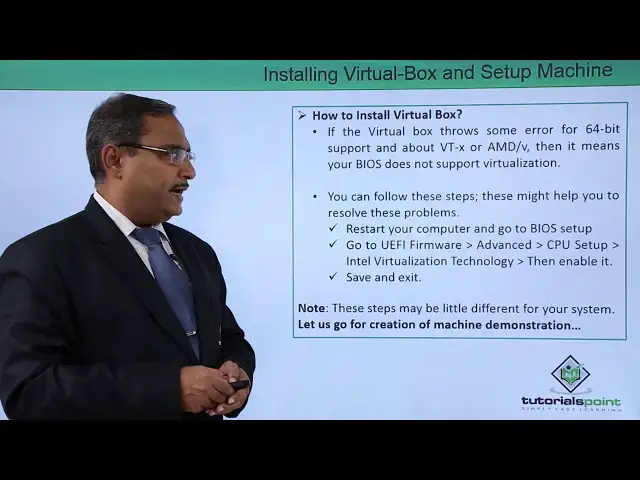
if the VirtualBox throws some error for
0:58
64-bit support and about say free TX or
1:02
aim this /v it means that your bios does
1:06
not support the virtualization so you
1:09
can follow these steps and this might be
1:11
helping you to resolve the problem
1:14
so restore your computer and go to the
1:16
BIOS setup so go to UEFI firmware art
1:21
under that advanced option under that
1:23
CPU setup and Intel virtualization
1:26
technology and then enable it and save
1:30
and exit but these options might be
1:32
differing at your system also so now let
1:36
us go for one creation of this machine
1:39
and we are going for one demonstration
1:42
on it so that you can feel that what are
1:44
the steps should be followed in practice
1:47
in this video we are going to discuss
1:49
how to create one virtual machine under
1:52
Oracle VirtualBox manager so here you
1:56
see at first we are clicking on this new
1:58
so clicking on this new we are giving
2:00
the virtual machine name there are songs
2:03
we have given the name as Ubuntu - big
2:06
data then you shall go for next so here
2:09
we are giving the size of the RAM we are
2:11
going for the 3 GB so 3
2:13
zero 7 2 MB and here we are going for
2:16
the default option so I'm not changing
2:18
anything I'm just clicking on this next
2:19
next and next and here for the hard disk
2:22
space we are going to give say 20 GB so
2:25
20 GB is the hard disk space I have
2:26
given so now this is a Ubuntu big data
2:29
has got created we have placed it at the
2:32
top and in this way in this
2:34
demonstration we have given to the idea
2:36
that how to in how to create one virtual
2:40
machine under Oracle VirtualBox manager
2:43
thanks for watching this video
#Programming