Up next in 10



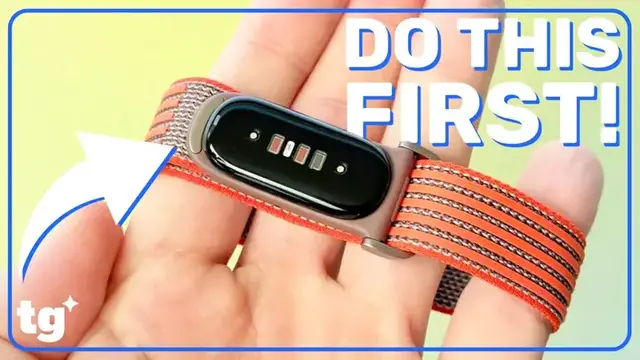
Unlock the full potential of your Google Fitbit Air. In this video, we dive into the most important settings and features, including the AI Health Coach, custom dashboards, the game-changing Smart Wake alarm, and how to change your bands correctly.
Show More Show Less View Video Transcript
0:00
If you just picked up a new Google Fitbit Air and want to get the most out of it, I've got you covered
0:05
In this video, I'm going to show you the essential settings, hidden tricks, and features that will make tracking your health with the Google Fitbit Air and the Google Health app smoother and cleaner
0:17
Welcome back to Setup Essentials. Let's get into it. First things first, if you've owned a Fitbit before, say goodbye to the old Fitbit app
0:28
It has officially been replaced by Google Health. But don't worry about your history
0:33
The app will automatically sync all of your old Fitbit data the moment you sign in with your Google or Fitbit account
0:40
And yes, it's available on both iOS and Android. Once you're in, make sure to accurately input your height, weight, and sex
0:47
The app relies on this to calculate your precise stride length and calorie burn
0:52
To pair your Fitbit Air, make sure it's connected to the charger or you won't be able to pair it
0:59
Once it's detected, select Pair Device, read through the usual terms and conditions
1:04
and activate your free 3-month trial for Google Health Premium if you'd like
1:09
You'll get a brief set of tutorials on wearing bands and cleaning them, and then you'll be good to go
1:15
Here is a quick Google Health app navigation cheat sheet. Today, this is your main dashboard, quick insights, and daily shortcuts
1:24
Fitness, your weekly goals and a massive workout library including Fitbit and Peloton routines
1:31
Sleep your sleep scores trends and alarm settings Health key medical metrics synced records and personal profile updates Keep in mind some of these tabs may be missing if you on the free version of Google Health
1:47
including the Google Health Coach. But for those of you rocking the premium version
1:53
that chat icon will be located on the bottom right of your screen at all times
1:56
and is your direct hotline to the Google Health Coach to ask questions or log data on the fly
2:02
Speaking of Google Health Coach, it's definitely the highlight of the Google Health experience
2:08
It's a personalized AI assistant built with Gemini, but only if you are paying the $10 per month or $100 per year membership
2:15
If you're a new user, however, you get a three-month trial for free
2:20
To activate it, head to the Today screen, tap the Ask Coach button, agree to the data consent screens
2:27
To get the best experience, share as much as you can about your fitness goals
2:33
Google recommends wearing your Fitbit Air consistently for two to four weeks, including while you sleep, so the AI can accurately calibrate to your routines
2:43
Just keep in mind, it's still learning, so you might spot the occasional bug or rogue piece of advice
2:51
If you want to limit how much data Google collects, which is totally fair, here's how to manage it
2:57
Tap your user icon in the top right and scroll down to your data in Google Health
3:02
From here, scroll to Google Health Labs and Research Data, tap Manage, and toggle Health Research and Development to Off
3:11
This stops Google from using your personal metrics for broader AI training purposes The Google Health home screen can feel overwhelming at first Although the premium paid version includes extra AI insights and bottom icons
3:27
everyone can customize the layout. Tap the Today icon on the bottom left, then hit the Pencil icon at the top
3:35
You can't drag and drop, so I highly recommend tapping the minus button on everything to start from a blank canvas
3:43
As you tap the plus button to add metrics back in, they will fill the screen chronologically
3:49
Large icons at the bottom are perfect for major stats like steps
3:54
Once set up, these icons double as shortcuts. Tapping hydration, for example, takes you straight to your daily waterlog
4:02
Swipe left or right to see your other columns. To track your sleep, you don't need to toggle anything on
4:09
Just wear the Fitbit Air to bed. It automatically tracks your breathing and heart rate, but to wake up feeling actually refreshed, you need to set up Smart Wake
4:19
In the sleep tab, scroll to Manage Alarms and hit the Add Alarm icon
4:25
Once you set your time, toggle on Smart Wake. This brilliant feature monitors your sleep cycles and will wake you up to 30 minutes before your alarm if you are in a light sleep stage
4:36
Trust me, avoiding a wake up during deep sleep is a game changer
4:41
When the alarm vibrates, just firmly tap the top of your device twice to shut it off
4:46
All right the Google Health app is great and can be used in conjunction with other fitness trackers that are sending data But the device a lot of you most likely have if you clicked on this video is the Fitbit Air Like the Apple Watch or Pixel Watch you have the ability to change bands with the Fitbit Air
5:04
It's easy, but also a lot of people are doing it completely wrong
5:09
Here's what you do. First, carefully push the device out of its socket
5:14
downwards from the G icon on the top. Then place the device in the band you want to swap to
5:19
The part some people don't realize that the Fitbit Air can actually fit both ways but there is a correct side to place it in. You want
5:27
to look for the tiny hole in the side of the band and the tiny circle on the Fitbit Air itself
5:32
Push it in so that these sides align and you're good to go. Since it doesn't have a screen there's
5:38
a status light that lets you know what's going on with your Fitbit Air. Firmly tap the top of
5:43
your Fitbit Air to check your juice. Flashing white is 20 to 100 percent battery. Flashing red
5:49
means that it's under 20% and it's probably time to charge. No light at all means it's completely
5:55
dead. That's all for this episode of Setup Essentials. Hopefully this guide helps you
6:02
get the most out of your Google Fitbit Air, but do let me know in the comments if you have any
6:06
other questions about the device or the new app. Be sure to subscribe and hit that like button so
6:12
you don't miss any of our other Setup Essentials videos. And as always, I'm Phil Rodriguez, this is
6:17
I'm Tom's Guide and I'll see you in the next video
Computers & Electronics