0:00
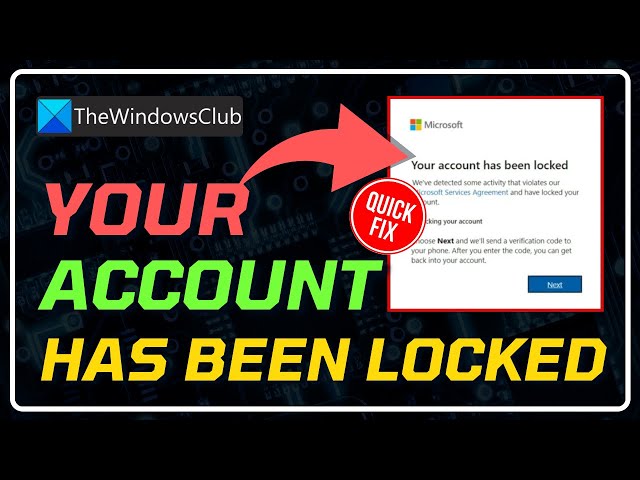
Getting the your account has been locked Microsoft error?
0:04
Here are 4 ways you can fix it.
0:11
This is The Windows Club. Microsoft states that it locks
0:15
a user account when it notices some unusual activity that might violate its terms of use.
0:22
These activities may include sending unsolicited promotional or commercial
0:28
content, sending unwanted or harmful code or software, tricking or spoofing emails, etc.
0:37
However, Microsoft also states that not all accounts are locked for such reasons.
0:44
Here we have shown how to fix this issue. Let’s get started.
0:51
Method No 1: The first thing you can do is unlock
0:56
your Microsoft account with a security code. This applies if you see a ‘Next‘
1:02
button within the error prompt window. Click on the Next button and enter a phone number
1:08
to receive an online security code. You can use any phone number that can receive text messages.
1:16
The number need not be associated with your Microsoft account.
1:19
Then click on the Send code link. You’ll soon receive a security code. Enter the
1:25
access code in the corresponding field. Make sure to enter the code in the message
1:31
body, not in the header. Click on the Submit button to unlock your account.
1:39
Method 2: The error may appear if your ex-employer
1:45
had enabled Office 365 on your personal device. In such a case, after you leave the organization,
1:52
your license is revoked, so you can’t use your work account to access Microsoft
1:58
365 apps on your personal device. However, the error prompt appears if
2:05
the information related to your work account is still available on your
2:10
device (the same applies to a school account). To completely remove this information,
2:13
you must manually completely uninstall Office from your device. You can also use the Microsoft
2:19
Office Uninstaller Tool for this purpose. Once you’ve uninstalled Office, reinstall
2:26
Microsoft 365 on your Windows device. This should resolve the issue and allow
2:33
you to sign in to Microsoft 365 apps without any error prompts.
2:43
Method 3: If you see this error
2:46
while trying to sign in to Microsoft Azure or Microsoft 365, contact the global admin of your
2:52
talent to check if you’re allowed to sign in. If not, request him to reset your password or
3:00
your sign-in status (from allowed to blocked and then back to allowed).
3:01
If you’re the admin, get in touch with the Azure Data Protection team.
3:06
They’ll help you with unlocking your account. If this is your Azure AD account, you may use
3:13
self-service password reset to unblock yourself with no administrator or help desk involvement.
3:20
Method 4: If nothing works,
3:27
contact Microsoft using Global Customer Service
3:30
phone numbers or using the account reinstatement form.
3:35
Once Microsoft receives your information, a ticket will be assigned to you.
3:40
Then a Microsoft customer service representative will get in touch with you via email to give you
3:46
status updates, request more information, or guide you on how to unlock the account.
3:53
So, that’s it. Subscribe to The Windows Club for all
3:57
your tech solutions related to Windows. Thanks for watching.