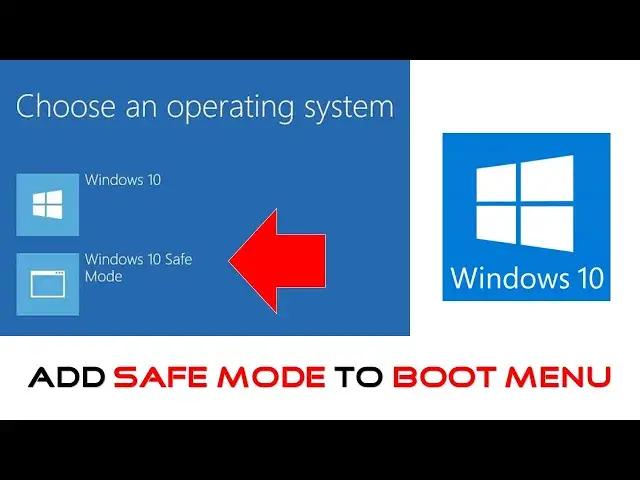

How To Add Safe Mode To Boot Menu in Windows 10 Tutorial
Mar 29, 2024
In this Windows 10 tutorial video, you'll learn how to easily add the Safe Mode option to your Windows 10 Boot Menu. If you frequently need to start Windows in Safe Mode and prefer not to rely on the F8 key, this method is for you. Let's dive into the step-by-step process.
**Steps:**
1. **Open Elevated Command Prompt:**
- Right-click on the Start button.
- Click on "Command Prompt (Admin)."
- Type `BCDEDIT` and press Enter.
2. **Note down the Identifier:**
- Locate the present Identifier under Windows Boot Loader.
3. **Copy the Current Identifier:**
- Copy the current identifier entry to add it to the Windows Boot Loader.
4. **Add Safe Mode Option:**
- Use the command: `BCDEDIT /copy {current} /d "Windows 10 Safe Mode"`
5. **Configure MSCONFIG:**
- Open the Run command (Windows key + R).
Show More Show Less #Software
#Operating Systems