Up next in 10



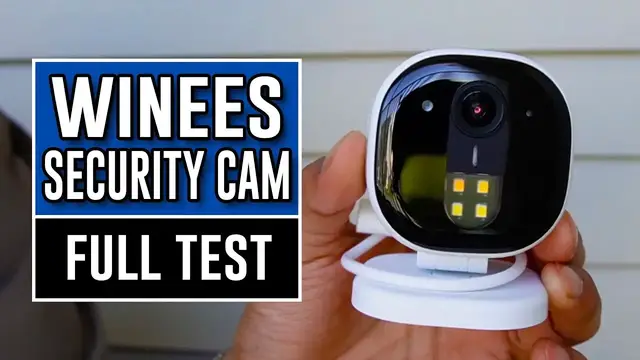
In this video, I check out the Winees M3 Plus Security Camera.
Check it out here:
USA: https://amzn.to/3R2NLTQ
DISCLAIMER: This video and description contains affiliate links, which means that if you click on one of the product links, I’ll receive a small commission. This helps support the channel and allows us to continue to make videos like this. Thank you for the support!
Show More Show Less View Video Transcript
0:00
This is the Winnie's M3 Plus security camera. In this video, I'm going to do a quick unboxing and
0:04
set this up to see how well this works. So this is going to have a lot of different features, starting with the camera quality. It's going to be 2K quad HD. We're going to have color night
0:11
vision, which is going to be nice. Two-way audio, so not only can we hear the person on the other
0:16
end, but we can also go ahead and talk to them. We're going to have 2T, 2R, an auto alarm, active
0:22
zone, human, and pet detection. So first thing is going to be the security camera itself. We're
0:27
also going to have a micro USB cable, a power adapter, a quick start guide, and some mounting
0:31
hardware. So here's a closer look at the camera. And right here, we're going to have the lens and
0:36
right underneath, there's going to be a spotlight, which is going to be real nice, especially for the nighttime. This cable is actually going to be attached to this unit itself. And here's what
0:44
the inside looks like. And on the backside, there's going to be additional information like a QR code
0:48
to scan. And what also looks like to be some threads. So if you want, I guess you can go ahead
0:53
and attach this to like a tripod. But to find the right angle, this does go ahead and move
0:57
So if you want, you can just put it on a flat place or go ahead and attach it to like a wall
1:01
And then here's what the bottom side looks like. There's going to be these two rubberized grips. All right, so I found the perfect location for this camera
1:07
It's going to be right over here. Now, I'm not going to go ahead and screw it in
1:10
but I'm just going to go ahead and use this adhesive instead. So this plastic bit comes right off
1:15
and it can be installed right over here. All right, so I went ahead and cleaned this spot
1:19
So now I can just attach the camera right over here. and give it a good push
1:26
And then this can be connected right over here. And now to hide the wire I just going to put it right in between here And there you can see it turned on There on there gonna be red light so now it time to go ahead and check out the app on my phone all right so i went ahead and downloaded the app and created the
1:41
account and here's what it looks like so let me add device and then look for the camera and now i
1:45
just gotta scan the qr code on the camera itself and this is going to be all the way on top over
1:49
here all right so now it says to plug in the camera and wait a couple of minutes and the green light
1:53
is going to be flashing and yep i checked on top and the green light is flashing and i just put the
1:56
password for the Wi-Fi. Alright so now it says they'll scan the QR code with the
2:01
security camera itself. Alright so here's what the camera looks like now and as
2:08
far as footage goes here I can raise my hand up and as you can tell it kind of
2:12
does take a while so there is gonna be a lag in there and there my hand got raised up and now if I click on to it even more here I can see what's going on
2:20
so I can unmute it so then I can hear myself. Hello? Hello
2:27
And I'll go ahead and mute that and then I could extend the screen or just have it be
2:34
the full screen just like so. Alright so on the phone itself I do get other options like taking a picture, recording and
2:39
the two way talk. Now down over here we're gonna get some cool stuff
2:43
One of it is gonna be mute and unmute but the other things are gonna be. Alright so right here if I press the light it goes in and shines, press again it turns
2:49
off and of course as you saw there is gonna be like about a second of delay and we're
2:53
also gonna have an alarm. Now this is pretty loud. I tested this out before and the only way to shut it off is
2:58
either manually so I press the button again or it automatically shut off after 30 seconds
3:02
which I not going to leave it for 30 seconds So here what it sounds like Turn on And then I turned it off Now all those settings I showed you are also going to be available here
3:15
We have record, snap, speak, alarm, and light. On top of that we're going to have three additional
3:20
things which is going to be SD card, album, and focus. Now there's currently no SD card inside a
3:25
security camera so this isn't really going to work. We can check the album so this is going to be like
3:29
all the videos or all the photos that I took and now let's see what focus does
3:36
So it kind of went ahead and zoomed in on me. Yeah. So it zooms in on the person. So I guess
3:41
that's what focuses in here. Let me see if I move more off to like the left side. Yeah
3:46
it zooms in more. Actually, that's pretty cool. And I even got a notification that said
3:51
person detected. Now let me unfocus again. And now here's the bottom. We're going to get two
3:57
options there's going to be live stream which is what we're currently seeing and we're also going
4:01
to get events so under events this is going to be everything that happened throughout the day
4:06
so from the moment i you know was outside and installed the camera to the moment of me you
4:10
know testing it out kind of like this now i'm going to go ahead and play over some clips so you can see what it sounds and looks like three feet away from the camera so as i back away let's
4:18
see how the audio gets it's going to be very windy so i'm not sure how well it'll capture it
4:23
And here I am back again and of course because I did move a lot I did get the motion
4:35
tension on my phone Now going back to the main menu of the screen here what it looks like so here we can see the front door the living room which is going to be nothing because there no device added in that section and if we want to add other devices from the same company it would just be the plus
4:49
button and here's other stuff they go ahead and have so surveillance lighting and control home
4:53
smart kit security and integration so i guess you can integrate this with alexa google assistant
4:59
smart things or iftt t and now a cool thing about this is we can actually go ahead and just press
5:05
the light and they'll go ahead and turn on so that's like a quick feature we get then we can
5:09
also turn off the camera so here you can see device turned off and we know it's off because there's going to be no light here and now when i go ahead and turn it back on here we see the
5:17
footage here and it's also going to light up green letting us know that the camera is currently
5:21
recording and again here i can turn the light so here let me turn it on and then turn it off so
5:27
overall setup was pretty easy right over here i just used the adhesive and of course if you do want
5:31
like a more permanent solution something that's a little bit more secure you can go ahead and just
5:35
screw it in to the wall to concrete wherever you want. Now using that was pretty easy. I will say
5:40
starting it up it was a little bit slow at first but that's because it did need to go ahead and
5:45
update and after the update it was like a lot quicker. Regardless there is still going to be a
5:49
lag even with the live footage and it also depends on the signal strength of the wi-fi
5:53
So it's currently like the router is one floor above I'm currently outside. There's going to be
5:58
good connection for my phone but that doesn't necessarily mean it'll be like a good connection
6:03
for the camera itself, but it's still good enough that, you know, of course, I'm still able to go
6:08
ahead and see live footage and record the events, and of course, use the two-way talk. But yeah
6:12
that's a quick look at the M3 Plus security camera
#Computers & Electronics
#Camera & Photo Equipment
#Virtual Reality Devices
#Home Alarm & Security Systems
#Video Sharing