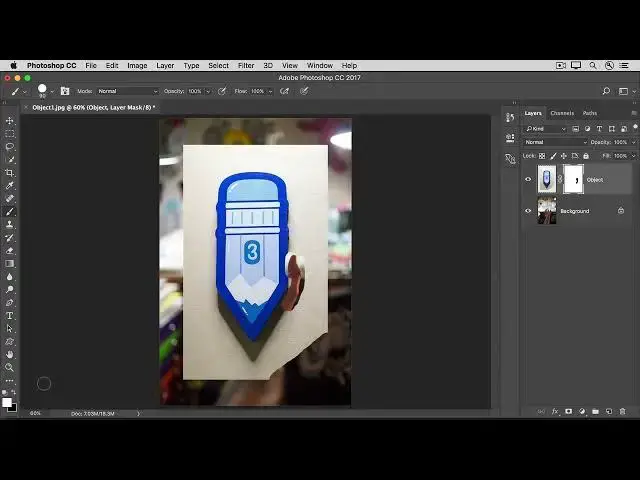

How to use a layer mask to add an object to an image in photoshop 2022
Aug 31, 2024

In this video we will learn how to use a layer mask to add an object to an image in photoshop 2022 - www.easy-tutorials.com
What you learned: To add an object to an image using a layer mask
Start with two layers. The image with the object you want to add should be on the top layer
and the main image should be the bottom layer.
In the Layers panel, make sure the top layer (object you want to add) is selected.
At the bottom of the Layers panel, click the Add layer mask icon. This adds a white rectangle or thumbnail that is linked to your top layer. This white rectangle is the layer mask. The layer mask determines what part of the linked layer is visible and what part is hidden. White on the mask represents areas that are visible. Black on the mask represents areas that are hidden.
In the Tools panel, select the Brush tool. With the mask selected (by clicking on the mask thumbnail in the Layers panel), paint with black or white to make areas of the linked layer hidden or visible.
Show More Show Less