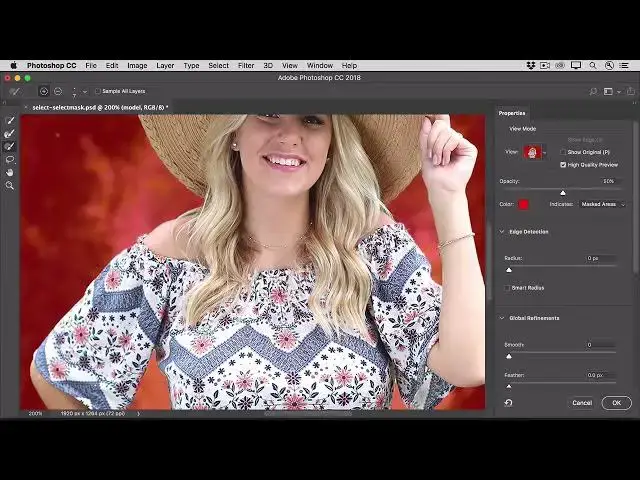

How to make a selection more accurate in the Select and Mask workspace in Photoshop 2022
Aug 31, 2024

In this video we will learn How to make a selection more accurate in the Select and Mask workspace in Photoshop 2022 - www.easy-tutorials.com
What you learned: Fine-tune a selection in the Select and Mask workspace
Launch the Select and Mask workspace
Make an initial selection with any of the selection tools. Open the Select and Mask workspace by choosing Select / Select and Mask, or by clicking Select and Mask in the Options bar for any of the selection tools.
Tip: Alternatively, you can open the Select and Mask workspace first, and use the selection tools there to make your initial selection.
Choose a view
In the Select and Mask workspace, go to the View menu and choose a view mode.
For example, if you choose the Overlay view, selected areas appear transparent and nonselected areas are highlighted in red. You can drag the Transparency slider to control the opacity of the red overlay.
Use Select and Mask tools
Use the tools in the panel on the left, with their Add to selection and Subtract from selection options, to clean up the selection.
Use the Quick Selection tool to select automatically based on similar tones and image edges.
Use the Refine Edge Brush tool for more precise selection of soft edges, like hair or fur.
Show More Show Less