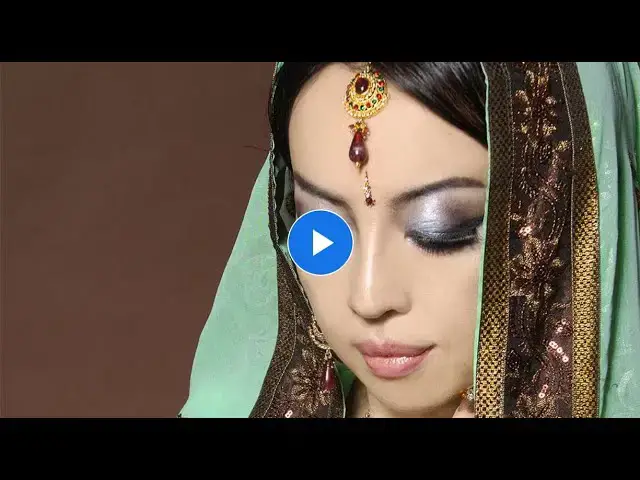

How to Increase the intensity of colors in a photo in photoshop
Aug 31, 2024

In this video we will learn how to increase the intensity of colors in a photo in photoshop 2022 - www.easy-tutorials.com
What you learned: Increase the intensity of colors in a photo
Try increasing the vibrance of muted colors
Click the Create new adjustment layer button at the bottom of the Layers panel. Choose Vibrance in the pop-up menu to create a Vibrance adjustment layer.
In the Properties panel, drag the Vibrance slider to the right to about +80. This increases the intensity of the colors that need it most, without oversaturating the skin tones.
Click the Eye icon on the Vibrance adjustment layer to hide this adjustment so you can try some Hue/Saturation adjustments instead.
Add saturation to greens throughout the photo
Click the Create new adjustment layer button at the bottom of the Layers panel and choose Hue/Saturation to create a Hue/Saturation adjustment layer.
In the Properties panel, click the Targeted Adjustment Tool icon. Then click a green area of the scarf and drag the Saturation slider to the right to about +60. This adds saturation to the greens only, and it affects the greens not only where you clicked, but throughout the photo.
Add extra punch to some of the gold embellishments
Click the Create new adjustment layer button again to create another Hue/Saturation layer.
In the Properties panel, click Master and choose Yellows in the drop-down menu. Drag the Saturation slider to the right to about +60 to add saturation to only the yellows throughout the photo.
Make sure the layer mask on this Hue/Saturation adjustment layer is highlighted with a white border.
Show More Show Less