Up next in 10


Sign up for S25 Edge, Z Flip 7, Z Fold 7 Mystery boxes - https://sammyguru.com/preorder/
Check out Josh's One UI 8 wallpaper pack - https://bit.ly/4jgkfGi
Follow our Facebook Page: https://www.facebook.com/profile.php?id=100082984789870
#samsung #update #galaxy
Check out Josh's One UI 8 wallpaper pack - https://bit.ly/4jgkfGi
SammyGuru Rewards is Coming soon - https://sammyguru.com/verification/
Check out more on these updates at SammyGuru - https://sammyguru.com/breaking-major-leaks-gives-us-an-early-look-at-one-ui-8-update/
Check out the SammyGuru podcast: https://sammyguru.com/podcast/
Follow me on Twitter: https://twitter.com/jspring86az
Follow our Instagram: https://www.instagram.com/jspring86az/
Notification Shortcuts: https://bit.ly/3UBTekU
Shortcut Maker: https://bit.ly/40jVIXd
Lamicall Desktop stand: https://amzn.to/3TYQzkQ (USE CODE LAMICALLYT3 TO SAVE!)
Show More Show Less View Video Transcript
0:00
what's up YouTube jeff back from Sammy
0:02
Guru here and today another exciting
0:03
Samsung video for you guys today we have
0:05
one of our very popular multiple update
0:07
videos there's been a bunch of Samsung
0:09
updates lately there's been too many for
0:11
me to keep up with so I'm kind of
0:12
combining some of the smaller ones into
0:13
one video today we're going to talk
0:14
about three updates so we've got an
0:16
update to Samsung keyboard an update to
0:18
the Neshot application inside Goodlock
0:21
uh and then one other small update to
0:24
Bixby which I know not everybody loves
0:26
Bixby but Bixby's hanging around on
0:27
Samsung phones and it got an update with
0:29
a few new features as well so we're
0:31
going to get into those before we get
0:32
started make sure you guys check out our
0:33
website samiggur.com we cover all these
0:35
updates in real time as they get pushed
0:37
out even if I'm not able to make a video
0:39
dedicated to an update it will always be
0:41
covered on the website so you don't have
0:43
to worry about that bookmark it we have
0:44
a full writing team covering up to 20
0:46
articles a day on everything you need to
0:48
know about Samsung and not just phones
0:49
but also TVs sound bars everything
0:52
Samsung makes if you want to get in on
0:54
our mystery box program tap on the
0:56
orange banner at the top you get a free
0:57
case screen protector cleaning kit
0:59
desktop phone stand with your Samsung
1:00
pre-order we've got the S25 Edge ZFold 7
1:03
Z Flip 7 available right now tap on the
1:05
phone you're interested in go ahead and
1:07
put in your phone number email or both
1:09
and all you have to do is use our
1:10
Samsung affiliate link to order on
1:11
launch day we cover all the shipping
1:13
costs everything else for you you don't
1:15
have to worry about any of that uh we
1:16
take care of all of that we use the
1:18
affiliate revenue to pay for the program
1:20
the shipping and also the items that go
1:21
in the box really appreciate you guys
1:23
and we love to give back to the
1:24
community so check that if you're
1:26
interested it's in the pin comment and
1:27
description below all right so let's get
1:29
into these three updates they're all
1:31
very kind of small but they've got some
1:33
interesting features that they're worth
1:34
looking at let's go into that good lock
1:36
update first which is Neshot if you guys
1:38
aren't familiar with Neshot it's a good
1:41
lock module that allows you to get some
1:42
extra functionality for your screenshots
1:44
and screen recording the interesting
1:46
thing about this update is I actually
1:47
got the newest version um but it doesn't
1:49
reflect as the newest version inside my
1:52
uh update date inside Galaxy Store which
1:54
is pretty common that happens with some
1:56
updates the newest version is
1:58
2.3.02 which adds the Galaxy to share
2:01
functionality which we still don't have
2:02
in the US for those of you who don't
2:04
know Galaxy to share is a module
2:05
available in South Korea for good lock
2:07
that lets you share your good lock
2:09
settings with other people you can
2:11
export a file they can import the
2:12
settings you're using and then show
2:14
selected color and color selection menu
2:16
as text is the other new feature so if
2:19
we go into NSHOT here what you'll see is
2:22
you basically got disable crop snapping
2:24
when editing you can turn this on or off
2:26
that's one of the options add a delete
2:28
button to the toolbar so you can delete
2:30
incorrectly captured screenshot
2:31
immediately so what that means is when
2:33
you take a screenshot down here you'll
2:35
now have this little trash option which
2:37
will let you delete it that's one of the
2:38
biggest selling points of Nice Shot in
2:40
my opinion though it's very simple do
2:42
not disturb during screen recording
2:44
enable do not disturb when you're screen
2:45
recording this is very useful um for
2:49
someone like me in particular who makes
2:51
a lot of tutorial type videos um if
2:54
you're not someone who makes a lot of
2:55
tutorial type videos then this might not
2:57
be you know something that you really
2:58
care too much about but it is very
3:01
useful if you are someone like me who
3:02
makes a lot of tutorials now the new
3:04
option here actually has to do with the
3:05
selfie video options here when you do a
3:07
selfie video background you can make the
3:09
background color transparent and
3:11
autodetect background color or you can
3:14
choose to make the color transparent
3:16
either green blue you can switch between
3:18
these two and what they've done now is
3:20
they've added the text here so you can
3:22
actually see the name of the color i
3:23
really have no idea why they did this
3:25
because obviously the colors are there
3:26
unless maybe it's for accessibility
3:28
reasons and also the color detection
3:30
sensitivity means you can turn up or
3:33
down you know how much green how green
3:36
does it have to be in order for it to be
3:37
transparent anyway that's what's new
3:39
here with Nice Shot not a massive update
3:41
but still something you'll want to know
3:43
about and if you didn't know about this
3:44
module before hopefully now you try it
3:46
out and use it because it is very
3:47
helpful if for nothing else than to have
3:49
this delete option for screenshots that
3:52
you actually don't want to keep the next
3:53
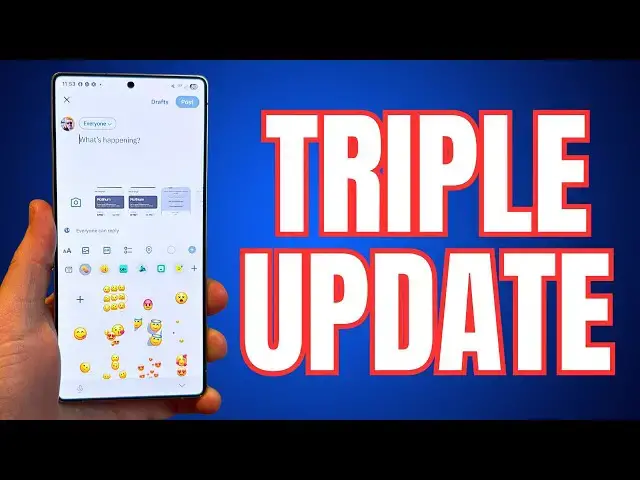
update rolled out for Samsung keyboard
3:56
and you can actually go into the Galaxy
3:58
Store and take a look at this one this
3:59
one's also fairly small but you should
4:01
be able to find it directly inside the
4:03
Galaxy store it is rolling out here at
4:04
least in the US the version of Samsung
4:07
keyboard rol started rolling out April
4:08
24th it's a very sizable update in terms
4:11
of actual size 114.71 megabytes and I
4:14
think I know the reason i'll talk about
4:15
that in a second version
4:17
5.9.12.11 if you look at the version uh
4:20
change log it just says sticker update
4:22
categories when the keyboard have been
4:23
streamlined and organized for easier
4:24
access now I'll be honest with you when
4:26
I went in here and I looked at the
4:28
update I don't actually see any
4:29
streamlining so if you look here the
4:31
emojis and stickers and all this various
4:33
stuff there doesn't really appear to be
4:35
anything that's been streamlined it
4:36
looks exactly the same as it did before
4:38
the only thing that looks to be new is
4:40
that they actually added this new
4:42
category which is this Earth Day
4:44
stickers you see all these various ones
4:46
about sustainability and zero waste and
4:49
preserving the ocean these were added
4:51
for Earth Day i think they were supposed
4:52
to be added on Earth Day although it
4:54
didn't really work out cuz I actually
4:55
got this update like a week later but
4:58
otherwise I don't really see anything
4:59
else new in terms of the additions and
5:02
all that stuff they just added a few
5:04
more sticker options and they added that
5:06
Earth Day pack i don't think there's
5:08
really anything that's been changed in
5:11
terms of how the emojis are organized or
5:13
any of the tabs create your own sticker
5:16
with Galaxy Eye you guys have to let me
5:18
know but I didn't really see anything
5:20
changed i don't see anything change in
5:21
terms over here either everything is
5:24
pretty much you know the edit options
5:26
you can move them up and down like you
5:27
could before so there might be some bug
5:29
fixes as well but it looks like they
5:31
added a bunch of stickers that might be
5:32
why the update was a little bit larger
5:34
even though it really doesn't include
5:35
any new massive features and maybe not
5:38
any crazy functionality improvements
5:40
either the final update is an update to
5:42
Bixby and uh Bixby got a couple of new
5:44
features as well we can also check this
5:46
really quickly in the Galaxy Store of
5:49
course Bixby Wakeup also got the update
5:51
uh as well cuz it comes along bundled
5:53
with it so whenever you get a Bixby
5:55
update you're going to see an update to
5:56
the Bixby Wakeup app as well this came
5:59
out on April 23rd version
6:02
3.7.12.18 84.84 megabytes and uh what's
6:06
actually new here is if you open the
6:07
Bixby app go into notices it tells you
6:10
here for the April update what you've
6:12
got here is easier conversations with
6:13
the side button simply long press and
6:15
release the side button you don't have
6:16
to keep holding it anymore to talk to
6:18
Bixby of course for most of you who have
6:20
newer phones 1 UI7 if you press it down
6:22
now by default you don't get Bixby
6:24
anymore you get Gemini so in order to
6:27
change that you would actually have to
6:28
go into your side settings and you'd
6:30
have to go into the side button settings
6:32
you have to go back in here and change
6:33
it to Bixby but if you do then you no
6:35
longer have to long press it and hold it
6:38
you can long press and let it go you can
6:40
still talk to Bixby conversationally the
6:42
other update and addition is you can
6:44
talk through Bixby through the app icon
6:46
now when you long press the Bixby icon
6:49
one of the shortcuts is actually to say
6:52
your command instead of just typing a
6:53
command so you can say this hey Bixby
6:56
find the settings on my phone that are
6:57
related to power saving
7:01
and then you know it does a great job
7:03
set AI saving mode on Smart Things
7:05
Energy to use that feature of course
7:07
I've got other devices in here that go
7:09
off in the background with Bixby so it's
7:12
trying to find a power saving mode for
7:13
AI energy mode i guess it thinks that
7:15
I'm talking about setting one of my
7:17
speakers or something so yes I know
7:19
Bixby is not everyone's favorite in this
7:21
case it didn't quite do exactly what I
7:23
wanted but it is great for ondevice
7:25
stuff in general just perhaps not in
7:27
this particular example during a video
7:29
of course anyway hope you guys enjoyed
7:31
the video three updates you may want to
7:33
grab particularly that Nyhot update and
7:35
keyboard update probably things that
7:36
could prove very useful to you hope you
7:38
guys enjoyed the video make sure you
7:39
check out samigguru.com stay up to date
7:41
with all the latest Samsung updates and
7:43
I'll see you guys in the next one thanks
7:44
so much for watching
Science