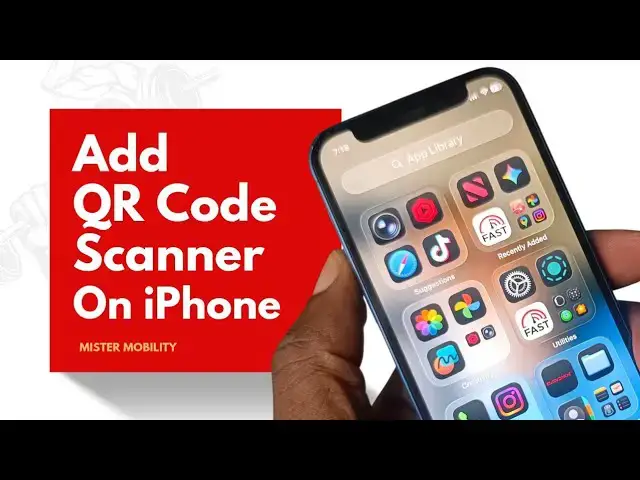
0:08
The most common way to scan a QR code
0:10
with your iPhone is to use the camera
0:13
app. And how does that work? You simply
0:16
launch the app, point it at the QR code,
0:19
and and then you you tap on the link and
0:23
it opens. But there is another easy way.
0:26
It requires a bit of a setup in the
0:28
beginning, but once you've set it up,
0:30
you can use it easily. And that is by
0:32
adding a code scanner to your control
0:36
center so that it's here. And all you
0:38
have to do is open your control center,
0:40
tap on that scanner, and the QR code is
0:43
scanned. But like I said, it needs to be
0:46
set up first. How do you do that? The
0:49
first thing you do, open your control
0:51
center. You see this plus button at the
1:01
and if you look here you will see scan
1:04
code. So if you tap on that it has been
1:08
added here. That's it.
1:11
It's now there permanently.
1:14
Anytime you need to scan a code what do
1:16
you do? Pull down your control center.
1:19
Tap on that and point it.
1:26
Scanned open. You don't even have to tap
1:31
That's it. By adding a code scanner
1:35
shortcut to your control center, you can
1:37
scan QR codes quite conveniently and
1:41
quite easily. Thank you for watching
1:44
this video. Please do like it. Please do
1:47
share it, follow my channel, turn on
1:49
your notifications so that when I
1:51
publish more videos, you get notified
1:53
immediately. I'll see you in the next