Up next in 10


Read more: https://mobilityarena.com/how-to-use-ai-to-create-a-video-from-a-photo/
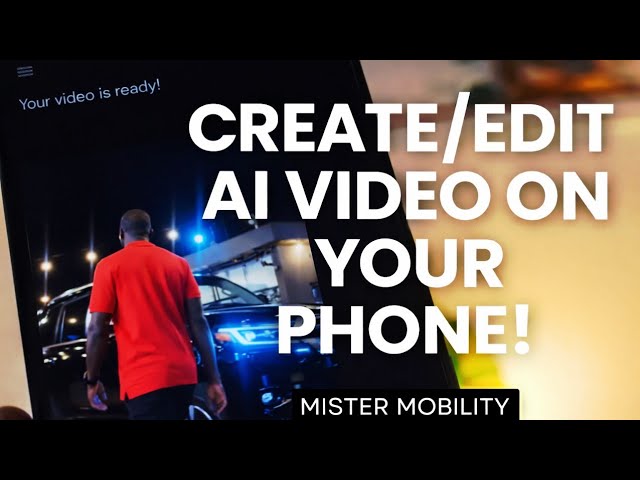
In this video, I show you how to do AI video editing on mobile, be it iPhone or Android (Samsung, Google Pixel, Motorola, etc) using the Gemini app. Specifically, I demonstrate how to create an AI video from a photo. I also provide a list of other apps that do video generation and editing.
📱 Works on iPhone and Android
✅ Beginner-friendly
🇺🇸 Apps available in the U.S., Canada, U.K., and other countries around the world
🔔 Subscribe for weekly mobile how-to videos
#aivideo #aivideoediting #aivideogenerator #aivideocreation
Show More Show Less View Video Transcript
0:00
This 6second clip was created with
0:03
Gemini AI. AI is the buzz everywhere
0:07
these days. People are interested in how
0:09
they can use AI to be creative, to
0:12
achieve their productivity goals, and to
0:15
enhance the work that they do in all
0:17
facets of life. So, it really doesn't
0:20
matter what your field is, you can put
0:22
AI to good use to get some interesting
0:24
results. In this video, we're talking
0:25
about using AI to edit videos. And I'm
0:28
specifically going to go with Gemini.
0:30
Gemini is Google's AI. There it is. It's
0:36
got a base level that is free to use.
0:38
And then it has some paid plans as well.
0:42
If you need more volume, if you need
0:44
more leeway to work, then you can go for
0:47
a paid plan. But the free version does a
0:52
fairly good job. I suggest that you
0:54
start with that. You can practice with
0:56
that. fine-tune your skills, hone your
0:59
skills, get better, and then when you
1:01
get to the point where you need more
1:03
resources, where you need to create more
1:05
videos, more detailed effects, you can
1:08
switch to one of the paid plans. So,
1:10
let's look at Gemini.
1:19
Now, I asked Gemini a clear question.
1:22
Can you edit videos? and if so, what are
1:25
the things you can do in video editing?
1:28
And it responded to me that while it's
1:30
not a traditional editor like Adobe
1:33
Premiere, it can generate highquality
1:35
video clips from scratch and perform
1:37
specific generative edits using the
1:40
user's instructions. That means you can
1:42
type your prompt of the scene, the
1:45
effect you want to create, and Gemini
1:48
will generate an 8-second video based on
1:50
that prompt. Of course, as you go for a
1:52
paid plan, you can do more than 8
1:55
seconds, you can do more videos per day,
1:58
etc., etc. You can get more advanced
2:00
effect and all that. I can upload a
2:02
photo and then Gemini will animate it or
2:05
use it as a reference for the style and
2:07
characters of a new video. It can do
2:10
cinematic controls. So, you can ask it
2:13
to slow pan, do an aerial shot or
2:16
cinematic zoom and lighting styles, blah
2:19
blah blah. Native audio. Gemini can
2:22
generate realistic sound effects,
2:23
ambient background noise, or even
2:25
dialogue to match the video. What of
2:27
generative editing? Once a video is
2:29
generated, you can refine it by asking
2:31
for specific changes. Modify scenes so
2:34
you can change the environment like
2:36
turning a sunny day into a rainy one.
2:38
Add, remove, or replace specific objects
2:40
or characters in the scene. Extend
2:43
existing clips to lengthen the story or
2:45
create seamless transitions.
2:47
take an existing concept and apply a new
2:49
artistic style like turning a realistic
2:51
shot into an animation. So you can
2:54
create animations out of this, you know,
2:56
cartoonish kind of things. If you upload
2:58
an existing video up to an hour long, I
3:01
can't cut it like a traditional editor.
3:03
So Gemini can't do cuts and all of that,
3:06
but it can analyze and summarize and
3:08
tell you exactly what is happening at
3:10
specific timestamps. It can pull text
3:13
and dialogue from the video. It can
3:15
answer complex questions about the
3:16
content or context of the footage. I
3:20
have a photo of myself here and I gave
3:24
Gemini a prompt. It's a very simple
3:26
prompt. Take note, the more detailed
3:28
your prompt is, the better the results
3:29
you get. But even with a simple and
3:32
basic prompt like this, Gemini got me
3:35
some interesting results. Use this image
3:38
generate a video of me getting up,
3:40
putting the phone in my pocket and
3:42
walking confidently to my black Toyota
3:44
Prao 2024 model. You see, I had to
3:47
specify the color, the make of the car.
3:50
If not, Gemini will probably just
3:52
generate an oddlooking vehicle and put
3:54
it there and it wouldn't look realistic.
3:57
I could also have given more specific
4:01
instructions. Uh after putting the phone
4:03
in my pocket, maybe I I put both my
4:06
hands in my pocket and work like a boss.
4:08
Let's see the results that Gemini got
4:10
for me. And my video is ready. And here
4:13
it is.
4:16
Not bad for that basic prompt, right?
4:21
Not bad at all. That's the video Gemini
4:23
created. What video tools should you
4:26
explore? I have a list for you. Try
4:29
Google's view/flow,
4:32
Open AI, Sora, Adobe Firefly, Capcot,
4:36
Davinci Resolve, Adobe Premiere, Picture
4:39
AI, Filmora AI, Flex Clip. There are a
4:43
lot more others out there. As always,
4:46
thanks for watching my videos. Do like
4:48
it if this has been helpful and do
4:50
follow my channel. I have lots more
4:53
useful content coming your way.
#Science