0:00
friends welcome to Solid Works tutorial
0:02
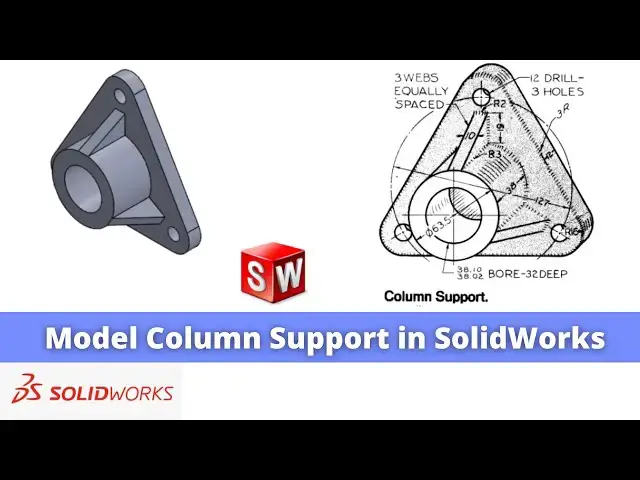
and in this tutorial we will model this
0:04
column support as you can see that I
0:07
have already model it and I will show
0:10
you from the scratch how you can do the
0:12
same in solid works so I will close this
0:15
file and create a new file you can also
0:18
visit my website macn nexus.com and you
0:22
can visit this solid works tutorials tab
0:25
where I have written so many tutorials
0:29
on solid Works where you can follow the
0:32
stepbystep guide to model the
0:35
parts if you like my method of teaching
0:38
then you can also support me on kofi.com
0:41
you can buy me a cup of coffee your
0:45
small support will help these channels
0:47
to grow and it will motivate me to
0:50
create more awesome content on solid
0:53
works so let's come back to our
0:58
tutorial here I have a created a new
1:00
file and I will uh select the front
1:05
plane and click on the sketch and the
1:10
first we will uh draw the construction
1:12
geometry which is uh this
1:16
diameter we will make it
1:19
construction and uh give it a dimension
1:26
63.5 and now our next step is to to
1:30
create a rough rectangle sorry
1:44
add vertical relation to this
1:55
here we will create a three fillet of
2:01
so we will uh click on the fet tool and
2:09
R16 and create a three
2:26
127 so we will create a circle and uh
2:33
construction select it and make it
2:36
construction and give it a diameter of
2:49
now this uh PCD and this uh Arc outer
2:54
radius Center is the same
2:57
so we will select this point and this
3:00
Arc and add the coincidence constraint
3:03
select this point and this construction
3:07
diameter and add the coincidence
3:09
constraint now we will select this and
3:12
this and add the horizontal
3:18
now we will create a construction
3:28
geometry and and here also we will make
3:31
a coincidence relation with a
3:36
diameter and now we will create a
3:54
this and we will press the control key
4:04
construction and here angle will be the
4:07
120° if we divide the
4:10
360 so we will click on uh Dimension and
4:20
120 so our uh sketch is fully constraint
4:26
it and we will uh give the EXT exion of
4:30
a 12 mm we will select it click on
4:42
okay and now the next step is to
4:48
create this uh boss so we will select
4:52
the ph and click on the sketch we will
4:55
switch to the front plane and click on
5:03
in fact we can uh project the
5:09
our diameter so we will click on show
5:12
sketch and we will select it and click
5:15
on convert entities and then we
5:18
will hide it now the inner one is a 38.1
5:39
now we will click on extrude and give
5:50
okay now we will uh create this
5:55
rip so for this uh we will select this
5:58
uh face and and click on the sketch now
6:02
we will switch to the front
6:04
view and here we will uh project this
6:08
outer diameter and click on convert
6:11
entities and we will create a
6:17
rectangle and we will click on the trim
6:23
and we will also trim
6:40
and we will make it Center so we will
6:44
it and uh click on Smart
6:47
Dimension select this and this and add
6:53
5mm now height is of 19 mm
7:01
19 mm now we will come out of the
7:05
sketch now we will select the sketch
7:19
surface and now we will select this pH
7:24
and create a sketch to remove the
7:28
material select it it and click on the
7:40
now we have created the fully constraint
7:44
profile now we will click on extrude
7:57
surface so we have a created Ed this rib
8:00
now we will use the polar pattern to
8:02
pattern it so we will click on the
8:08
pattern and we will select this access
8:15
and here on the direction we will select
8:18
the surface and here we want three and
8:22
here on the features and
8:25
faces so we will click on this extrude
8:33
cut both we want to pattern it click on
8:39
okay now we will do our next
8:44
step which is creating a hole of a 12 mm
8:50
drill Tre so we will select the face and
8:53
click on whole wizard
8:59
click on front plane now here drill
9:04
drill size is of 12 now we will go to
9:07
the position and we will snip to the
9:10
outer radius so we will get the center
9:13
similarly we will snip to the outer
9:15
radius and we will get the
9:22
center similarly third one
9:29
so we have uh created the three points
9:33
for this hold and we will say
9:39
okay now press the control 7 for
9:42
isometric view so we can add the fillet
9:46
to this part like a fillet of R2 and uh
9:50
we have completed this column support
9:53
model in solid works this tutorial is
9:56
designed for the beginner user of a
9:57
solid works those who have a just just
9:59
started learning the solid works if you
10:01
like this tutorial then please like
10:03
subscribe and share my channel and also
10:05
support me on coffee.com where you can
10:08
buy me a cup of coffee your small
10:10
support will help these channels to grow
10:12
and it will motivate me to create more
10:14
awesome content on solid works thank you
10:17
for watching and thank you for your