0:00
In this video, I'm going to show you how
0:02
In this video, I'm going to show you how
0:02
In this video, I'm going to show you how you can apply background pattern to a
0:05
you can apply background pattern to a
0:05
you can apply background pattern to a cell or group of cells in a table in
0:08
cell or group of cells in a table in
0:08
cell or group of cells in a table in Microsoft Word. If you find this video
0:10
Microsoft Word. If you find this video
0:10
Microsoft Word. If you find this video helpful, please like and subscribe to
0:12
helpful, please like and subscribe to
0:12
helpful, please like and subscribe to this channel. Now, to get started, go
0:14
this channel. Now, to get started, go
0:14
this channel. Now, to get started, go ahead and first select the cells that
0:15
ahead and first select the cells that
0:15
ahead and first select the cells that you wish to apply the background
0:17
you wish to apply the background
0:17
you wish to apply the background pattern. For my case, I wish to apply on
0:20
pattern. For my case, I wish to apply on
0:20
pattern. For my case, I wish to apply on these cells. Once you're done, now go
0:22
these cells. Once you're done, now go
0:22
these cells. Once you're done, now go ahead and click on table design. And
0:25
ahead and click on table design. And
0:25
ahead and click on table design. And this will open design options for your
0:28
this will open design options for your
0:28
this will open design options for your table. Go ahead and look for borders and
0:30
table. Go ahead and look for borders and
0:30
table. Go ahead and look for borders and then click on this drop-own arrow and
0:33
then click on this drop-own arrow and
0:33
then click on this drop-own arrow and under this go ahead and choose borders
0:36
under this go ahead and choose borders
0:36
under this go ahead and choose borders and shading. If you click on this now
0:38
and shading. If you click on this now
0:38
and shading. If you click on this now you'll get this dialog box go ahead and
0:40
you'll get this dialog box go ahead and
0:40
you'll get this dialog box go ahead and click on shadings. Enter borders and
0:44
click on shadings. Enter borders and
0:44
click on shadings. Enter borders and shadings. And then here it's time to
0:46
shadings. And then here it's time to
0:46
shadings. And then here it's time to apply our patterns. So under our pattern
0:49
apply our patterns. So under our pattern
0:49
apply our patterns. So under our pattern go ahead and choose the style of the
0:51
go ahead and choose the style of the
0:51
go ahead and choose the style of the pattern you wish by clicking on this
0:53
pattern you wish by clicking on this
0:53
pattern you wish by clicking on this drop-own arrow. And if you scroll down
0:55
drop-own arrow. And if you scroll down
0:55
drop-own arrow. And if you scroll down you can see we have quite a number of
0:57
you can see we have quite a number of
0:57
you can see we have quite a number of patterns. you can choose. Go ahead and
1:00
patterns. you can choose. Go ahead and
1:00
patterns. you can choose. Go ahead and choose your preferred pattern. For
1:02
choose your preferred pattern. For
1:02
choose your preferred pattern. For instance, I'll choose this. And then
1:04
instance, I'll choose this. And then
1:04
instance, I'll choose this. And then once you're done, you can go ahead and
1:05
once you're done, you can go ahead and
1:05
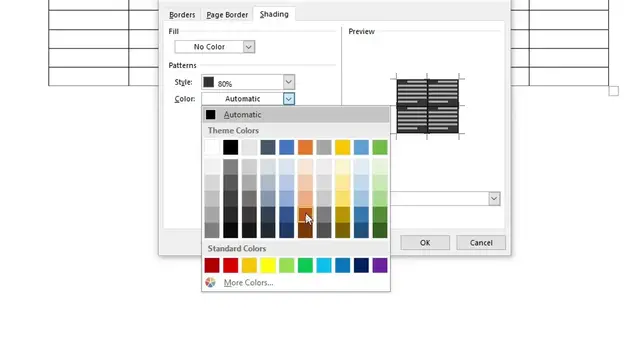
once you're done, you can go ahead and also choose the color. So, I'll click on
1:08
also choose the color. So, I'll click on
1:08
also choose the color. So, I'll click on color. And then I'll select my color
1:11
color. And then I'll select my color
1:11
color. And then I'll select my color here. And then once you're done, now go
1:13
here. And then once you're done, now go
1:13
here. And then once you're done, now go ahead and click on okay. Once you're
1:15
ahead and click on okay. Once you're
1:15
ahead and click on okay. Once you're done, now if you click outside, you can
1:17
done, now if you click outside, you can
1:17
done, now if you click outside, you can see the pattern or the background
1:19
see the pattern or the background
1:19
see the pattern or the background pattern for the cells above have been
1:22
pattern for the cells above have been
1:22
pattern for the cells above have been applied. So that's how you can apply
1:24
applied. So that's how you can apply
1:24
applied. So that's how you can apply background patterns on a cell or a
1:27
background patterns on a cell or a
1:27
background patterns on a cell or a number of cells in Microsoft Word
1:29
number of cells in Microsoft Word
1:29
number of cells in Microsoft Word tables. If you have any other question,
1:31
tables. If you have any other question,
1:31
tables. If you have any other question, kindly let me know in the comment
1:32
kindly let me know in the comment
1:32
kindly let me know in the comment section. Otherwise, thanks for watching
1:34
section. Otherwise, thanks for watching
1:34
section. Otherwise, thanks for watching and let's meet in the next