Up next in 10

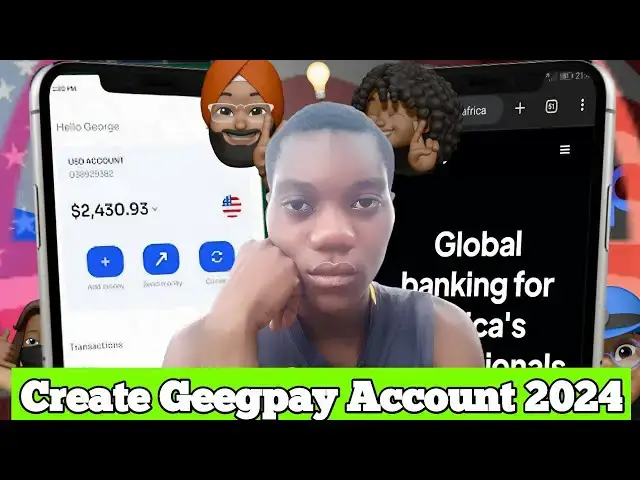
Alot of Africans work online as a full time or part time workers online but are unable to receive payments from clients because they don't have a foreign bank account to receive the money. Resulting in losing of clients. That's why in today's video, I'm going to show you How to Create and Verify a Geegpay Account 2024 | Foreign Dollar Bank Account step by step
Link: https://direct-link.net/1195963/creating-a-geepay-account
ABOUT OUR CHANNEL
Stay ahead of the tech game with KD Tech Hub. We cover Tech, Apps, Reviews, Online money, Security, Cryptocurrency, How to topics. Join my community now. #kdtechhub
Check out our channel here:
https://youtube.com/@KDTechHub
Don't forget to subscribe!
CHECK OUT OUR OTHER VIDEOS
https://youtu.be/1AV5Hy-P-y8?si=-Cryc3oWRuGsh-bM
https://youtu.be/ibcI-bNtYwI?si=6iIZn7ZPMAZqaiW8
https://youtu.be/DW0veF4fNBg?si=DJO3KN4vxqFdT336
We sell these excellent products. Check them out here:
https://selar.co/m/kdtechhub
FIND US AT
Show More Show Less View Video Transcript
0:00
um hello guys welcome back to another
0:03
video again and today's video I'm going
0:05
to be showing you how to create uh a
0:08
foreign bank account which you can use
0:11
for receiving payment sending payment
0:14
worldwide as you all know uh when you a
0:18
type of person who works
0:21
online uh do freelancing work and other
0:25
types of online jobs you probably need a
0:29
uh US bank account to receive your
0:31
payment to them and without a US payment
0:34
bank account you not be able to receive
0:36
any payment and then send any
0:40
payment so that for in this video I'm
0:42
going to be showing you a step by step
0:44
guide on how to create uh one foreign
0:49
bank account for totally free yeah
0:52
totally free so without wasting much of
0:55
your time you head on to this website
0:57
called uh G gp. Africa I'll be leaving
1:01
the link in the description or the
1:04
comment in the Ping comment of this
1:06
video so before I go ahead our channel
1:09
is heading towards 1,000 subscribers so
1:12
help us achieve that goal make sure to
1:14
subscribe to the Channel with the
1:15
notification but turn on and then like
1:18
the video if you find it interesting and
1:20
then share with your friends and family
1:22
to also know how to do this very well so
1:26
without wasting much of your time let's
1:28
get started and as you can see right
1:30
here you have uh an app for this website
1:33
on the Apple App Store and then on
1:35
Google Play Store you can go ahead and
1:37
then download it so over here you have
1:41
to uh go to the sidebar over here and
1:44
then click on create an
1:50
account and then on the next page they
1:53
are asking us how you would like to
1:55
create our GP account select I am a
1:59
freelancer over here and then on the
2:01
drop down over here you select your
2:03
country I'm living in Ghana so I'm going
2:05
to be selecting Ghana as my country and
2:08
then scroll down to the bottom and click
2:10
on
2:13
continue so on the next page we are
2:15
going to click in
2:17
our uh type in our Gmail over here and
2:21
then the referral code I'm going to be
2:24
dropping in my referral code and then
2:27
the invite l in the comment section or
2:29
the description video make sure to use
2:31
it to show some love and appreciation
2:34
thank you so when you are done you click
2:36
on
2:37
continue and then over here they have
2:39
sent out a certain code to our email so
2:42
let's go to the
2:44
email and
2:47
then you refresh okay the email is over
2:51
here and then we copy the code from the
2:56
email and then you go back to the
2:59
website and then p place it in the Box
3:00
over
3:03
here and now on this session we are
3:07
supposed to enter our phone number over
3:09
here so I'm going to be entering my
3:11
phone number which is 059 45
3:14
16288 yeah this is my phone number if
3:17
you need any help you can contact me but
3:21
make sure you don't spam this number so
3:24
when you done with that you click on
3:27
continue and then it will take take us
3:30
to this page where they are going to
3:32
send us an SMS of a verification code so
3:36
you enter the verification code over
3:38
[Music]
3:43
here just
3:45
triple2 and then it to process
3:48
automatically and on this page you have
3:50
to enter your password over here
3:57
[Music]
3:59
then when you are done entering the
4:01
password you click on the continue
4:03
button over
4:05
here and then you to read direct us back
4:08
to another page
4:12
again for us to continue all the
4:15
process make sure you follow everything
4:18
you I'm doing over here and if you by
4:21
far come to this part of the video make
4:23
sure to subscribe to the channel like
4:26
the video and then share it
4:29
[Music]
4:35
so when you're done with the password
4:37
you to take you to this page where uh
4:41
they will tell you the document that you
4:44
need to move on with this uh session so
4:48
over here they asking also for recent
4:51
utility bill or bank statement that is
4:54
at least which is within the last 3
4:58
months and then I'll valid
5:00
document uh approve ID so when you have
5:04
all this thing ready at time then you
5:06
click on start on
5:09
boarding so it will redirect us back
5:14
to uh another page again and here they
5:18
say you are almost there and what do you
5:22
want to use your gig pay for so over
5:25
here you are going to select whatever
5:28
that you want to use your
5:30
uh the account for so I'm going to
5:33
select gu salary early receive payment
5:36
from Market spit create UHD card for
5:39
spending receive f as a
5:42
Creator uh pay scool I'm going to select
5:45
everything over here and then click on
5:46
continue and then giving names first
5:49
name and me please enter your personal
5:51
information so over here you make sure
5:52
you enter uh everything your details
5:58
that is on your document
6:00
and make sure they are correct without
6:02
any spelling mistake so I'm going to
6:04
enter my first name over
6:09
here and then move on to the last name
6:12
which is the
6:14
light and then the date of bir going to
6:18
be selecting
6:21
it selecting my date of
6:24
bir which is
6:27
2005 and the six of
6:30
l so the
6:33
occupation the occupation I'm going to
6:35
be selecting
6:37
um actually I do I do have a lot of
6:41
things so I'm just going to be selecting
6:43
business over here then the nationality
6:45
I'm a ghanian so I just leave it as a
6:47
ghanian but if you you are out of Ghana
6:50
you can click on it and then select any
6:53
other country over here so when you're
6:55
done with everything over here make sure
6:56
to go through it again and see whether
6:59
if everything is correct and then click
7:01
on the next button so over here I'm
7:05
going to be entering my Straight address
7:09
which is okay and then the state I'm
7:13
going to be selecting V
7:17
region region as the state and then the
7:20
city is hold the poster code is
7:23
z uh 0233 which is for Ghana this is the
7:27
poster code for Ghana then Pro of
7:30
address optional so I'm going to be
7:32
leaving this part for now I'll do it
7:35
later onwards so but you if you want to
7:38
do it over here immediately you can uh
7:42
as well go ahead and then do it but let
7:46
me show you how to do it so when you
7:48
click on that it will bring you to this
7:50
uh popup page and then here you the
7:53
document type you select utility bill or
7:56
bank statement so when you're done
7:58
selecting that you click on choose far
8:02
so it will take you to your
8:05
um this thing file then you go to where
8:11
your file is your picture of the file or
8:14
the PDF for whatever file it is you go
8:17
to so I'm having my build file over I'm
8:20
going to upload it and then click on
8:26
continue so when that is done you come
8:30
to the bottom over here and they click
8:31
on the continue button and as you can
8:34
see it is
8:35
processing over here it is then they
8:37
said uh government ID self so here we
8:42
have to uh take a selfie of ourself and
8:45
then government to to start doing that
8:48
you click on start identity
8:50
verification so over here I'm not having
8:53
an international passport so I'm going
8:55
to be changing it
8:57
to um
9:00
government ID
9:02
[Music]
9:11
document let me go with
9:14
the um identity
9:17
verification so please have your ID card
9:20
ready
9:22
continue you can click on allow still
9:24
the
9:28
same so over here they saying I should
9:30
click on this uh option over here and
9:33
then go to
9:35
permissions okay over here you see that
9:37
this thing is off so or click on it to
9:41
turn it on for this website and then
9:43
click on reset
9:46
permissions okay let's go
9:52
back so all the permissions are now we
9:55
can go ahead and then click on try
9:57
again and then
10:01
M um let me go get my ID card real quick
10:07
right
10:09
[Music]
10:11
here so right here you click on let's
10:16
go and
10:18
then for security purpose I'll be
10:21
skipping this part of the video
10:31
[Music]
10:45
[Music]
10:55
[Music]
11:00
he
11:02
[Music]
11:17
[Music]
11:30
[Music]
11:37
[Music]
11:45
go
11:49
[Music]
12:26
so as you can see everything is getting
12:28
processed and here here they
12:30
[Music]
12:31
said here they say thank you your
12:35
verification data has been successfully
12:37
submitted so click on continue and then
12:41
awaiting confirmation so your
12:44
verification is now under you will
12:46
notify you once it is complete so you
12:49
click on back to home so over here on
12:52
everything is done being verified they
12:55
will send you an email message telling
12:57
you that your account is
13:00
uh verified and
13:02
then uh you can access your account and
13:05
then start using everything right
13:08
away so you can see over here my
13:10
personal Sur completed identity
13:13
verification is spending so on that one
13:15
also is completed you see over here
13:17
completed so with that you can be able
13:20
to access your account uh view wide
13:25
broad of currencies to select from So
13:28
within some couple of just 1 to 5
13:32
minutes my account have been
13:34
successfully verified and you can see
13:37
everything over here I can send money
13:40
receive money see all my balances see
13:44
balance for my GH cies Euro uh pounds
13:48
which is the GBP USD and much more
13:51
currencies so that's is
13:55
it yeah this is how you can create your
13:57
foreign bank account
13:59
and then receive
14:01
payment outside your country yeah so
14:07
that's it for today guys if you find the
14:11
video helpful make sure to subscribe to
14:13
the channel and then turn on the
14:14
notification but to receive and I let
14:17
anytime I drop any videos like this and
14:20
also like the video and then share with
14:23
it your friends and family to find it
14:26
helpful thank you for watching see you
14:28
on my next this video bye
#Banking
#Web Services
#Mobile Payments & Digital Wallets
#Money Transfer & Wire Services