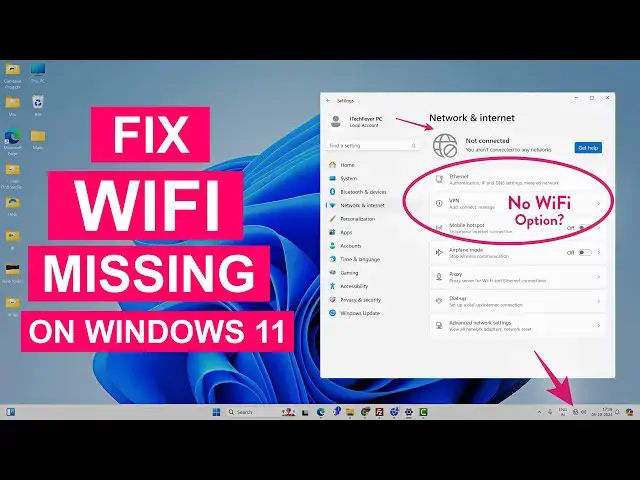

Fix WiFi Not Showing in Settings On Windows 11 | Fix Missing WiFi
Mar 5, 2025
Is the WiFi option missing in settings app on Windows 11? Or WiFi not showing on settings or taskbar? In this video, you will find the different ways to fix the WiFi missing problem on your Windows 11. There might be numerous issues with your PC and here are the top solutions to get back your WiFi up and running again in no time.
1. Reset Internet Settings
2. Start the WLAN Autoconfig service.
3. Enable network adapters.
4. Update/Uninstall network drivers.
5. Use Windows troubleshooter.
6. Network Reset.
7. Fix socket API errors.
8. Check for Microsoft services.
9. Check for the driver on the other PC.
10. Power Flush.
Navigate with timestamps:-
00:00 Intro to WiFi issue
00:39 Check the issue
01:19 Reset Advanced Internet Settings
01:44 Check WiFi Services
02:52 Disable/Enable Adapter
03:38 Scan for hardware changes
04:26 Update WiFi driver
05:13 Disable/Enable device
05:32 Check Power Management
05:54 Uninstall the WiFi driver
06:31 Use Windows troubleshooter
07:14 Reset Network
07:42 Fix socket API errors
08:24 Enable Windows Services
09:14 Install the latest driver
10:43 Power Flush
11:18 Outro & Thank you
Follow the above steps one by one and depending on the problem, any of these methods should help you to fix if the WiFi icon is missing from the Action Center, Taskbar, Windows Setting or Control Panel.
Reset entire network- https://youtu.be/TI95846k1h8
Master tutorial to fix wifi (Including Power Flush) - https://youtu.be/ta3YwxXeMwA
Make WiFi run much faster: https://youtu.be/eHcZ_kzhgMw
Join this channel to get access to the perks:
https://www.youtube.com/channel/UCMdElTwiU4JrDUkuI_eqPJg/join
Disclaimer:- It is advised to create a system restore point or take a complete backup of your device before you follow any tutorials.
Follow on Social Media
Facebook - https://fb.com/iTechFever
Twitter - https://twitter.com/itechfever
Instagram - https://instagram.com/itechfever
My IG - https://instagram.com/sparnidya
Visit - https://www.itechfever.com
Show More Show Less