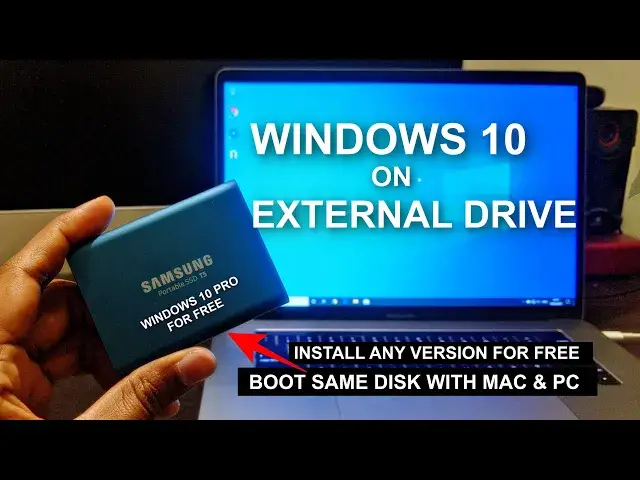

How To Install Windows 10 On External SSD To Use With Mac & PC | Without WinToUSB
Mar 24, 2024
Learn to Install Windows 10 on External SSD or Hard Drive to use On Mac and PC, without using Win2USB or any third-party software. You can install Windows 10 on an external drive and use it with PC and Mac without changing anything.
The same disk would be able to boot with PC and Mac computer so that you can work on the same projects and files on laptop and PC without transferring the files from one computer to another.
Things you need to Start -
1. A windows PC or virtual Windows on Mac
2. An external SSD or HDD.
3. A flash drive.
4. External Keyboard and mouse.
5. Windows 10 ISO.
6. Few type A to C cable (If you want to install on Mac)
Recommended SSD - https://amzn.to/3u9E5K6
Windows 10 ISO - https://www.microsoft.com/en-in/software-download/windows10ISO
First, connect your flash drive to the Windows PC and Make it bootable -
Open CMD as admin.
Type
diskpart
list disk
select disk "disk no." (Select your flash drive)
clean
create partition primary
format fs=exfat quick (format fs=ntfs quick , for PC)
assign
Extract the Windows 10 ISO and copy all files to a flash drive.
Connect the flash drive to PC/Mac
Boot from USB flash drive.
On the installation screen, you will get some errors like -
"Windows cannot be installed to this disk. Setup does not support configuration of or installation to disks connected through a USB or IEEE 1394 port."
There may be some other errors as well.
Press Shift+F10 key on your keyboard.
Type
disk part
list volume (Find the letter or USB flash drive)
Now we need to create certain partitions to the SSD.
Type -
select disk "disk no" (select your external ssd or hdd here)
clean
convert gpt
create partition primary size=450
format quick fs=ntfs label="Windows RE Tools"
assign letter="T"
set id="de94bba4-06d1-4d40-a16a-bfd50179d6ac"
gpt attributes=0x8000000000000001
create partition efi size=260
format quick fs=fat32 label="System"
assign letter="S"
create partition msr size=128
create partition primary size=372000 (Space you want to assign to Windows Drive)
format quick fs=ntfs label="Windows"
assign letter="W"
create partition primary size=4096
format quick fs=ntfs label="Recovery Image"
assign letter="R"
set id="de94bba4-06d1-4d40-a16a-bfd50179d6ac"
gpt attributes=0x8000000000000001
list volume
Now we need to copy some Windows 10 installation files from the flash drive to different partition of SSD.
Execute following commands-
md R:\RecoveryImage
copy D:\sources\install.wim R:\RecoveryImage\install.wim (D is USB flash drive, it may be different in your case)
cd X:\Windows\System32
dism /Apply-Image /ImageFile:R:\RecoveryImage\install.wim /Index:6 /ApplyDir:W:\
md T:\Recovery\WindowsRE
copy W:\Windows\System32\Recovery\winre.wim T:\Recovery\WindowsRE\winre.wim
bcdboot W:\Windows /s S: /f UEFI
W:\Windows\System32\reagentc /setosimage /path R:\RecoveryImage /target W:\Windows /index 6
W:\Windows\System32\reagentc /setreimage /path T:\Recovery\WindowsRE /target W:\Windows
Change the Index to the Windows 10 version you want to install.
To use the SSD with Mac -
Restart mac, press, and hold ⌘+R to enter the recovery mode.
Allow booting from external media on the Macs using Apple's T2 security chips.
Set security level to "None"
Restart again and choose EFI boot.
Follow on-screen instructions to install Windows 10.
Install the Windows Support Software from USB flash drive and you are good to go.
Link to download WinToUSB in case you need to check the Windows 10 Index. - https://www.easyuefi.com/wintousb/
I wasn't aware of some of these commands, thanks to "Siddharth Shankar" for listing these commands in sequential order. - https://decryptingtechnology.blogspot.com/2015/09/install-windows-10-on-usb-external-hard.html
Follow on Social Media
Facebook - https://fb.com/iTechFever
Twitter - https://twitter.com/itechfever
Instagram - https://instagram.com/itechfever
Visit - https://www.itechfever.com
Show More Show Less