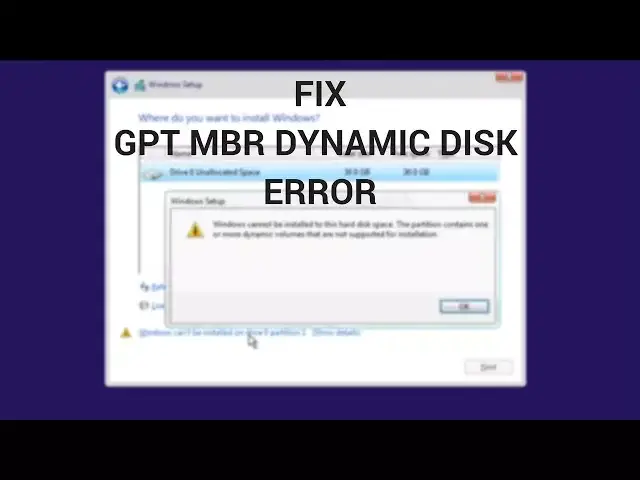

Fix: Windows Cannot be Installed to This Disk GPT, MBR & Dynamic Disk Error
Mar 24, 2024
While installing Windows OS on your new PC/laptop or new disk you may get an error at installation screen that -
Windows cannot be installed to this disk. The selected disk is of the GPT partition style.
OR
Windows cannot be installed to this disk. the selected disk has an MBR partition table. On EFI systems, windows can only be installed to GPT disks
OR
Windows cannot be installed to this disk space. The partition contains one or more dynamic volumes that are not supported for installation.
GPT and MBR are two formats of the hard disk, MBR stands for Master boot record and GPT stands for GUID partition table.
To install Windows on GPT disk your motherboard should support UEFI or it is better to install on MBR partition.
Fix Windows Cannot Install to This Disk.
Follow these steps -
1. At installation screen press Shift+F10 or Fn + Shift + F10 keys at the same time.
2. You will get Command Prompt at the installation screen.
3. Type "Diskpart" and hit Enter.
4. Type "list disk" hit Enter.
5. It will show you all the disk into your computer. Now type "select disk 'disk_no.'" Like "select disk 0" Hit Enter.
6. Type "clean" and hit Enter, cleaning your hard disk will erase the whole disk so be careful if you have any data on the disk. Make a backup before cleaning the disk.
7. Type "convert gpt" and hit enter.
If GPT doesn't work for you the Type "convert mbr" OR "convert basic".
8. Exit the command prompt and proceed with the Windows installation.
Now, you would be able to install Windows on your new disk.
There are chances to save your data. Read in detail to find other methods- https://www.itechfever.com/fix-windows-cannot-be-installed-disk-gpt-mbr/
Show More Show Less