
How to Delete Facebook Account Permanently on Smartphone
Mar 24, 2024
Delete Facebook Account Permanently Using Mobile Phone.
If you are trying to delete your Facebook account which may be a fake or test account or even your real Facebook account then it is not that easy to delete Facebook account permanently, especially on the Facebook app.
Updated Video for 2020 - https://youtu.be/ITwoEKTFRZM
Steps to delete Facebook Account Permanently on Phone
1. First, open the Facebook app then navigate to Help and Settings.
2. From there tap on "Help Center"
3. Now go to " Managing Your Account"
4. Go to Deactivating or Deleting Your Account.
5. Now it will open list of articles from there tap on " How do I permanently delete my account"
6. You will find a detailed article from there look for "Let Us Know" if it is a link then open it and proceed.
If there is no link on the Let Us Know test then go back and tap "How do I deactivate my account"
7. Now scroll down to the bottom and you will get "Please contact us" link under permanently delete account.
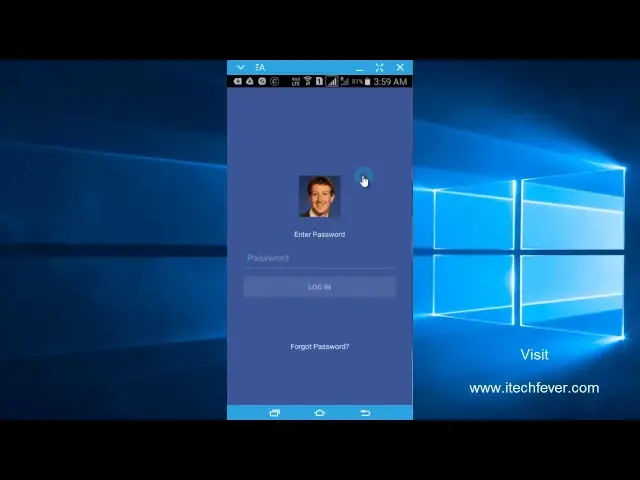
8. Once you open Please contact Us link it will ask for your Facebook password.
9. Enter your password and hit submit.
Now your account will get deleted within 30 days if you login within 30 days you will get an option to confirm or cancel the permanent deletion.
Method 2 -
Facebook keeps changing the link here and there in the App so it is better to find the actual link and delete it straight away.
To do so open any browser on your phone and go to this link -
https://www.facebook.com/help/delete_account
Login to your account and confirm the deletion.
That's All!
There is no way to delete facebook account without waiting for 30 days so you have to wait.
If you couldn't wait 30 days then like us on Facebook
http://fb.com/iTechFever
Show More Show Less