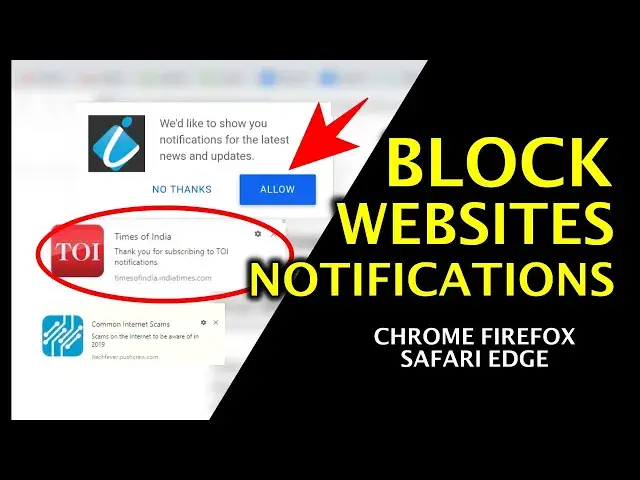

How To Block Websites Notifications on Chrome, FireFox, Safari & Edge
Mar 24, 2024
Learn to Block push notifications from different Websites on major browsers.
Push notifications are small messages that can reach audiences anywhere and anytime Via browser or specific app on your mobile device.
Almost every browser supports the push notification on both mobile and desktop.
Many websites may trick you to subscribe for their push notification and after that, they keep sending you notifications, promoting their product, services, or articles.
These notifications get annoying and distracting while you work on your computer.
In this video, you will learn to disable push notifications on major browsers like Google Chrome, Mozilla Firefox, Microsoft Edge, and Safari.
------------------------------------------------------
How to Disable Push Notifications on Google Chrome-
------------------------------------------------------
1. Go to the Chrome menu and navigate to settings then Advanced Options.
2. Look for Content Settings and then Notification.
3. Click on Notifications and you will get the list of websites that are allowed to send you to push notifications.
4. Click on the 3 little dots in front of the unwanted site and hit "Block" from the options.
------------------------------------------------------
Disable Push Notification on Mozilla FireFox.
------------------------------------------------------
1. Open the Firefox menu by clicking on the right top corner under the X button.
2. Go to Options and then Privacy and Security.
3. Scroll down and find the Notifications option under Permissions.
4. Click on setting and you will get the list of all sites which are allowed to send push notifications.
5. Block the site from options that you don't want.
-------------------------------------------------------
Block Websites Push Notifications on Microsoft Edge -
------------------------------------------------------
1. Open Edge and go to Menu then Settings.
2. Hit the View Advanced Settings option.
3. Under Website Permissions Click on Manage.
4. You will get the list of sites that are allowed to send push notifications.
5. Select the site and Turn off the Notifications.
------------------------------------------------------
Get Rid Of Website Notifications on Safari Browser -
------------------------------------------------------
1. Open Safari then Click on Safari Option on the Left Top Corner.
2. Then Click on Preferences.
3. From the list of options choose Websites.
4. Click on the Notifications from the left pane.
5. Select the site and Block from the option.
Follow on Social Media
Facebook - https://fb.com/iTechFever
Twitter - https://twitter.com/itechfever
Instagram - https://instagram.com/itechfever
Visit - https://www.itechfever.com
Show More Show Less #Web Services