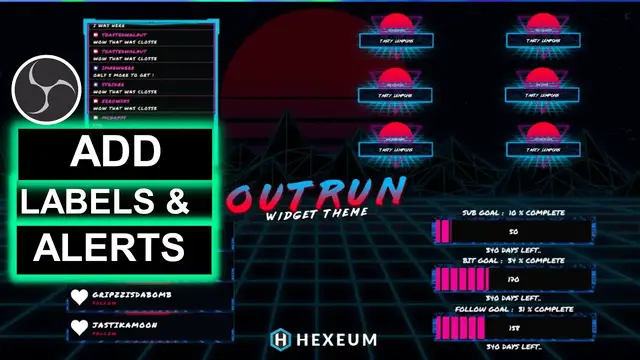

OBS Studio - How To Add Stream Labels & Alerts | Add Donation, Recent Sub, Top Donor & Much More
Mar 29, 2023
Learn to add stream labels to OBS studio with Streamlabs. You can add top donor, the recent donator, recent follower, live viewers count, live sub, and more on OBS studio with streamlabs. To add the alerts and stream labels follow these steps -
1. Go to streamlabs.com and login via your YouTube, Twitch, or Facebook account.
2. Authenticate the streamlabs to access your account.
3. Go to the dashboard and find the Alerts option.
4. Now customize the Alert boxes as you want.
5. Copy the Widget URL and add a browser source to OBS.
6. You can also use the pre-built themes by joining the prime membership.
7. Test the setup and you are ready to go.
How To Add Stream labels On OBS -
1. To add the stream labels, you need to download and install the supporting software.
2. Now login via YouTube or Twitch.
3. Select the label you want to show from the gear menu.
4. Customize the label.
5. Add a Text (GDI+) source on OBS and select the label file.
This is how you can get started with OBS Labels and Alerts.
There are the following options for Stream labels -
1. All-Time Top Donator
2. Session Top Donator
3. Monthly Top Donator
4. 30-Day Top Donator
5. All-Time Top Donations
6. Session Top Donations
7. Total Donation Amount
8. Donation Train
9. Total Subscriber Count
10. Most Recent Subscriber
11. Total Super Chat Amount
12. Total Super Chat + Total Donations Amount
13. All Time Top Super Chats
14. Total Sponsor Count
15. Weekly Subscriber Count
And there are tons of other stream labels you can use.
Follow on Social Media
Facebook - https://fb.com/iTechFever
Twitter - https://twitter.com/itechfever
Instagram - https://instagram.com/itechfever
Visit - https://www.itechfever.com
Show More Show Less