0:00
So we've heard of text-to-speech
0:03
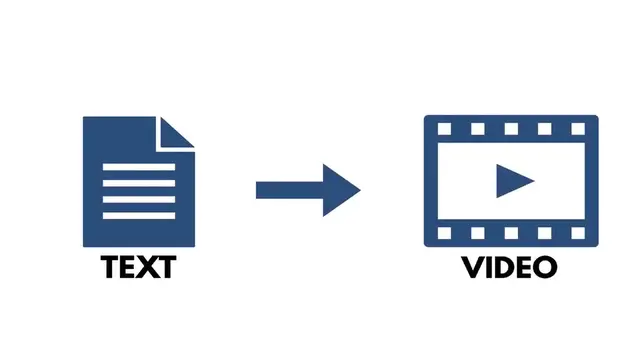
and speech-to-text, but we've never heard of text-to-video until now. Meet Razor Arts, the fastest way to transform text into a video using artificial intelligence
0:17
Here's how it works. First, write a script or a voiceover for the video that you want to create
0:24
Then log in to Razor Arts and choose text-to-video. Next, copy one or two lines of text from your document
0:35
and paste it into your story window. Now add a corresponding image or video to the text that was just pasted
0:48
You can copy and paste an image from your clipboard, a website
0:53
or by searching directly inside the Media tab. You'll want to repeat this process multiple times
1:03
Copy and paste your text, and then copy and paste a corresponding image
1:11
Repeat this process until all of the text from your document has been added to the Razor Arts story window
1:19
along with the images you want to help tell your story. From there, let's configure our video settings
1:28
Let's start with voices. Preview and select the voice of your narrator
1:37
as well as the voice speed. Turn captions on or off, then select your background music
1:48
Finally, add a title and select Create. In just a few moments, your video will be processed
2:18
You can view your video as a link that you can copy and share with others
2:22
or you can download the actual video file. And that's it! So in just a few minutes, we took a text document
2:31
and transformed it into a video using the text-to-video feature in Razor Arts
2:39
For more information, log on to the website at razorarts.com. And if you do get a chance to preview the text-to-video feature from Razor Arts
2:49
leave a comment below