0:00
How to update Shopify theme without losing customization
0:03
Hello everyone, in this video I'm going to be quickly walking you through on how you can update your Shopify theme without losing any previous customizations that you've made
0:12
So to do this, what you're going to be doing is we're going to be loading our Shopify up
0:16
as so. Now we're first of all going to go to the store that details we want to copy off
0:23
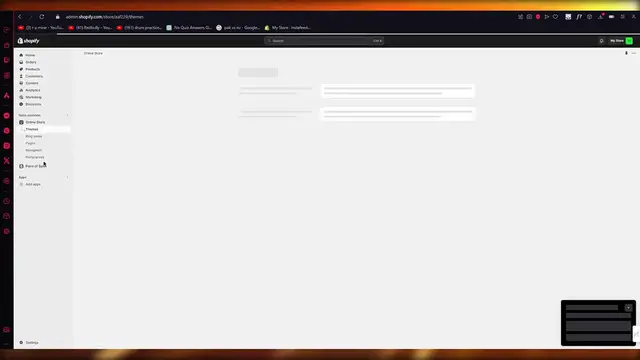
So you're going to come here and you're going to click on edit code. And once you click on edit code, we're going to turn all this off. Okay
0:30
And we're going to come over here where it's going to go to config and we're going to go to settings data, Jason
0:34
You're going to select all of this and copy it. And once you've copied it, we're going to go back
0:39
And once we go back, obviously you're going to make a duplicate
0:44
Once you've made a duplicate, you're going to see it's a version. If the version is up to date, obviously you're going to update it
0:50
Once it's updated, you are going to go into the duplicates code, which has been the updated
0:56
version. Once you come over here, go to the same folder, config settings, data, Jason
1:01
And here you're going to basically paste the code you copied. Once you paste this, click on save
1:08
And once you click on save, you are going to be good to go
1:12
Obviously make sure that you paste the proper correct thing. Yeah, there we go
1:16
And once you've made changes, yeah, that should work. Now it's saved and you're good to go
1:22
So that is how you can, you know, keep your customization and update your software theme
1:27
Thank you for watching and I'll see all of you next time. Goodbye