Up next in 10

Canva Speed Paint_ Convert Images to Hand Drawn Sketch Videos for Whiteboard_Explainer Videos
Jan 16, 2024

Dive into the world of creativity with Canva Speed Paint in this video, where the presenter demonstrates how to convert images into hand-drawn sketch videos ideal for whiteboard and explainer content. Follow along for a step-by-step guide, exploring the process of transforming static images into dynamic, engaging visual narratives. Whether you're a content creator, educator, or marketer, this video showcases the versatility of Canva Speed Paint for bringing your ideas to life through captivating hand-drawn sketch videos.
Show More Show Less View Video Transcript
0:00
Hey everyone and welcome to EdTechHustle. My name is Rich and have you ever wanted
0:04
to create a hand-drawn video like this one that you're watching right now? I'm
0:09
going to show you how to do this for free in Canva. Let's go ahead and take a
0:13
look. So here we are inside Canva. I'm going to show you how to create this
0:17
hand-drawn video. It's very easy. We're just going to navigate to the side where
0:22
it says apps and we will do a search for speedpaint. Here is the icon. Let's go
0:27
ahead and open it. You can see this is speedpaint from speedpainting.co. We
0:32
are going to convert an image into a speed drawing video. Let's go ahead and
0:36
open this app and the first thing that you can do is choose the file that you
0:42
want to animate. We'll do this in a second. I do want to show you some other settings. You can see that you have options for overall smoothness, how many
0:49
frames per second. Obviously the larger frame size will have it be more smooth
0:55
and the smaller one will be less smooth. You can also set the duration. It goes
0:59
anywhere from 5 to 20 seconds. There's also an option where at the end you can
1:04
have the hand that draws your image to fill that with color and then a few
1:09
other things on here. You can have the hand sketching in there if you'd like
1:14
You also have a way to change the background color. So let's go ahead and
1:18
get started. I'm just going to leave these default settings the way they are. Let me go ahead and choose my file. Okay so I am selecting this car right over
1:28
here. I'm just going to leave everything the way it is. Scroll down and in just a
1:33
few minutes Speedpainting is going to animate this image into a hand-drawn
1:37
video. Okay so it looks like my video is done. Now you can see that it's right
1:41
over here on my slide. It's also been uploaded to my library, my uploads
1:46
library inside Canva. I'm just gonna make this a little bit bigger. Let's go ahead
1:51
and take a look at this video. All right pretty cool. So that's your standard black and white sketch drawing
2:03
Now let me try another one. This time I'm going to choose a different file and now
2:12
I'm gonna play around with some of these settings. So I'm gonna switch this from five seconds. Let's go ahead and choose ten seconds. I do want to include the
2:20
color. I'll just say five seconds for the color and I am going to choose this
2:25
hand sketching effect. This time let's take a look to see how this video looks
2:30
Okay here we go. This time as you can see Speedpaint uploaded the file to my media
2:35
Let me go ahead and just extend this a little bit. You can see the hand of the
2:40
artist that's going to be drawing this image. It is again 10 seconds long. Let's
2:43
go ahead and take a look. There we go. So not too bad. You can see the original to the left and the hand
3:07
painted or the hand drawn version to the right. So I think that's really
3:11
interesting. Now let's do one more. Okay so this time I'm going to use this nice
3:15
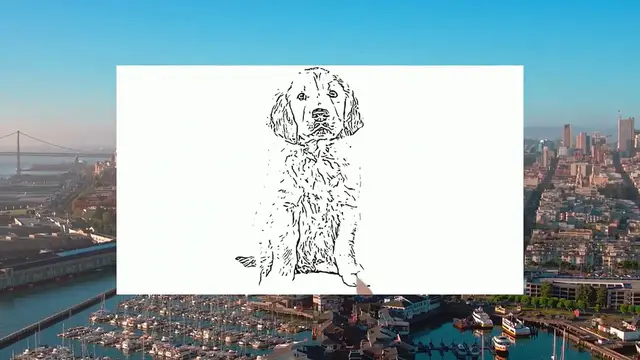
little golden retriever. I did bump the overall smoothness to 120 frames per
3:19
second. I changed the duration to about five seconds. Kept the hand sketch. Let's
3:24
go ahead and see how this one looks. Alright so it looks like we're good. Our
3:28
image has been uploaded. I'm gonna make it just a little bit bigger. Let me go
3:31
ahead and play. Let's see how it looks. Okay not too bad. I like it. I think that looks pretty cool. Now of course if you
3:45
want to use this in a project, if it's in Canva, you can just copy and paste it
3:49
If you want to use it in a presentation or if you just want to export the
3:53
individual video file, we can select share. We're going to go to download. I'm
3:58
going to choose MP4 video and from here we can just download this. If you
4:03
have different clips like I had up here, I can choose to download these as
4:07
separate files and then that will download a different file for each slide that I have. So I'm hoping that this video was helpful for you. Go ahead and
4:14
give speed painting a try. It's a really cool effect inside Canva and it's free
4:18
Thank you so much for watching this video. If you have any questions, leave them in the comment section below and if you like these videos, go ahead and subscribe
Online Media
Multimedia Software
Animated Films