live_tv
Livestream Starting Soon
00
Hours
:
00
Minutes
:
00
Seconds
Up next in 10


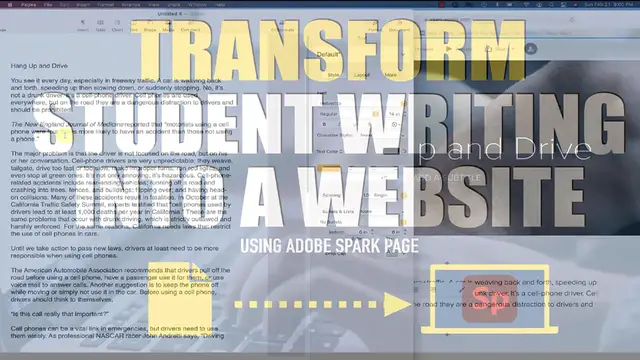
In this tutorial video, discover the capabilities of Adobe Spark Page for publishing student writing in a visually appealing and interactive format. Learn step-by-step how to leverage Adobe Spark Page's user-friendly interface to showcase and share student essays, stories, and other written works. The video walks educators and students through the process of creating engaging digital pages, incorporating multimedia elements, and customizing layouts to enhance the overall presentation. Whether you're a teacher looking to showcase your students' achievements or a student eager to publish your work in a professional and dynamic way, this tutorial provides practical insights into utilizing Adobe Spark Page for creative and effective writing publication.
Show More Show Less View Video Transcript
0:00
So are you interested in taking student writing and transforming it into an interactive website
0:05
Well, you are in the right place. Over the next few minutes, I'll show you exactly
0:09
how to transform student writing with Adobe Spark. So let's start from the beginning. I'm sure that
0:15
you've assigned your students assignments kind of like this one. It's really just a one-page
0:21
informational type of writing assignment. So I have this here, and what I'm going to use
0:27
is Adobe Spark. And here we are at spark.adobe.com. This is a free service from Adobe that will let
0:35
you create several different types of media. And you can see right over here at the bottom
0:41
including webpages with Spark page. And that's what we are going to use to transform that
0:46
writing assignment. Now, a few things about Adobe Spark. There is a free version. There's also a
0:51
paid version, but if you are a school district, you can actually sign up for your own Adobe Spark
0:57
education domain. I'll put the information in the notes below. After you create your account
1:04
in Adobe Spark, you'll be taken to this dashboard, which will allow you to create your different
1:09
projects. And what I'm going to do is select the plus button and choose this option right at the
1:14
bottom that says webpage. Okay. So this is where I'll need the student writing assignment. And it's
1:21
right over here that I have in my pages document. Now you can see this is a word processing program
1:28
pages that I have. It doesn't matter which program you use, whether it's word or it's
1:33
Google docs or whatever else, that's not going to matter. But what will matter is using Spark
1:37
page to create that website. So I'm just going to name my site, the same name that I named my
1:43
writing and that's hang up and drive. I'm just going to take this and paste this. This is the
1:49
header. Now we'll talk about adding some different parts on here, but this is the header. It's going
1:53
to be the top part of the website that people are going to see when they first, when they first click
1:59
on the button to open the site. So one of the things that Spark does is it allows you to add
2:04
images without actually searching for them on the internet separately. So you can see I click the
2:09
plus button. There's ways that I could upload photos if I have them, but if I don't have any
2:14
individual photos, in this case of someone driving, I can actually search for those photos
2:20
You can see right here, directly free photos. It's going to search for driver and let's see if I can
2:26
find someone in the front seat. How about this photo? Now, what I didn't tell you about this
2:31
photo is that all the photos that Adobe includes in the program. When you search our photos that
2:37
have a creative commons license assigned, which means that they're photos that are okay to use
2:41
from a copyright standpoint, which is something that's really helpful if you are an educator
2:46
So now I have my header right over here and now what I want to do is start adding the different
2:52
parts of my writing. So here you can see that this is my first paragraph. I'm just going to take this
2:58
paragraph. I'm going to click on text. This will allow me to add text and it'll kind of look like
3:05
that. Now, depending on the theme that you choose, it's going to restrict the type of font you can
3:11
have. So there's not an easy way to change the font. There are things that you can do in your
3:16
text such as make it bold, italicize it. You can also make certain parts of your text hyperlinks
3:24
You can see the hyperlink right over here. So I'm just going to leave this the way it is and I'm
3:28
going to go to the next part of my writing and the next part is this quote from the New England
3:33
Journal of Medicine. I'm going to take this text, just do the same exact thing. I'm going to create
3:43
a new text area on my site, kind of like that. I'm going to highlight that and I'm going to
3:51
make this a quote. There we go. And now you'll notice that that quote kind of stands out on my
3:58
page as opposed to just leaving it in the plain text area. All right. And now what I want to do is
4:04
add this part. This is kind of a long paragraph. Okay. So what I want to do before I add this
4:12
paragraph is I'm just going to add another photo in line. And again, if I just click the plus button
4:18
and select photo, it's going to remember my photos. Now this particular paragraph
4:24
focuses a little bit about driving with cell phones. Right. So what I'm going to do is just
4:32
click on photo and I'm going to say texting and car. Let's see what comes up. Okay. Maybe something
4:41
like this. Perfect. So my paragraph is here. Now I mentioned earlier, one of the things you can do
4:46
is actually hyperlink your text to a different website. So this line right here, the California
4:53
traffic safety summit, I can highlight that and I can actually hyperlink that
5:01
to that particular website. Now, when people read my website, they can click that, that
5:07
that area of text that I have here, and they can actually go to the state of California traffic
5:12
website, which is kind of interesting. All right, now let me go back. I want to add something else
5:17
What I want to add now is a video. Maybe I have a video, a PSA about not texting and driving
5:26
Let's check out to see what I can find. So I was able to go on YouTube and find this great PSA
5:32
about texting and driving. So what I want to do now is just copy that address
5:37
go back to spark, paste that address, select save. And in just a few seconds, you'll notice
5:49
that that video is now embedded on my website. So a few things that you might notice here with
5:54
the text that I just added. One of the things is this text kind of stands out. All I did
5:59
I added this, selected the text and chose this option, which is headline two, which will kind
6:05
of make that as a smaller headline. Headline one is a bigger headline as well. So now I want to
6:10
show you one additional thing that you can add that really gives your website kind of a cool
6:15
interactive feel. And that is the option to add a glide show. So if I just choose this option
6:22
that says texting car, or I'm just going to say driver, and I'm just going to take some different
6:29
pictures that I might want to use that might help illustrate this particular article. Again
6:38
I was just able to find those instantly in spark. I'm going to click save. And now what you'll
6:43
notice is that as I kind of go through, you'll see visitors of my site will be able to see
6:51
these large photos. Now I could click on this box and add a little bit more text that pertains to
6:56
this particular photo. And as I keep scrolling, you'll notice the photos will change. There's a
7:00
new caption where I can add more text at the bottom. So this is really a cool way that you
7:06
can make your site interactive by adding different types of material. Now, if you don't like the
7:13
glide show and you want more of a standard view, you can select those photos again, kind of like
7:19
I did right over here. And rather than having them appear like this at the bottom, you'll
7:26
notice that it will just show them in these individual grids where you can click on that
7:31
button where you can click on the photos. They'll then open in a bigger view. Now
7:36
if you want to preview how the site will look to other people who click on now, if you want
7:42
to preview to see how the site is going to look for visitors, all you have to do is click the
7:47
preview button and you'll get an idea of what the site currently looks like. Now my site is just
7:56
about finished. I've got some great photos. I was able to copy and paste my text. I have a header
8:00
I added a video. Now I want to share this. So to share it, it's super simple. All you do is just
8:06
click on the share button, click this option that says publish and share link. I'm just going to
8:12
leave this the way it is. I do have to pick a category, so I'm just going to say education
8:18
I'm going to choose create link. And in just a few seconds, this link will be ready. Here it is
8:24
I can copy that link. And then when people click on that link that I share
8:29
this is the website that they'll be able to view. So in just a few minutes, I was able to take that
8:35
writing that I have already created, copy and paste that into spark page, add some photos that
8:42
you're looking at right over here instantly without having to search and download and save them
8:46
And then publish and share my link all easily through Adobe spark
#Fun & Trivia
#Flash-Based Entertainment