Up next in 10


Title: "Unleashing Creativity: Design Your Own Flipbook with Canva in 2024 (Canva Flipbook Maker Tutorial)"
Description: Dive into the dynamic world of digital storytelling with our latest tutorial on creating captivating flipbooks using Canva in 2024. Learn the ins and outs of the Canva Flipbook Maker as we guide you through the process, from selecting templates to adding interactive elements that bring your content to life. Whether you're a content creator, educator, or simply looking to add flair to your presentations, this step-by-step tutorial provides the essential skills to craft engaging flipbooks effortlessly. Watch and discover how to seamlessly blend creativity and technology to produce visually stunning flipbooks that leave a lasting impact. Elevate your design game with Canva – the ultimate flipbook creation tool in 2024.
Show More Show Less View Video Transcript
0:00
How to create a flipbook on Canva. Hey guys, welcome back. So today we're going to be delving into
0:07
Canva and how you can build an amazing flick book using Canva. So flipbooks are not something that
0:14
need a lot of additional tools to create if you're looking to get started with Canva. Plus
0:19
using Canva to build your books can be a great way for you to get started if you don't have a lot
0:25
of experience in design and you can easily customize any pre-existing template or build your own
0:32
and get started for free. So let's get into it. Now, the first thing that we are going to do
0:39
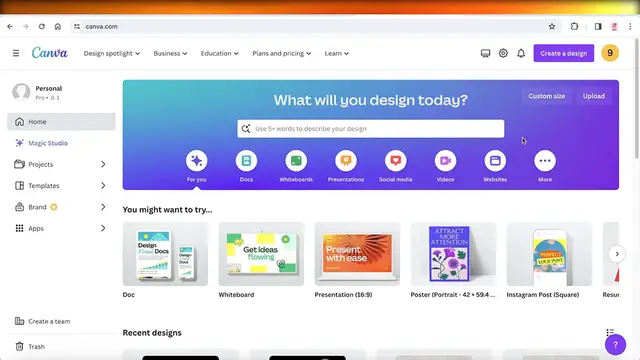
is we are going to go on to Canva.com and you can go ahead and search for ebook and just search
0:47
for some templates or even just search for a book and it will give you multiple different
0:52
templates that can help you in writing your book. However, if you want to get started from scratch
0:58
just go on to canva.com and click on custom size. Once you click on custom size, you're going to
1:05
enter the width as 512 and the height as 800. That is usually the ebook cover size or, you know
1:13
the standard ebook size. And you're going to click on create new design. Then on the top right
1:20
you're going to name your ebook. So, ebook, let's say our e-book is how to improve your content e-book, whatever it is
1:31
So you're going to do that, and then you're just going to start building your pages
1:35
You will see on the left you have a panel, which has your design, elements, text, brand, uploads, drawings, and more
1:44
And if you click on design, it's going to give you different templates that can help you
1:49
So you can use one of those templates or you can get started from scratch
1:53
I'm going to get started from scratch over here. And we just going to build our book cover which is going to be our first page like so And I just going to put this over here I going to add a new page And I going to enter the title of our book
2:10
So we're going to convert this into white. And then the background is going to be black like this
2:18
I'm going to place this over here. I'm going to add a heading, which is going to be how to improve your content
2:26
And then we're just going to make this uppercase and then change the font like this
2:33
And then I'm just going to place it over here like so
2:37
And then I'm going to go into elements and add a box behind it, make it a bit easier to look at
2:44
And then we're going to change the color of the box to black and then going to transparency and, you know, convert it to around 50%
2:53
So the text is readable, but it's not. you know, covering a lot of the visual elements
3:00
Now, after that, we have our second page, which might be our contents page, or our abstract page
3:07
So I'm just going to add a heading, which is going to, where I'm going to first duplicate my page
3:13
actually. And what I'm going to do is I'm going to reverse the colors in the rest of the pages
3:20
So the design is going to be black lines with white. and then I'm going to make, click on the design element, click on the transparency, and make it super translucent
3:31
So it doesn't catch your eye too much, but it's still there and it still, you know, has a visual element to it
3:38
So our pages look interesting. And after that, I'm just going to duplicate this page a couple of times and I'll just build 10 pages
3:48
Now I'm going to add a heading, which might be content. like this and then we are going to add our contents whatever they might be Chapter 1 like this 2 3 four and i going to select all of these together
4:09
like this and then click on these three dots and then click on space evenly this now once i've
4:17
done that i can you know change the numbers from one two and then chapter three and then chapter
4:25
for but I'm going to actually change it up a little. We have these three chapters we've included in
4:32
our contents, space them evenly, tidy these up a little. Then I can add some subheadings where
4:38
or just a smaller font where I am going to write what's going to be in these chapters. So intro
4:45
social, cues, whatever is, you know, the content of your chapters. You're going to write that out
4:51
and you can, you know, space it however you want like this
4:56
and then, you know, you're going to build the rest of your chapters from here. So I'm just going to add this, which is going to be Instagram, Facebook
5:06
whatever it is. I'm going to be visual appeal and fluency with this
5:13
and now I'm going to select everything again, just to give it a nice little distance
5:21
between all the elements, go into tidy up like this, and everything is now tidied up
5:29
Now I can go into align elements, and I want everything to be aligned to the left
5:33
Now, after writing my contents, I'm going to change the size of the chapters because they look
5:39
a bit too big. Now, after that, I can get started with my chapters, so I am going to add chapter one, and I'll just
5:48
ask Chad GBT to write some content. so it's a bit easier and I'll just do this. It really doesn't matter. This is just sample text for you guys to better understand everything
6:01
I just paste that over here convert it into size 10 like this And we are going to place it all over here like this
6:12
Now, if you want to maybe add an image, you can do that as well. So if I want to do something like, you know, have an image over here
6:20
so I'm going to cut this out and then add elements. And then I'm just going to search over here in the photo section
6:29
and we are just going to insert this image over here like this, like so
6:36
And then you have your next chapter maybe, and we can write this like so
6:42
And then we have another image. And you can, you know, build the rest of your pages
6:46
I'm just going to repeat the same pages. Just because I want to show you guys how to build a flipbook
6:51
That's like the main focus. So I am just going to move this down
6:56
And now to finally convert our ebook into a. book, just click on share on the top right, click on more
7:03
And then once you click on more, just scroll down and you will see, you know, social, then you see
7:08
save and you will see design. So once you see design, you will see this app called Simple Booklet Flip
7:15
Just click on that. And then you're going to select your pages. I'm going to select all pages
7:20
And then I am going to click on Save. And this will send your design to Simple Booklet Flip
7:26
This is an integration in Canva. and you can just click on view and simple booklet flip where your design would be converted into a flipbook
7:36
So it will ask you what type of design you want. If you don't have a pre-existing account, it will ask you to sign up, and I want a page curl effect
7:44
and I'm just going to click on convert. And then after that, this will start converting our design, and it will be converted into a flipbook
7:52
So let's wait for the design to be completed. And this is our preview. You guys can see like a really nice little flip book now. And it looks super nice as well. So I hope you guys found this video helpful if you did make sure to leave a like and subscribe
#Visual Art & Design
#E-Books
#Crafts
#Education