Up next in 10


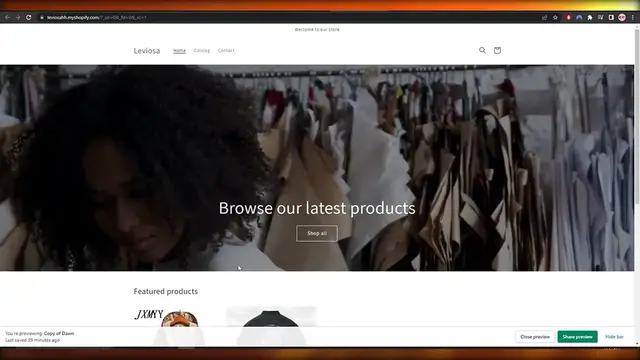
In "How to Add Video Background to Shopify Store," discover how to make your Shopify site more engaging and visually appealing by incorporating video backgrounds. This video provides a step-by-step guide to integrating video content into your Shopify theme, helping to create a dynamic and immersive experience for visitors. Learn how to choose suitable video backgrounds, optimize them for performance, and ensure compatibility with different devices. Ideal for Shopify store owners and e-commerce marketers looking to elevate their store's aesthetic and capture customer attention with captivating video elements.
Show More Show Less View Video Transcript
0:00
how to add video background to Shopify store
0:03
Hi guys, welcome back to another video and in this video I'm going to be showing you how you can add a video just like you see right here
0:10
in your Shopify store as a background. So having said that let's just jump into
0:14
the video. Now I just want to say that it does get a little bit of complicating so make sure to pause this video as soon
0:21
as you see me pasting codes. Alright some of the lines might be
0:26
different from yours and mine so don't worry you just gotta find the words and
0:30
search for it right. So having said that let's just jump into the video. So first things first what you're going to do is you're going to
0:37
come over here underneath your online store and in your theme section and then you just gotta make a duplicate
0:44
version of your theme. So as you can see I made this
0:48
duplicate version of my theme right here and you are viewing the duplicate version right here so as you can see it's
0:56
working perfectly we can now shift it over to our main theme
1:00
So now what I'm going to do is I'm going to go ahead and click on
1:03
copy, click on these three dots and click on edit code. Alright I'm going to edit the code same way that I did with the
1:11
duplicate version because I know that it works. Alright so for this one what we're going to do is we're going to go ahead and
1:16
scroll down and into the section over here and we're going to find
1:21
image banner dot liquid. This is the section that we were looking for so
1:26
we're going to click over here and we're going to go ahead and start editing it out and pasting our code. So first things first what we're going
1:34
to do is we're going to scroll down and I do remember it was around here so
1:38
first piece of code we're going to paste it right here you're going to search for schema. Alright and underneath schema you're
1:44
going to see you have the settings of the main video or the main
1:50
image sections settings. So you can paste the code anywhere you want
1:54
right over here when you see the bracket and the comma ending
2:00
just hit enter and it's going to add a line right here and you're going to paste the code that you see right here
2:06
and don't worry I'm going to try to link the piece of code
2:10
in the description below so you don't have to worry about it but if you want you can go ahead and type it or use google lens to copy this
2:17
code and then you can go ahead and paste it as well so it depends on you but I'm going to try to link the code in the description
2:24
below. Next once you've you know pasted this code go ahead and click on save and now we're going to go ahead and
2:32
paste another piece of code that is going to help us with the video
2:36
now if you see right here this is a checkbox right has video background
2:41
this is a checkbox that we're going to go ahead and see and I'm going to show you why this is important. Next piece of code is very important
2:48
because this piece of code is going to contain the link to our video that we're going to be uploading
2:55
so make sure that you upload that video. Next you're going to want to find this line right here
3:02
if section dot setting dot image exclamation mark blank right you're going to find this and you're going to paste a code
3:10
right before it you can even search for this line as well banner banner content align and you can search for this line and
3:17
then you can go ahead and put an enter right here and paste your
3:21
code like so and over here as you can see we have the source right here so here I pasted the file that I have
3:30
right here this is actually the another file that I have I'm going to
3:34
go ahead and remove this and I'm actually going to remove this
3:40
and I'm going to paste the link to the other one that I have there you go this is the one that I have
3:47
this is the one that I want to be displayed so make sure that you upload the video within your Shopify
3:54
section right and then copy the link if you don't know how to do that
3:59
you can upload your videos by just simply coming over here clicking on settings and if you have the option of files you
4:06
can upload it there but if you don't have it like I don't
4:10
then what you can do is you can go into online store
4:13
right go into themes and let's say you're customizing a right and over here you could just simply add a section
4:21
and add a video section like so and then just simply click on select
4:27
video and upload a video right here and once it's uploaded you can click on the video copy the link and that
4:33
is how you're going to find this link right here so if I just simply copy the link and I paste it right here
4:40
we can see this is the video that is playing in my banner so yeah so once this piece of code has been written we can move on
4:50
to the next piece of code which is right here in this line that I
4:56
just recently showed you this big line this long line now what we're
5:00
going to do is we're going to go ahead and scroll to the very end right here and we're going to go ahead and paste
5:06
the third piece of code so right at the end before these columns right before the two columns
5:13
and between the bracket you're going to paste the other piece of code
5:17
like so there we go as we can see this is the code right here it starts from
5:22
here and ends right here I'm sorry it starts from here and ends
5:26
right here pretty simple now once that's done just simply click on save now we're going to go ahead and paste
5:32
another piece of code which is also right here it should be there we go so
5:39
right over here you just simply go ahead and search for this line right here else if section.setting.image
5:46
underscore two is equal is equal blank right here we're going to paste another
5:50
piece of code and we're going to paste it right here before after the blank before the uh this uh score there we go now that it's
6:01
done let me just backspace that as well and then just we can simply go ahead and
6:06
save it here we go it is now done we saved the code so now most of the
6:11
coding is done and all we need to do now is to go ahead
6:14
and switch over to in the other section which is in the
6:18
assets right here coming over here onto the left hand side coming to the very bottom you will see you have assets
6:25
you're going to click on assets and you're going to go ahead and scroll to the bottom where you will find section.image
6:33
slash banner css we're going to open it up right here and we're going to scroll to the very bottom and we're going to paste a code
6:41
right here right at the bottom of this code there we go like so we just pasted it so this piece of code is actually very
6:49
important because this is going to adjust your image the height the width
6:54
of it so that both for mobile or you know for tablets for computer screen tv screens all of
7:02
those so this is actually very important and now that we've saved our code now it's time to go ahead and
7:08
view it so let me actually go ahead and exit it go back right here now since we actually go you know edited
7:16
this theme right here our main layout not the duplicate let's go ahead and
7:21
open it up and let's take a preview right here and we also need to customize it as well actually before we do that
7:28
i forgot so right here and we're going to click on image banner and we're going to see that we have this option right here
7:35
as video background so this is the piece of code that i
7:39
told you guys that we added right here let me actually search for it
7:43
as here we go this is the code that we added has video background
7:47
so this is the button so if we check this button it's going to load and it's
7:51
going to show us the video that we have uploaded within the code and its link is
7:56
right here as well so you don't have to worry about it here we go this is the
8:00
link of the video that we added within the code so we don't
8:03
even have to worry about placement as well next you could just simply go with the banner height i recommend going with the
8:10
large one because that's what i chose and then just simply click on save and
8:14
now we just come over here and reload our live website and we can see that it's actually working
8:20
so pretty simple this is how you do it this is how you add the video as a background within your Shopify store
8:28
so make sure you hit the like button subscribe to the channel and if you guys
8:32
have any questions let me know in the comment sections as well and i will be sure to help you out and as always the code
8:39
will be linked in the description below so make sure to check them out as well
8:43
so having said that that is it for this video guys hope you guys enjoyed this video thank you guys for watching and until
8:48
next time take care and goodbye
#Online Goodies
#Skins, Themes & Wallpapers