Up next in 10


How To Connect Instagram To Opensea (Step by Step)
Show More Show Less View Video Transcript
0:00
How to connect Instagram to OpenSea
0:04
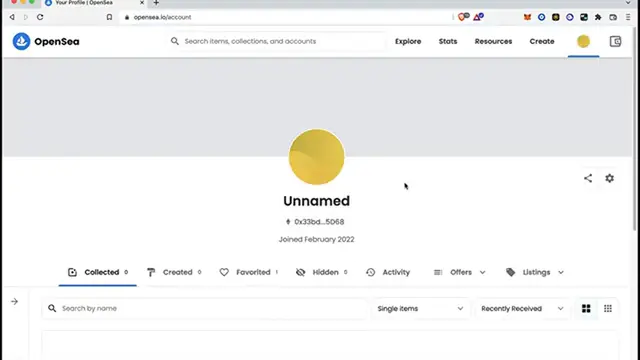
So what I want to do is to go into my profile. And now once I am in here, you want to go into the settings section
0:11
And you can see that the check has been requested in order to continue
0:16
So I'm going to go into sign. And after that, you're going to see that there's a username, a bio and email address
0:21
So we have to connect that one. So here we have like links that we can add into an OpenSea account
0:28
So the word that will be you can use your Instagram account, you can use a website
0:32
and you can connect to Twitter. Now, in this case, I just want to add my Instagram
0:36
So you can see that my account has been added correctly. So what I want to do is to go and put my Instagram handle
0:43
And then I want to select the option that says save. And now it says profile successfully updated
0:49
If I go back into my profile, you're going to see that the Instagram icon has been added successfully
0:55
And this one is going to redirect me into the Instagram.com, where my account should
0:59
be showing it right in here. But in this case, my account is private
1:03
So that's the reason why it says serverless page is not available
1:07
The more applications you add into OpenSea, if you add your website and your Twitter
1:13
you might see it right into your profile section right in here, or the Instagram share and
1:19
settings are. So there you have it guys. It wasn't that hot. Thank you for watching
1:23
If you don't forget to like and subscribe to the channel guys, if you want to see more about OpenSea and I'll be seeing you guys on the next one
Business Education
Social Network Apps & Add-Ons