live_tv
Livestream Starting Soon
00
Hours
:
00
Minutes
:
00
Seconds
Up next in 10

How To WAKE UP With Your FAVORITE ARTIST How To Set An Alarm With Songs From My Favorite Artist
Jan 31, 2024

How To WAKE UP With Your FAVORITE ARTIST How To Set An Alarm With Songs From My Favorite Artist
Show More Show Less View Video Transcript
0:00
Welcome everybody into this new tutorial. Let's see how we can wake up with your favorite artist
0:04
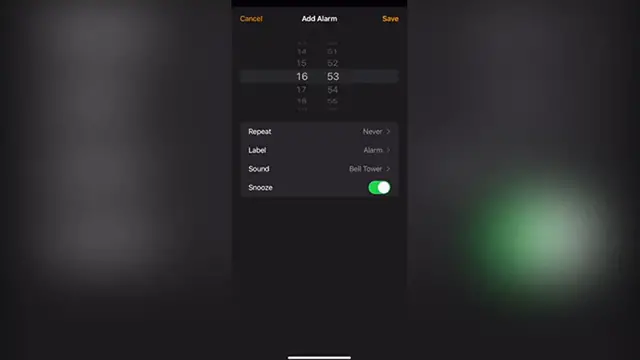
So if you're using an iPhone, it might be a little difficult to choose a customized alarm
0:09
Because if you go into the sound settings, you'll see a bunch of sounds but they're just limited sounds
0:15
If I scroll up, I can choose a song, any specific song, but I need to have an Apple Music subscription
0:21
But the great news is we do have Spotify account. We can't add our Spotify account directly from our iPhone unless we have this great application called Morning
0:30
So if you have your Spotify already created and you have your favorite artist in there, you want to download this application
0:36
I'm gonna leave you a link down below in the description so you can download a 14 day trial so you can enjoy the premium subscription mode
0:43
There's also a free trial but it's really worthy to try the premium subscription
0:47
So once you have Spotify and the Morning application already downloaded, you want to open Morning
0:52
In here, let's set our first alarm. Let's say for example I want to wake up at 8am
0:57
After I hit into start, it says tap the button below to start adding your favorite music
1:02
After you hit into OK, we can go and start adding our favorite music. Let's go into add new
1:06
Now you can choose a source. You can choose Spotify, it would be just as easy as to log in
1:11
And after that, choose once again Spotify. In here, you want to choose for your favorite artist
1:16
You can filter out for songs, albums, or the whole artist. If I choose only the artist, each time I select this alarm, it's gonna be playing different songs from this artist
1:26
So I'm just gonna stick with this artist. After that, I want to customize my settings. There are some default settings if you want to add them
1:33
In my case, I just want to enable the shuffle mode because I have all the discography of this artist
1:38
After that, I want to go back and hit into done. Now there's a quick reminder of keep the charger connected in order for keeping the application to work
1:46
I want to go into OK and my alarm has been set already
1:50
Now we can lock our phone. If you have any trouble falling asleep, you can select this option and the application is gonna be sending you some free sounds so you can fall asleep more easier
2:00
And you're good to go. If you want to change some settings before or after your alarm, you can always go into your profile section and scroll until you find the alarm on the fall asleep default settings
2:11
And there you have it guys. So once again, I'm gonna leave you a link down below in the description of this morning application and you can redeem your 14 days trial of the premium subscription mode
2:22
Hopefully it was a very useful video for you. Don't forget to like and subscribe to the channel
2:27
Thank you so much for watching this video and I'll see you next time
#Music & Audio
#Music Streams & Downloads