Up next in 10


How to Wake Up With Music on iPhone (Step by Step)
Show More Show Less View Video Transcript
0:00
how to wake up with music with iphone
0:05
hey guys welcome to Jack Express in today's video i'm going to show you a quick way to wake up using whatever song you want to so there are a bunch of ways that we can
0:16
do that so the first thing you want to do is you want to go into focus on the application called
0:23
alarm that's already default on our uh iphone so i'm going to click on alarm and then you
0:29
can see there you can see the alarms that i have set for the next days and all that so if you want
0:35
to set a new alarm you just clicked and select which one you want to and what you want to do
0:41
is to select um the songs right here you want to scroll up and you want to go into the one that
0:48
says pick a song right so uh it's really awesome that we can choose whatever song you want to that
0:56
are saved on our phone but let's say that you're not able to do that because you don't have an
1:03
apple music or you don't have a music download in your phone you want to use something else like
1:10
spotify something like that so uh the other way that i can show you guys is that i've used this
1:17
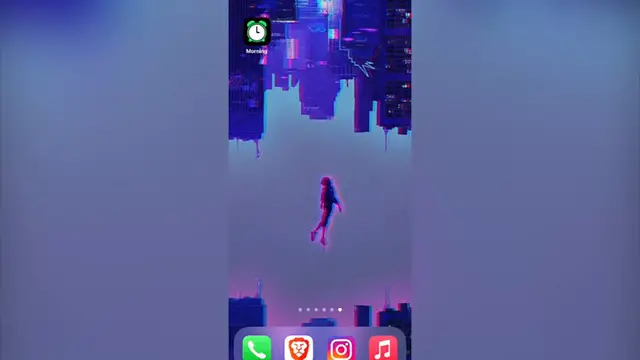
amazing uh application called morning uh actually it can sync with your spotify account it's actually
1:26
really awesome but you have to consider that this one uh runs with the spotify premium otherwise it
1:32
just won't work and second of all i have um i've i've used my free trial mode and now i am using
1:42
this as a paid subscription because it's really awesome for me guys if you want to um redeem a
1:50
code that i'm going to give you so you can get this application for a special price after you
1:55
tried uh the free trial mode i can give you the link down in the description so you can use that
2:02
so once you've uh downloaded this application you want to set up a new alarm let's say um
2:08
at the moment this is 1304 hours right so i'm going to select 1305 i'm going to start and then
2:16
i want to add a new alarm what you want to do is to connect your spotify account remember
2:23
that must be spotify premium account so otherwise it just won't work then i'm going to select the
2:29
spotify and if you want to select like a new uh sign you can go and search for it right here or
2:36
or if not you can just tap i don't know i'm going to tap on lo-fi beats and then what i want to do
2:42
is to click on this uh setting option so i can make the settings on the gradual volume i can set
2:49
the volume the 80% snooze time and if you want to um enable the shuffle music just in case you
2:59
select in a playlist in in which case i haven't so i'm going to go back and i'm going to go into
3:06
done right so once i select my um alarm sound alarm music let's see what happens
3:15
i'm going to go and keep the charger connected and the only thing that i have to do to stop this is to slide up and there you go guys actually it's
3:31
really awesome this application because i've used a lot spotify so if you want to merge those songs
3:39
and playlists into your alarm and you have so you don't have to download anything you just need to
3:44
you just have to sync your account on spotify from spotify to this alarm called morning so
3:51
once again i'm going to give you the the link in the description for a special price guys
3:57
don't forget to like this video and subscribe to this channel if you want to see more videos about
4:02
uh this kind of applications guy guys that would be all for today see you in the next video
#Music & Audio
#Music Streams & Downloads
#Pop Music