Up next in 10


How to Use Printify Print on Demand (2024) Printify Tutorial For Beginners (1)
Show More Show Less View Video Transcript
0:00
Printify tutorial for beginners how to use Printify print on demand 2023
0:05
Hello, everyone. Welcome back to another video. I hope you all are doing great and are
0:10
having an amazing and absolutely terrific day. In this video, I'm going to be showing you how to use Printify print on demand and how
0:17
you're going to use it to run a successful business online. So basically, without further ado, let's get started
0:23
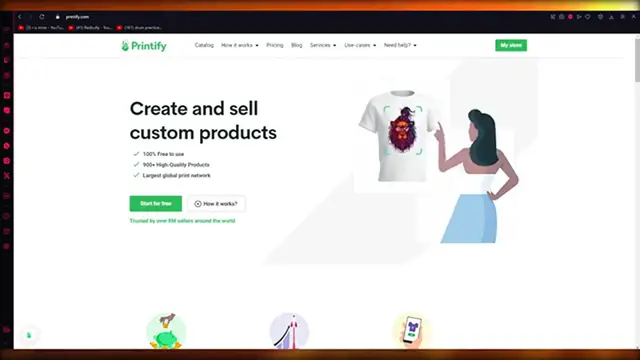
So first of all, what you have to do is simply come to Printify.com and you will get to this platform right here
0:29
And you can see Printify a print on demand platform that allows you to create online stores and connect to already existing
0:38
stores if you want to and just have a very successful ecommerce
0:42
life because it has print on demand products. So this is exactly what we're going to be
0:46
talking about in the easiest, most simplest way possible. So please watch this video till the end for the fullest output
0:53
So to basically start things off over here, you can check pricings and all if you want to
0:59
But I'm going to get into that later on in the video. What you're going to do is you're going to sign up with this platform
1:04
I'm already signed in. So I'm just going to go ahead into my store to show you what it looks like
1:09
So basically, when you go to your store, it's going to give you a look like this
1:14
And again, I'm going to walk you through the signup process as well, because it's really simple and really easy
1:20
So all you're going to do is first of all, you're going to choose your email, obviously, as I have done over here, then you're going to choose a decent
1:27
and suitable password. Now, for this, I would just recommend a capital, a special letter and three numbers and you should be good to go
1:35
Then you're going to go ahead and click on sign up. And once you click on sign up, it's going to bring you here
1:40
So you're going to add in something. So what describes you best? You know, you could go with any of these
1:46
I'm going to go with I have my own e-commerce store so we can let it know that, yeah, I'm doing this for e-commerce
1:51
So grow my current business. What brings you to Printify? I'm going to go with better prices and profit margins
1:57
Give them your monthly rate. How do you currently fulfill your custom products printed
2:04
I don't. I'm just getting started. And how do you print about Printify
2:08
I'm going to go with friends or family or you can go with YouTube in your case
2:13
So thank you for your time. What would you like to do now? So there's three different things
2:18
Order a sample, get a real life version of your products to check the quality and design
2:22
Connect your store to Printify and design your own custom product. So I'm going to skip all that
2:28
And I'm going to start browsing these things by myself if I want to
2:32
So once we are led to this page over here, you know, you can start seeing a lot
2:38
of things, you know, start seeing a lot of products, right? And you can see different categories over here
2:44
So men's clothing, women's clothing, kids' clothing, accessories, home and living, et cetera, et cetera
2:50
So I'm going to go on men's clothing over here. You're going to start seeing different products, you know, T-shirts, hoodies
2:57
sweatshirts, long sleeves, tank tops, sportwear, et cetera, et cetera. But first of all, you're going to go with some kind of niche
3:04
So right now it's winters and a lot of people are going to start wearing hoodies back again
3:08
So I'm going to go ahead and choose hoodies. Now, once I've chosen hoodies, basically over here, you're going to see tons
3:14
and tons of different products to choose from. I would always go for the best selling fit
3:20
So this fit looks best selling. So you're going to open up any of these fits
3:24
Now, once you do that, what you are going to be doing is you're
3:28
going to go ahead and you're going to start designing. OK, and once you start designing, that's where the real magic starts
3:34
because you can add any type of design that you want to
3:39
OK, and when the addition of any type of design comes in, trust me
3:43
it's an absolute game changer and you are going to love what it holds in for you
3:49
So basically what you're going to do is you can first of all, check the providers
3:55
as well, so just to get an example of how much money you're going to have to give
4:00
to the providers. So available providers, eight out of 17 based on previous filter selection, Monster Digital, Aqua Styles
4:07
Diamante, these are all your providers that are going to take obviously a certain
4:12
amount of money from you for providing for you. So you can see all these things with average
4:17
business days that they're going to be produced and you can see the sizes they give in, the colors they give in and a whole lot more
4:24
And this is just a very useful feature, I'd say, that they're going to add for you
4:29
So I'd say to 100 percent check the providers first before the designers
4:36
And once you've checked the providers and you like what you're seeing
4:40
you're going to choose the provider you're designing for and just click on start designing on that tab
4:45
Now, once you've clicked on start designing, what is going to happen from here is that they're going to bring up your hoodie
4:52
on the screen in the front, as you can see, and once the hoodie is
4:57
in the front, what's going to happen from here is that you're going to start adding
5:01
your design in the dotted square box that you can see in the middle
5:05
Right now, basically, there's a few ways to approach this. You can add a design by just fully creating it on your
5:17
Printify or what you can do is you can create a design on Canva or some external
5:24
software like that, remove its background and paste it in the middle of the hoodie
5:29
Now, I'm going to show you both those ways real quick. So first of all, you can add a new design
5:34
from your device or you can use the image generator as well, which is pretty cool. Right
5:39
You can use these examples of images, you know, and they look pretty nice
5:43
To be honest, I like the look of them. So let's say I want to go with this pixel art thing
5:48
So cute pink and pixel art, bright color, simple background. So I'm going to go with we're going to write in the same thing that this says
5:57
I'm going to go ahead and write that night. OK, pixel art, all colors, dark theme, and I'm going to write simple background
6:12
So this is how you can create a logo for yourself as well, which is pretty incredible
6:17
And once you've done that, you're going to choose your style as well. Whatever type of style you want to go with
6:23
There's anime, photography, digital art and all of these. So let's say I want to go with the something
6:31
Yeah, let's say I want to go with some anime style. So you're just going to click on generate images
6:37
So our example is aesthetic night, pixel art, cool colors, dark theme and simple background
6:44
Now, look at this. How incredible and aesthetically pleasing does that look
6:49
So I'm going to go with this design, for example. Now, once you go with that design
6:53
obviously it's going to add itself like this over here and you get the full
6:58
freedom of adding it wherever you want in this box, as you can see
7:02
And you can rotate it as well to whatever orientation or styling you want and moving on
7:09
You can also make it big or small. Now, a few people would just like this design just as so just like this
7:16
because it's just a really cool picture. But if I were to tell you to get a bit creative with your design
7:24
we could put this picture over here, OK? And once you do that
7:29
you're going to go ahead select the color of the hoodie, you know, whatever color you want to go with
7:35
Let's say I'm just going to go with the white right now. OK, and once you go with white
7:41
we're going to click on add design and you're going to start adding custom
7:45
texts above it or under it, you know, whatever you want to go with
7:49
So here, let's say I have custom text over here. And once you have that
7:55
you're obviously going to go ahead and choose different settings for the text
8:00
Let's say I'm going to make the text smaller and inside it, I'm going to go ahead and write some stuff
8:05
So I'm going to write, let's say, walk into the night. And I'm going to choose a more acceptable font because this font is not it
8:18
So we're going to go ahead and choose a relatively decent font, if you know what I mean
8:23
Let's go with that. Let's give it a nice yellow color. Compile Libre, no, that's too small
8:30
So obviously it's all about choosing the perfect things for your design
8:34
And I think that looks relatively decent and fitting into the design. And obviously you can increase the size of the image as well if you want to
8:42
So that looks better off. And then moving on, you have different orientations that you can choose on as well
8:50
And once you make your final design, from there on out, what you can do is just finally click on Save product
8:57
And once you click on Save product, you're just going to choose all these mockups for your product, all the pictures
9:03
And look at that. That is how your product is going to look. And it looks absolutely incredible
9:08
You're going to love the look of it. You have the description and all. You're going to choose all the sizes
9:13
And once you do that, you're finally going to just connect a store, you know, connect whatever store you're working on right now
9:19
And once you connect that store, you're going to publish it to that store. And that is it. That is how you're going to run a successful business using Printify
9:29
So, yeah, that's pretty much about it for this video. Now, if you enjoyed watching, please do make sure to drop down a like and subscribe to the channel
9:35
And if you want to see more videos like this in the future, let me know down in the comments below and I'll make more for you
9:40
But that's about it till then. I hope you all have a wonderful day and I'll see all of you next time
9:45
Goodbye
#Printing & Publishing
#Skins, Themes & Wallpapers
#Apparel
#Men's Clothing
#Photo & Video Services
#Document & Printing Services
#Business Formation
#Photo Printing Services