Up next in 10


How to Share Screen on Omegle OBS (2024 UPDATE)
Show More Show Less View Video Transcript
0:00
Hey there, if you want to have your OBS opened, if you want to share your screen into Omegle
0:06
I'm going to be showing you how to do this. You're in the right place. So first of all, I'm going to leave you guys a link down below in the description, so you
0:13
can download this plugin that we're going to be using just in case you don't have that yet
0:19
So I'm assuming guys that you have your OBS built to all stuff here
0:24
So actually I'm recording this video using these OBS studios. You can see here's my audio input capture, here's my desktop, here's everything we need
0:33
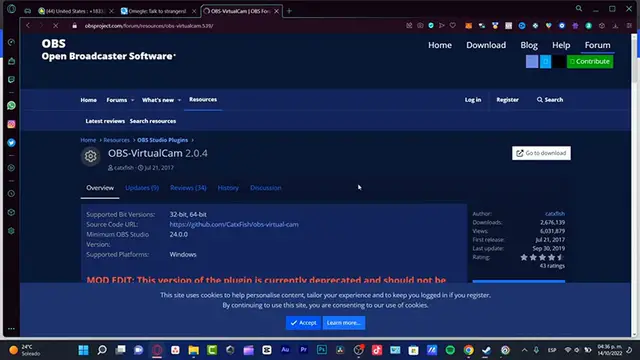
to use, right? So what I want to do here is to use the link that I gave you down below in the description
0:39
And what I want to do is to save this into my desktop. For example, you can just save it wherever you want to
0:45
So what's going to happen here is going to be downloaded this plugin, OBS virtual cam
0:50
So what's going to happen is that we, instead of enabled a camera, we want to enable a virtual
0:55
camera and we want to link that into our screen from our computer
1:01
And we just need to enable that into Omegle and we're just good to go
1:05
So I want to install my files and now let's go back into OBS
1:11
So here I have our sources. So what I want to do is to click into plus this webcam
1:18
I'm going to hit into accept in here. What I want to do is to choose OBS virtual camera
1:23
I can choose either, whatever you want to number three, number two, number four
1:28
I'm going to choose the first one and here I can configure my video and hit into accept
1:35
Now I want to go back into the Omegle, go into start chatting, I'm going to choose video
1:40
I need to agree this terms of service, go into acknowledge, confirmed and continue
1:46
And in here I want to allow my camera and my microphone
1:50
Something really important here, what I want to do here into my browser is that I want
1:54
to go into my settings, which is actually go to through browser settings and I want
1:58
to scroll down until I found my basics. And now what I'm seeing in here, I can see this into Omegle
2:06
Now I'm actually not going to make the start chatting because I don't want a stranger to
2:10
see what I'm looking at. But here as you can see, here's my camera already enabled
2:15
So I have the access allowed. If this don't appears, you have to enable that and I don't want to click the deny access
2:22
and reload because it just won't work. But actually it was just very, very easy to do that guys
2:28
Well there you have it guys. It was in the heart. Hopefully this was a very useful video for you
2:32
Don't forget to like and subscribe to the channel if you want to see more about this kind of stuff
2:37
Now thank you so much for watching this video guys and well, I will see you next time. Bye
#Voice & Video Chat
#Online Goodies
#Photo & Video Sharing
#Virtual Reality Devices
#Other
#Teleconferencing
#Video Sharing