live_tv
Livestream Starting Soon
00
Hours
:
00
Minutes
:
00
Seconds
Up next in 10

How to Pay with PayPal WITHOUT Credit Card or Bank Account ✔️ It's possible like this
Nov 11, 2024

How to Pay with PayPal WITHOUT Credit Card or Bank Account ✔️ It's possible like this
Show More Show Less View Video Transcript
0:00
Welcome, everybody into this new PayPal tutorial
0:03
So if you want to pay with your PayPal account, but you don't want to add a credit or debit
0:10
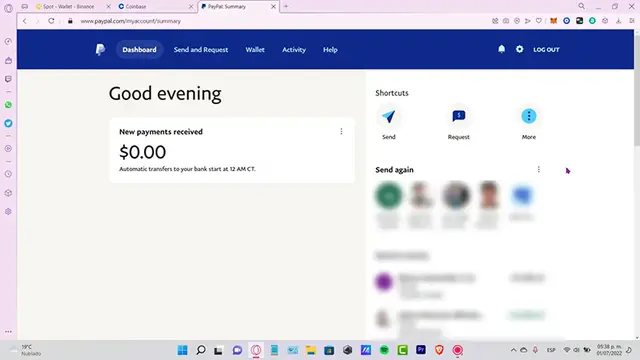
card or a bank account if you go into your wallet and you don't have like any option here
0:16
in order for making payments into PayPal.com, there's actually two ways that you can pay
0:21
with your PayPal account without linking a card or a bank account
0:25
And it's actually not that hot. The first one and the very obviously option is
0:29
is to have here is to have here some balance into your PayPal account and one way to have that
0:36
is to request money from another person so let's say want to request like $20 from someone
0:44
who already has a PayPal account and now this one already has paid has been paid and
0:50
whether that payment was made with credit or debit card that money is going to be sending directly into my PayPal account so I so I going to have the available available so that balance is going to be inside my PayPal account not in a bank card
1:05
So it's really easy to have that money available into the PayPal
1:10
The other way that you can do that is to make a transfer or make a payment directly through a bank
1:19
So you can receive money, let's say cash money, and send it directly
1:25
into your PayPal account. And the way that we have to do that is to focus in these three dots
1:30
and go into automatic top up. Top up your account, add funds
1:37
to PayPal using your bank account. What you guys want to do
1:40
is to copy all this information. Go into the payment, go into the bank section that you have
1:46
of the newest one, and just ask the bank that you want to make
1:51
a deposit and it's going to be asking you for all this information right So after you done with that you need to provide the amount of cash that you want to receive into your PayPal account
2:05
and after the deposit has been done successfully, it's going to be sending us an email
2:11
when the funds are already received. The transfer takes a few minutes
2:15
but allow up to two to four business days depending on your bank account
2:21
I've done this before, and this actually, works. Now, as you can see, it says use a bank that's linked to PayPal, the bank account
2:29
OsmoB, and the same name as your PayPal account. So having a bank account is really easy
2:36
simple, and totally for free. There's a bunch of places that you can make bank accounts
2:40
totally for free. So you just need to make sure that must be the same name as your PayPal account
2:46
in order for making the transfer. And I strongly suggest to guys to use the same method that I'm
2:54
using right in here so if you trying to copy and paste the information that appears into my screen I don suggest that because the company name from this PayPal is from Mexico City
3:08
and this payment concept is going to be changing manually every time you want to make a payment
3:15
So this one is just for myself. So if you make that payment with this information
3:21
the amount is going to be received from another account. maybe that's not going to be mine every minute
3:28
So after you've done with that, just click into OK, refresh the pace and allow the page
3:33
and allow PayPal to send your money within the next two to four business days
3:39
so you can receive your money, guys. So there you have it
3:43
Just in case you have any questions, you can leave it down below in the comment section. Don't forget to like and subscribe to this channel
3:48
If you want to see more about PayPal.com, thank you for watching the video
3:52
Until see you next time. I'm
#Finance
#Banking
#Other
#Debit & Checking Services
#Mobile Payments & Digital Wallets
#Money Transfer & Wire Services