Up next in 10


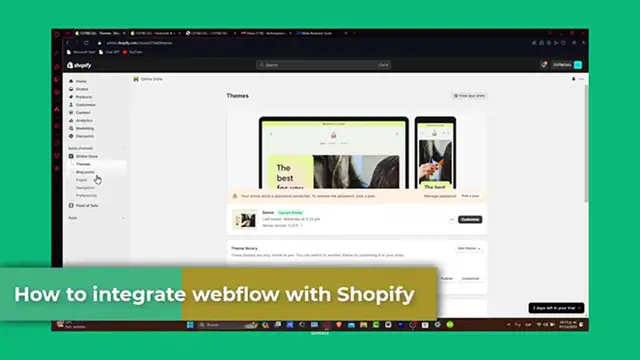
How To Integrate Webflow With Shopify 2024 (Step by Step)
Show More Show Less View Video Transcript
0:00
Hey everybody, welcome back to Techspress. In this tutorial, let's focus into
0:05
integrating Webflow with Shopify. Step by step, this integration is perfect for those who want to leverage Webflow's advanced design
0:12
capabilities for their Shopify store. So whether you are a seasonal developer, beginner, web designer, this guide will help you to seamlessly blend these two powerful platforms
0:22
Let's get started. Now Webflow and the Shopify integration. The integrating the Webflow with Shopify allows you to design your store
0:28
front-end and Webflow while managing your products and sales in Shopify. It's the best of both worlds
0:35
Exceptional design and robust ecommerce functionality. Before we start, make sure you have an active account on both Webflow and the Shopify
0:43
So first of all, let's export your Webflow design. Start by designing your website into Webflow
0:49
Let's go here into Webflow. Usually what I do is to make sure that I have both accounts already been created from the same
0:56
Gmail account here from Shopify and well into Webflow. So today let's assume that you have already have designed your website into Webflow
1:04
So once you are satisfied with your design, what you wanted to do is to export this into an HTML file or
1:13
CSS and JavaScript files from Webflow. So this export feature is available on paid Webflow plans
1:19
So ensure you have the necessary access in order to continue. So probably to select the domains, preparing to publish, optimizing HTML, CSS and JS files
1:30
packaging everything up, developing the CDN and then later on it's gonna give you an actual custom file
1:38
Once you have your custom file, it's gonna give you a great folder
1:42
So what I wanted to do is to prepare for the actual integration. Head over to your Shopify administrator panel
1:49
What you wanted to do is to prepare your Shopify store for integration by creating a private application
1:55
This application will allow you to use Webflow design on your Shopify store. You wanted to navigate to the application and
2:03
then what you wanted to do is to go into apps and sales channels and
2:08
manage your private apps to set this up. So I will allow custom app development and here is my custom app development
2:17
Now let's integrate Webflow design into Shopify. After you set up the private application, it's time to integrate Webflow design
2:23
You can manually upload your Webflow files into Shopify them either or to use a third-party tool or services free multi-process
2:29
You wanted to show the Webflow design is compatible with the Shopify platform
2:33
So usually what we actually do is to go back here into your online store
2:37
I click here and then what you wanted to do is to add a custom theme
2:42
So usually what everybody does is to go for upload your zip file
2:46
The zip file is going to be provided of course by the custom Webflow
2:51
So once you have it already been showed your design, what you want to do is to import your design directly in here
2:59
at the file and you wanted to make sure that you have all the elements speaking about the Java, speaking about the
3:06
CSS files, the HTML files and automatically is going to be installed right away
3:11
So as you can see, this is how it's going to be looking our store. But then I wanted to choose a Webflow design, which is actually now this one and you hit now into Publis
3:21
Once you hit into Publis, you want to go into view your store and this is how it should be looking after you make the
3:28
installation of your store. You want to make sure now that the testing and finalizing your integration
3:33
Once your design is uploaded, test your site thoroughly. Check out any design inconsistencies or functionality issues
3:39
This step is crucial to ensure a seamless shopping experience for your customers
3:43
Make any necessary adjustment based on your testing. Usually what happens a lot is that maybe if you are working with a specific font in here, sometimes it doesn't appear
3:53
into Shopify because you need to download that. So let's say for example that you choose a specific text font here
4:02
So let's say for example that I go here into my style
4:07
I have the Flex Child title display and of course that would be actually it
4:13
So if you don't find how to download it, I'm going to go and open a new tab and I'm going to type Google Fonts
4:20
Inside Google Fonts you can browse a bunch of fonts that are totally free that you can download and then later on you
4:27
can import and of course add to the file that was downloaded with your Webflow design
4:34
So all the elements are going to be added right over here into Shopify and you don't have, you won't be having any problem
4:40
with that. And there you have it. Your Shopify store now boosts as a stunning Webflow design
4:45
With this integration you can enjoy the flexibility of Webflow design tools along with Shopify powerful e-commerce features
4:52
If this tutorial on integrating Google Fonts with Shopify was helpful, please give us a thumbs up
4:56
Don't forget to subscribe to Techspress for more web designs and e-commerce tips
5:00
Have any questions or experience with this integration? Share them into the comments below. Thank you so much for watching the video
5:05
Happy selling with your newly integrating store. Stay tuned for more helpful guides and tutorials
5:10
See you guys next time
#E-Commerce Services
#Web Design & Development
#Shopping
#Toys
#Search Engine Optimization & Marketing
#Shopping Portals