live_tv
Livestream Starting Soon
00
Hours
:
00
Minutes
:
00
Seconds
Up next in 10


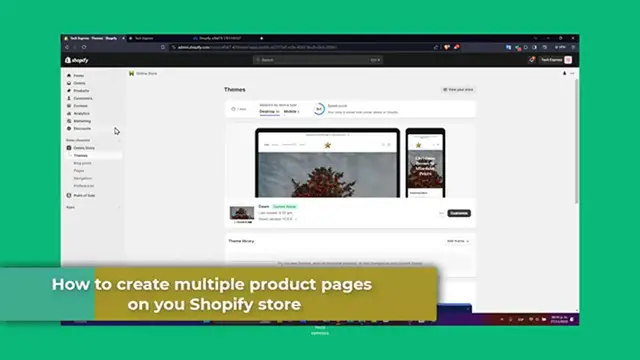
How To Create Multiple Product Pages In Shopify 2024 (Step by Step)
Show More Show Less View Video Transcript
0:00
Hello guys and welcome to Techspress. In today's tutorial we're going to be focusing on a key
0:05
aspect of setting up your Shopify store, creating multiple product pages. If you are new to
0:10
Shopify and wanted to showcase a variety of products effectively, this guide is perfect
0:15
for you. Let's jump into the world of Shopify for beginners in 2023. So, introduction to
0:21
the Shopify product. Shopify product pages are the section where you can customers get
0:25
detailed information about what you're actually selling. It's essential that these pages are
0:30
clear, informative and attractive. So, today we're going to be covering how to create these
0:36
pages from scratch and ensure that they actually stand out. Alright, so adding your first product needed to be done with accessing your Shopify dashboard
0:47
So first of all you want to log in into your Shopify store. This is the dashboard where
0:52
you can be a common center for all the store related activities. So if you're new to Shopify
0:57
you can take a moment to familiarize yourself with the different sections that appears in the left part, you have the right part of your account, you have here the dashboard
1:04
where you can see everything about things to do next, setup a guide and whatever. So
1:09
later on, the adding your first product. To create a product page is when you go directly
1:14
into the product section. Here you want to import or enter manually your own information
1:20
about your title, the description, the media, the pricing, status and all of the information
1:25
actually to check it out your new product. If you have multiple product guys, later on
1:31
what you can do is to add variants. You want to add custom information here. This product
1:36
has an SKU or a barcode. There is another option here that can help you to organize
1:43
products into different collections. You want it to be as descriptive as possible and use
1:48
high quality images. This is your chance guys to convince customers to buy a specific
1:54
product. So once again, you can create collection based on product types, season, sales and
2:01
much more of that. And if you go directly into your collections, you can see that I
2:05
have three different collections that can help me to organize all my products that I'm
2:09
actually selling. I'm selling slippers, I'm selling home decors and I have products from
2:13
my actual homepage. Now, let's customize the product page layout. If I go directly
2:19
into my sales channel, you can see that we have a theme section. I'm gonna get into customize
2:24
So Shopify also allows you to customize the layout of an actual product pages. You can
2:31
edit template to change how your product information is displayed. While customization options
2:36
vary based on your theme, common changes include rearranging text and images blocks or adding
2:42
unique features like size guiding, for example, to make it in it. And as you can see, maybe
2:48
I can use a little bit much more smaller. So check out how it's going to be looking
2:53
the actual info here, the product information, all that. They can change this for a small
2:58
media feed, original thumbnail, carousel, stacked two columns. You can change the scheme
3:04
you wanted to enable sticky content description, for example. So all of this information should
3:10
be really helpful for people who check out for the very first time your products. Now
3:15
the CEO and the product pages CEO is a crucial guys for product pages, use clear descriptive
3:22
titles and keywords. So it's going to be helping you to improve the search engine rankings
3:28
So also remember guys to add all texts to images for better CEO, how you can import
3:34
that you can go directly once you get into products, I'm going to click into one of them
3:39
and I can scroll all my way down and I wanted to find the search engine listed and I have
3:45
a course on metafields. If I check out the metafields, I have the Google custom product
3:51
So we go for a true metafields without definition. I wanted to save this and check out here
3:58
Here's my global title tag and here's my global description tag. So I'm going to go back and
4:07
what I wanted to do is to choose just one product. Let's go and scroll all the way down
4:11
and go for search engine listing and hit into edit, which appears in here. So the page title
4:16
should not be longer than 70 characters. Try to be as much as brief as you can, but you
4:22
don't want to use a really, really large title. Trust me. So here I have Christmas
4:26
colifers, snowflakes, twister, sun catcher, ice pillar, pendant window. So for example
4:32
sun catcher, ice pillar. It's not relevant. So I just delete it. Crystal pendant or window
4:43
right? It's so much better. So crystal for window, but just leave it like that for crystal
4:50
And I have the metal description in here. So I wanted to delete. Check out for any errors
4:56
here. Ensure that everything looks great. It looks perfectly. Once you're satisfied
5:02
with what you're seeing in here, you can click into save or publish to make your product
5:06
pages live. So I think that I wanted to change my title here of description because it's
5:11
in the right part so I can change that later. But so far actually it looks great. So after
5:18
that I'm going to hit now into publish here and this is how it's going to be looking
5:22
My new product already been added. So as you can see, it looks great. This is how you can
5:27
create multiple product pages into Shopify. If you wanted to create one of more products
5:32
into your store section, you can go into import and add a CSV file so you can add more than
5:41
just one product in just one action. So guys, that's how you create a multiple product pages
5:46
into Shopify with Worldcraft product pages. You're on your way to attract customers and
5:51
boosting sales. So if this tutorial guys was helpful, please like share and subscribe to
5:56
Tech Surprise for more Shopify guides. If you got any questions or tips for creating
6:00
product pages, you can drop them into the comments below. Thank you once again for watching
6:04
and happy selling. Stay tuned for more beginner friendly guides to mastering Shopify
#Shopping
#Consumer Resources
#Product Reviews & Price Comparisons
#Business Formation
#Shopping Portals