Up next in 10


How To Create Login Page In Google Sites (2024) Step by Step
Show More Show Less View Video Transcript
0:00
how to create a login page in Google Sites for beginners. Hello everyone, welcome back to another
0:05
video. I hope you all are doing great and are having an amazing and absolutely incredible day
0:11
In this video, we're going to be talking in great detail and depth about how you are going to be
0:15
able to create a login page in Google Sites in 2023, the easiest, most simplest way possible
0:20
So let's talk about it in great depth and detail. So to start things off, what you're going to do
0:24
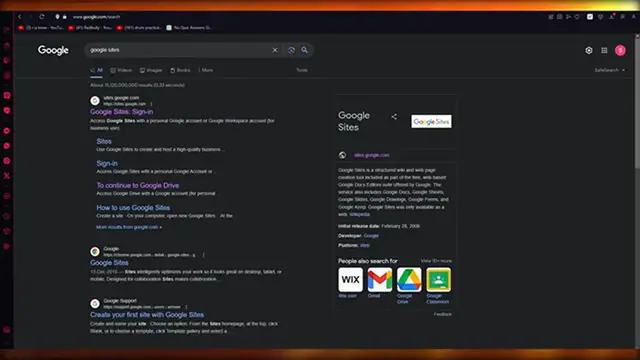
is you're going to come over to Google Sites sign in section, okay? And it's called sites.google.com
0:30
slash new. And once you do that, it's going to bring you straight into this page. And in this
0:35
page, what we're going to be doing is obviously you're going to go ahead and start creating a
0:41
blank website for yourself. That's what normally anyone would do. Okay. Now, it depends on what
0:48
kind of login page you want to actually make, you know, because the login page that you make
0:53
actually constitutes the type of level of work you want to go with. Okay. So let's say I'm going
0:59
to go with a blank website, right? And once you go with a blank website, now, once you open a blank
1:04
website over here, so first of all, you are going to add some kind of text line over here, right
1:10
So let's say I'm going to call it Dan. I'm just going to call it Dan. Also, we're going to go
1:18
ahead and increase the size of the text. Okay. Once the text is increased, you're going to increase that
1:24
make sure that the text line is fine. Okay. Just fix that. And once you've done that
1:31
you're going to go ahead over here, add. Yeah. So now it's in the center. Okay. Now, once you've
1:38
named your website, when it comes to creating a website where you actually want to create an
1:42
account or log into an account, basically what constitutes something like that is that you are
1:50
going to make sure to create it with some integrity, right? So when it comes to creating
1:56
something with liberty or integrity for that, what you are going to want to do is you're going to add
2:02
some things like, you know, sign up forms, and you're going to add proper published. You could
2:09
say members of your URLs and a whole lot more. So let's go ahead and actually talk about the ways
2:19
on how you're going to create this Google login page. So to do this, what you're going to do is
2:24
you're first of all, going to just publish this website. I'm going to give it a web address like
2:30
retro. Okay. We're going to call it retro 987 and we're going to publish it
2:35
So now, once you have gotten your address, we're going to come here. Okay. I'm going to go to
2:41
auth bro. Now, auth bro is basically a, you could say plugin that helps you to make a Google sites
2:54
website. So first of all, what you're going to do is you're going to embed a authorization pro URL
3:02
into your website. So open your Google sites webpage where you want to add auth bro, select
3:08
insert and paste your login form URL. So we're going to create that right now. And then what it
3:15
does, you can create a hidden page and basically it's going to give you configured members in this
3:21
section over here. So we're going to come back to auth bro and we're going to create a login form
3:26
real quick. You're going to click on sign up now. I'm going to go with, I want to try a free account
3:30
I want to use quick signup. Okay. We're going to click on continue. Now it asks us for
3:37
our username and stuff. So I'm just going to go ahead and add all these things. Then make sure
3:42
you have a good and strong, well-made password. Once you have added your password from there
3:48
what you're going to do is you're going to add your password again. Then you have your email
3:54
address, your website title, then there's your website URL. Okay. So, you know, the published
4:00
URL that you have, like, let's say if I click on publish, publish with confidence. Yeah, there we
4:05
go. So yeah, you're just going to make sure if there's any reviews that you need to unpublish
4:11
you can do that. And yeah, now we're going to copy the publish sites link. You're going to come here
4:16
add the website URL over here. How did you hear about auth bro? I'm just going to
4:21
uh, you know, ignore that. And yeah, from there on out, what we're going to do is we're going to
4:28
go ahead and create account. Now, once the account is created, you're going to proceed to the setup
4:33
wizard where you're going to set up everything. And it's going to help you to create an actual login form, which is obviously going to help us. It's going to help us operate this thing very
4:40
easily. So I'm going to do this, click on next. Okay. Then you're going to add your name, titles
4:46
and all, uh, field names and all. This is obviously for, you know, what people will add
4:52
and this is required editable. You're going to choose all of these things. Everything is good
4:56
to go. You're going to click on next, your members area URL. This is successful login URL where your
5:01
members will be sent if they have the whole thing. Correct. Um, basically I'm going to just keep my
5:08
website over here because I don't really have a members URL. I'm going to keep these optional
5:14
And once you do that, I'm going to click on next. Once you click on next, it's going to take you
5:20
to another section. Now in that section, it's going to finally set us up with all the things
5:25
that we require, and it's going to give us a URL cord. So it also says, add some members to your
5:31
account. Okay. You can do that for yourself. It's totally optional. I'm going to keep it
5:35
a blank and I'm going to click on next. Okay. I don't really want to add any members. And once
5:41
you do that, it takes you to the manager of CGI. And you can also mess with things over there
5:48
And once you do that and your account is properly set up and created, it's going to give you
5:53
these different things like your members, login page, members, registration page, members, edit
5:58
profile page, et cetera. So configuration is completed. You just need to update your website
6:04
So first of all, you're going to add in login form. So you can add this link on your website
6:08
to display the login form. So I'm going to copy this. I'm going to come here. We're going to click
6:14
on embed. And here you're going to paste the URL that we just got. And once it does that, it's
6:21
basically going to take that and look at that. So you're going to insert that over here. And once
6:25
you insert that over here, there, you can see that you get the whole login form just for yourself
6:33
How incredible and how terrific is that? I'm just going to go ahead and add that in one little
6:40
bunch. Put it in the center. We're going to wait for it to load. And there we go. So that's how
6:45
you're going to add in that. Then you can add in registration forms if you want to password reminders
6:50
and all. You can add them again by doing this copy link address. You're going to go into embed
6:56
You're just going to paste that again. It's going to configure all of that. You're going to see the
7:01
registration form. If it's good enough, you can add that as well down here. You know, just like
7:06
that. So up here, that's your login. That's your registration. And then finally, protect your
7:12
members area page, which is recommended, which is basically just for protection. You're going to go
7:16
and copy and then you're going to paste the same code below. So I'm going to embed a code and we're
7:23
going to click on paste, click on next, and it's going to create the embedded code over here
7:28
Okay. And you can edit that code if you want to, but I'm just going to click on insert
7:33
and it's going to add the embedded space over here. And this is obviously for a host free thing
7:38
to be messing around with. So that is how you can create a login page in your Google sites. And then
7:44
finally you can go in pages. You can create this as your login page, publish it, and you're going
7:48
to be good to go. So that is how we're going to be doing this. And I hope that was helpful to you
7:53
If it was, please do make sure to drop down a like, subscribe to the channel, and I'll see all
7:57
of you wonderful people next time. Goodbye