Up next in 10


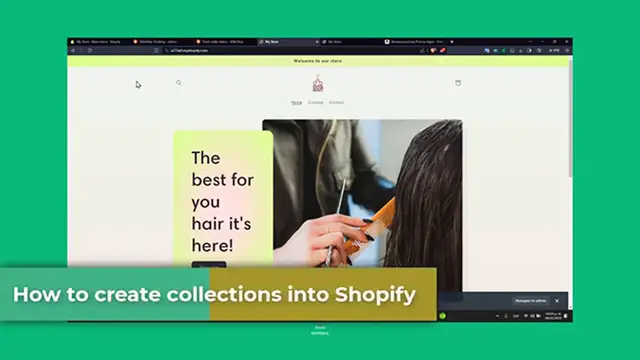
How to Create Collections in Shopify 2024 (Step by Step)
Show More Show Less View Video Transcript
0:00
Welcome back everybody into Techspress. We're going to be diving into how to create collections into your Shopify store
0:06
Collections are a great way to categorize your products making it easier for customers to navigate your store and find what they're actually looking for
0:14
So whether you're setting up your new store or optimizing an existing one, this tutorial will guide you through each step on creating and managing collections
0:22
So first of all, Shopify Collections. Your collections into Shopify help you group similar products
0:27
Making your store more organized and user-friendly. You can create collections from new arrivals, sales, specific product types, any other categories you find relevant
0:37
So now let's head over to your Shopify administrator dashboard to begin
0:41
Once you sign in, you're going to be seeing something like this. Now let's access the collection feature
0:47
In your Shopify administrator, you want to navigate to the product selection and then click into collections
0:53
Now we are here into collections. You'll find the option to start creating your first new collection
0:58
Now you see a straightforward interface where you can add and manage your collections
1:02
Let's say for example, here I'm going to go for sale. And I'm going to go for save now
1:07
In this case, I'm going to go for manual. And now this product is ready to get started
1:11
And let's go for browse and select all the elements that you think that actually go into sale
1:17
I'm going to choose actually just the essentials. And hit now into add
1:23
Start by giving your collection a name that clearly represents the group of the products
1:27
For example, the summer essential of organic skin care. Then add a description that details what the collection is about
1:33
This is also a great place to include keywords for the actual CEO, which appears down in here
1:39
Search engine listing. So let's say for example, here we have the CEO title sale
1:44
The best products on sale for. And then you wanted to go and add the title of your store
1:53
So that everybody knows you. For example, this case is cup and cuss
1:59
And now I hit now into save. And customize your collection settings
2:04
Customizing your collection settings further by adding a collection images and choosing how products should be sorted within the collection
2:12
The compelling image can be making the collection more attractive. You can do that into the upper side
2:17
Or what you can do is to just drag and drop an image. Like I just did here
2:22
Sort options include manually by best selling, by price and more depending on what suits your collection
2:29
I hit now into save. And then what I want to do is to go into my online store
2:36
And then I want to go here into pages. Now here into pages you can see that we have blog posts, themes, navigation preferences
2:45
If you focus into navigation you can go into your main menu. And what I wanted to do is to go for a sub menu
2:51
Inside catalog what I wanted to do is to get started with add a new main item
2:57
And here I'm going to go for sale. And here what I want to do is to look out for the collection that we have just created
3:03
Which in this case is the sale section. So go for add
3:07
And now I'm going to move this down below the catalog. And a little bit to the right
3:12
So this is now inside the catalog section. So let's go for save menu
3:17
I'm going to go into my online store. Hit into view my online store
3:23
And as you can see my catalog here has now been saved. Once you're done, once you click into save to publish your collection you can now then feature this collection into your store home page
3:32
Or your navigation menu for ease access. If you see here that into my catalog I'm going to click in here
3:38
And I have now my sales section. So I click here. And here are my sale products added automatically
3:46
As you can see it's amazing. Something really easy to do inside your Shopify
3:51
So guys that is actually it. If you find this tutorial helpful please give us a thumbs up
3:56
And don't forget to subscribe to Techspress for more Shopify setup guides
4:00
Do you have any questions or tips about creating collections? Drop it into the comments below
4:04
Thank you for tuning into another episode of Shopify. Keep watching for more insight and tips from Enhance Your Online Store
4:10
Happy selling guys. See you next time
#Fashion & Style
#Fashion Designers & Collections
#Shopping
#Consumer Resources
#Product Reviews & Price Comparisons
#Shopping Portals