Up next in 10


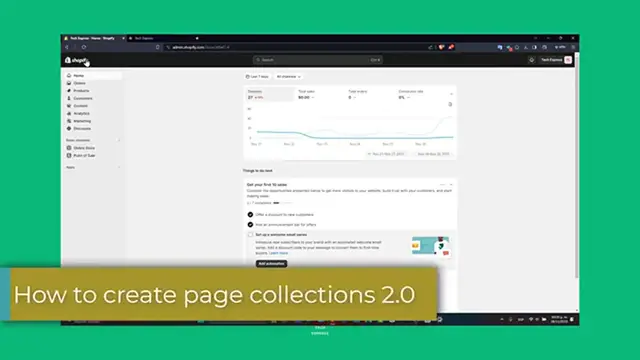
How to Create Collections in Shopify 2024 (Shopify OS 2.0)
Show More Show Less View Video Transcript
0:00
Welcome to TechPress. Today we're going to be diving into the Shopify Online Store 2.0
0:04
focusing on one of the greatest features creating a page of collections. This is an excellent way to
0:10
organize your products and to improve navigation for your customers. Whether you are
0:13
seasoned Shopify users into the news of the platform, this got to help you to showcase your
0:17
collections effectively. So let's get your products organized and your sales booming. So first of all
0:23
the ShopifyOS 2.0, a suit of advanced features, making it more flexible in user
0:29
friendly for store owners. Now, on the features and the ability to create customized pages
0:34
including a dedicated page for your product collections. Now, this feature is perfect for stores
0:40
with a diverse range for products or those looking for create themed collections. So first
0:46
the ball to access your certified dashboard you wanted to sign N. Now, after that, you wanted to
0:51
go directly into the Admirate studio panel. This is your control room for everything related
0:55
to your store. Once you're in, navigate into the online store section
1:00
And here, what you want to find tools to build your pageed collections here
1:04
Now, creating an actual new page. Into the online store section you wanted to go directly into Pages and click into the section that says add Paged Now here what you wanted to do is to create a collections display You wanted to give a page a title that reflects the type of collections you be showcasing like
1:23
I don't know, maybe seasonal favorites or our best sellers, our favorites, right
1:29
Something like that. And you can go here and to generate page title, for example, what this page about
1:35
Let's say, for example, our favorite website. I have my description content ideas
1:41
Here's different suggestions that we're generated for me with the artificial intelligence
1:46
So you can match your actual brand. Check out that we have here, our design
1:52
So we wanted to make sure that design is visually appealing and along with the overall aesthetic of my store
1:58
So here are the fellow Christmas enthusiastic number one, number two. And here, let's say, for example
2:06
then I wanted to add something, about my store. So write homoical ideas, Christmas is a time of joy, right? So it actually
2:14
looks great so far. But here into this template, I wanted to delete maybe this is light show
2:21
This rich text I delete this The image banner just leave it like that The rich text once again this image banner this rich text once again and this image banner as well Now what I wanted to do is to add maybe into this template my products right
2:40
So I'm going to go here and to add the lead it here, add the section
2:44
Let's go feature. And this feature product should be this one. And there we go
2:49
It actually looks really great, right? So I'm going to move this in here. And there we go
2:54
Christmas one. It looks really great. Now, adding descriptions and CEO elements, don't forget to add descriptions to your collection pages
3:03
A complete description can provide content to your customers and improve the CEO
3:07
So I'm going to hit now into Save. I wanted to make sure that into the theme settings, you scroll all the way down, and the search
3:15
behavior you wanted to enable the search suggestions, show the product vendor, and the product price
3:20
Really, really important to add all of those elements. Now, I'm going to go all my way up
3:25
Let's go here into save. And now let's go back. And here into my pages, I want to make sure that I scroll all my way down and focus into my edit the website CEO
3:35
The page title in the description should be short and precise. So let say I delete this Here my URL and handle Easy to remember Really important though And I hit now into save Now you wanted to preview and publish your page
3:51
Before publishing you wanted to preview your page Check out how it's going to be looking your page
3:56
To ensure that everything looks perfect Check out the layout consistency The loading times
4:01
The overall use experienced Visual the process of previewing And once you're satisfied
4:07
You hit now into save Or in this case I go back and I go directly into my editor and I hit into SAFE and of course published and now
4:16
there you go once you're satisfied here once again make your collections page view
4:21
and you can add it directly into your catalog in this case I just really added here into
4:25
my wearables and we're actually good to go so guys without being said we have not reached
4:30
the video that's how you create a page of the collection with the Shopify OS 2.0
4:35
really great feature not only helps and organize your products but also enhances the
4:40
shopping experience for your customers. If you find this story helpful, please give us a thumbs up
4:44
Don't forget to subscribe to text cards for more Shopify guys and well, hopefully you can
4:48
all see you into a brand new video. Thank you guys and see you next time
#Retail Trade
#Software
#Consumer Resources
#Product Reviews & Price Comparisons