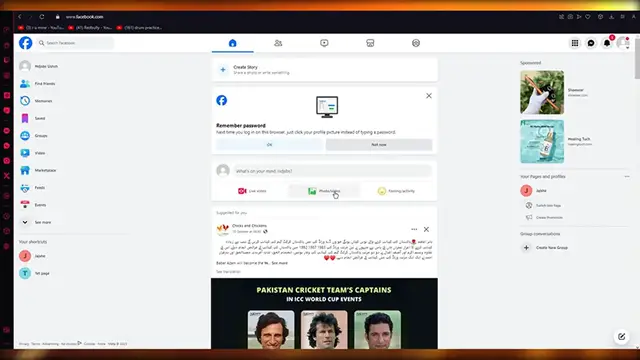
Up next in 10


How To Create Ads Account on Facebook Business Manager Full Guide
Show More Show Less View Video Transcript
0:00
how to create ads account on Facebook Business Manager 2023
0:04
Hello everyone, welcome into this new video and in this tutorial I'm going to be showing you really quickly on how we can create an
0:10
ad account really really simply and of course since it's really easy to do this we're going to have
0:16
some extra time so we can actually you know create our first ad
0:20
with the you know our first profile. So for our first ad account
0:24
let's jump right into it. So first of all guys what I'm going to be creating
0:28
or let's say managing or administrating is my very own Facebook page okay
0:35
So basically you're going to come over to your home section and once you go to your home section you're going to locate
0:43
the pages option. So the pages option should be somewhere around here yeah there we go there's the pages option
0:50
and once you do that you're going to go ahead and create any type
0:53
of page for yourself okay. So on the left hand side it's going to be like
0:58
you know create new page so just go ahead and create a new page for yourself
1:02
because without that you will not be able to open the Meta Business Suite okay. So in my case I already have a page
1:10
so let me just go to this one and let's talk about this okay
1:14
So now that we have a page over here how do we work with this and how do we
1:20
actually go to the Meta Business Suite. On the left hand side you're going to
1:23
see the Meta Business Suite over here so you're just going to click on this and it's going to redirect you to the Meta Business Suite with the page and the
1:30
account that you're accessing. So as you can see here it opens things
1:34
for us save time with Meta Business Suite etc etc. So obviously now what you're going to be doing
1:41
is you're going to see that there's a vast dashboard that you can actually work with and you know actually go ahead with
1:49
Now the thing is we're not really going to be messing around
1:53
with these things what we're going to be doing is I'm going to go ahead you're going to cut all that out and you're going to
1:59
write in settings. You're going to write in settings and you're going to click on enter
2:04
and what this will do is it will bring us here to the Meta Business Suite settings section
2:10
So what you're going to do is you're going to log in
2:14
with your you know any Meta account like Instagram or Facebook. So to do that obviously you're going to make sure that
2:25
this place that you've redirected from just make sure that everything you know works properly or you can just go into the settings from here to be
2:32
honest it doesn't really matter that much. So once you've gone into your settings over here there's quite a lot of things
2:39
that you're going to need to look after. Okay so over on the left hand side
2:44
you have this over here and you have quite a lot of things you know users
2:49
etc etc. So what we're going to be doing is we're going to be going ahead and we're going to make sure
2:57
that our page settings and our connect Instagram settings are properly set it
3:02
up. Okay because the page settings and Instagram settings are going to allow you to have a properly
3:09
you know well run ads page. Now moving on how we're going to be adding an ad account for ourself
3:16
is to obviously you know establish a very proper let me just go back to
3:23
the meta dashboard and once you're back to the meta dashboard over here. So again you're going to go ahead write
3:30
settings in the URL tab and you're going to come to a place like this. Okay
3:34
and in the place you can see the users that are going to be the business holders. Okay or you know you could say with the business accounts
3:41
Now to add you know different ad accounts you're going to come to
3:45
accounts on the left hand side over here and once we go over here from here what
3:50
we're going to be want to doing is you can see ad accounts disabled. All
3:54
ad accounts owned by this meta account are disabled and new ones can't be
3:58
created. So you can see the details for that if you want to where they're going to tell you the reasons. You know a lot of people
4:06
might have that problem. So I'm just going to quickly walk you through
4:10
why you might have that problem. So we can see account access
4:14
is restricted. So basically the reason for that could be one of
4:20
two things. Okay so as you can see your business account has been restricted. You can ask them why is that
4:26
why did that happen. So basically they'll let you know the reasons. Okay and you can obviously put appeals for that if you want to
4:35
that's totally no issue. And also do make sure to fully verify your emails. Okay and you can also request a review
4:43
because this usually happens when someone wants to create some account like this. Now moving on
4:51
once you've done your capture and everything and we've you know gotten fully reviewed and our account
4:58
is good to go. From there on out what we are going to be doing is we're going to go ahead
5:05
we're going to go back to our business settings as so. And in the business settings again you're going to go into
5:13
your ad accounts. Once you go into your ads account this is basically ads
5:17
manager in a way. So you're going to go ahead and add a
5:21
proper account with you know different objectives. There's different campaign objectives that you add an account with. Okay there
5:28
could be a fairness, traffic, engagement, leads, app promotion and sales. So obviously depends on you on
5:35
whichever way you want to add your own ad account. Okay and once you've added that with ease
5:41
from there on out what we are going to be doing is we're going to walk ourselves through
5:48
the you know campaign names and stuff. And when it comes to you know campaign
5:55
names and campaign registrations they're not too difficult to find to be honest. Because all you're going to need to do
6:02
is you're just going to go over to the ads manager after adding the ads account. And if you want to go to the ads manager you can
6:09
just come over here. Okay and right over here ads manager. And once you do that you're going to go ahead and you know
6:20
hold it up for search. And obviously it's going to take you to the ad account. It'll take you into the loading. It takes you into the
6:25
onboarding. So obviously what we're going to be doing is we're just going to go ahead into the things. So just make sure to
6:34
accept all these things. You're set up to advertise. And then finally we're going to go ahead create an ad campaign as I stated before. So once you go into
6:42
the creation of an ad campaign it's pretty simple from there. So basically
6:47
the easy part is done. The easy part was creating ads account in Facebook
6:51
business manager which I've done in front of you. Now let's go ahead
6:54
and create a campaign. You know create an actual ad so we can you know learn more details about this
7:01
So to create an ad we're over here. You're going to choose a campaign objective. Know what you're going to go for and
7:07
every objective has its different perks. So you know awareness is good for reach, brand awareness, video views
7:14
traffic is good for link clicks, engagement is good for you know views and messages, leads is good for
7:21
forms and stuff, app promotion is good for app installs, and sales is good for
7:26
conversion and catalog sales. So go with whatever you want. I'm going to go with
7:29
traffic right now and click on continue. Now once you do that
7:34
thanks for accepting our non-discrimination policy. So we're going to do that and we're going to click on done and on the right hand side
7:41
is where we're going to start creating the campaign. So first of all there's
7:46
the campaign name and all. So new traffic campaign, special ad categories, there's campaign details, the A-B test
7:53
you know different things that you can obviously turn on, turn off
7:58
you know whatever you require. And then moving on what you can do from
8:03
there is obviously scroll down and create more campaigns. And to create more campaigns you're just going to come here
8:09
and create more or you can even duplicate them. Or let's say you want to go ahead and edit a certain
8:15
you know previous campaign you can just click on edit and edit that
8:19
So you know these are really helpful things to create campaigns for yourself
8:23
and I would always recommend you to go through these. But yeah that was basically how you're going to create a
8:30
Meta business account on Facebook ads manager. And that is also how you are going to be using
8:36
Meta ads manager or yeah Meta ads campaign to create an ad campaign to show people. So once you've created an ad campaign just click
8:45
on next publish it and you're good to go. So yeah that's pretty much about it for this video. If you enjoyed watching
8:50
please do make sure to drop down a like and subscribe to the channel. And if you want to see more videos like this in the future let me know down in
8:57
the comments below and I'll make more for you. Until then that's all from me and I'll see all of you next time. Goodbye
#Computers & Electronics
#Internet & Telecom
#Education
#Distance Learning