live_tv
Livestream Starting Soon
00
Hours
:
00
Minutes
:
00
Seconds
Up next in 10


How To Convert Wordpress Website To Shopify (2024) Full Guide
Show More Show Less View Video Transcript
0:00
How to convert your WordPress website to Shopify
0:03
Hey guys, welcome back. Now, if you're looking to ever import your WordPress website to Shopify, you might be wondering
0:11
how to do that. Well, there are a few things to keep in mind before you get started
0:16
Now, the first thing to keep in mind is that you just can't convert any WordPress website
0:20
directly into Shopify. Obviously, if you're looking to convert your WordPress website to Shopify, that probably means
0:28
that you are selling products. So whatever platform you're using to sell products on WordPress is the platform that you can convert into Shopify
0:38
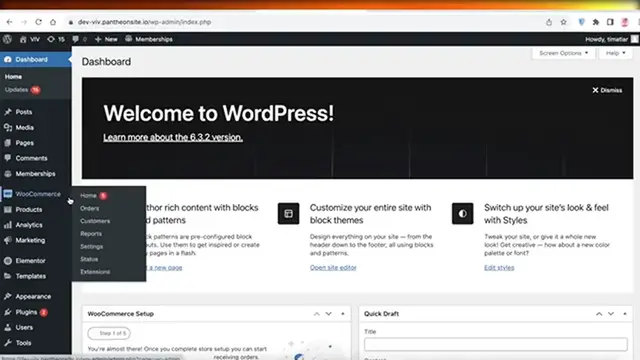
So if you're using VooCommerce, you can import your VooCommerce into Shopify
0:44
You can't necessarily import your WordPress website into a Shopify website. It simply is not possible because WordPress websites could be about anything from blogs, basic landing pages, pop-up pages, and a bunch of different things
1:00
However, Shopify is limited to building stores and store-related pages. So it's very essential you keep that in mind whenever you are looking to convert your WordPress site to your Shopify site
1:13
Now, the thing you need to do to actually import your Root Commerce or WordPress site to Shopify is you need to go to a different platform called cart to cart
1:24
Now, what this platform allows you to do is like store or import or transfer your use
1:29
data from one site to another. So make sure that you know all of your passwords to both your
1:36
Shopify, VooCommerce, WordPress, all of these three platforms whenever you are doing card-to-cart
1:42
migration. Now, this is a very secure way to convert your existing site to Shopify, and it is
1:50
pretty easy and simple as well. So the next thing you have to do is make sure that you have
1:56
logged on both of these platforms, then simply head on over to shopping dash cart dash migration.com
2:04
So once you done that you going to select your source card This is going to be your first column You going to click on this and then you going to choose where you importing from
2:15
I have VooCommerce integrated into my WordPress as my platform to sell products
2:21
So I will click on Voo Commerce over here. And then I want to convert this to Shopify, so I can click on the second option, and then click on Shopify
2:31
Now, after that, you are going to sign up for. cart to cart and you're going to provide your email address click on try for free
2:39
over here to get started and then after that cart to guard is going to give you an
2:45
estimation so first thing you have to do is enter your WordPress admin URL so
2:51
for that you're just going to copy your URL on WordPress and then you're gonna
2:56
paste it over here and then you're going to add your login now after that you have
3:03
your card setup So try migrating using card-to-car test store. Now, this is one thing to do if you ever are uncertain of how the migration is going to go
3:14
If you have previously built your Shopify store and you don't want to mess anything up
3:18
then I recommend trying this out. But if you're just playing around and you're just testing out migrations and you're not really worried about your Shopify store being, you know, dismembered or, you know, being mumbled or jumbled, then you can't
3:34
leave this option on then after that if you are going to directly import to your Shopify store
3:41
you're going to select your target cart which is going to be Shopify then you're going to open up your
3:46
Shopify and then you're going to go into your particular Shopify store and you're going to click on
3:53
view your store and then you're going to copy and paste your domain into this section so once you've
4:01
done that you can click on the last option which is choose entities and now they are going to connect
4:09
to your store now this can take a little bit of time it can take a couple of minutes for this exchange or for this connection to be built and then after this the actual migration of the data begins so once they confirm that both of these are actually your stores you not just trying to migrate data from a
4:27
random website or from a random Shopify or Voo commerce store then after this you can begin the
4:33
migration process and then your data would be migrated this includes things like your products
4:39
how you've entered categories fields tags and more that you might have added
4:44
in your WordPress or VooCommerce dashboards on your WordPress site. So now after a couple of minutes, it's showing me this particular error, which states that
4:54
the card to card store migration app has not been downloaded in my Shopify store
4:59
So if you have the same issue as me, you want to go back into your Shopify store
5:05
And once you go back into your Shopify store, the next thing you have to do is go on ahead
5:11
into your settings once you go into your settings you want to go into apps and then click on shopify app store
5:19
now once you go into the shopify app store you want to go into cart to cart and you want to copy the
5:27
exact name that they have and then go into the shopify app store over here and paste it now after this
5:34
you will see the first app it's called cart to card store migration app and you want to click on install now once you
5:41
completed this then you're going to redo the same thing so we're going to see this app and
5:48
then click on install now to complete our installation process now once this has been completed
5:54
i can go back into this page and i will click on choose entities and now you're going to retry
6:00
and you're going to once again wait for a couple of minutes for your conversion or for your
6:07
migration to be completed it usually does not take too long if you've input the correct information
6:14
And you guys can see that a connection bridge has been, an error has occurred in our connection bridge
6:21
which might be missing or invalid So another reason might be that you might not have allowed in your WordPress dashboard for cart to cart to migrate So make sure you adding your accurate login info as well So once again
6:39
if you have this issue, you want to make sure that your apps are installed. And if I go back into
6:46
Shopify, just so I can double check, I can check on the applications. Then on WordPress, if you have
6:52
another migration issue. What you can do is click on I want to upload bridge by using FTP or manually
6:59
and then I will click on download bridge and then you can unpack this file and then check the
7:05
connection to secure connection. So you can click on download bridge over here. Once the bridge has been
7:10
downloaded open this up, click on bridge to cart and then you can go on ahead and you can click on
7:16
this particular item. You can see you are supposed to read this entire thing but you can just
7:22
upload the bridge to card folder to your store's root catalog. And you can see it has successfully been installed
7:30
And now I can retry it again. And it usually does not take a lot of errors
7:36
However, if you have previously added multiple different passwords or security measures within
7:42
WordPress, which I have previously done, this might be a reason why you're currently not able
7:48
to do so. So I'm going to add the root file into the root file into a new
7:52
my WordPress store and then I can complete the rest of my migration. So in this way, you can get
7:59
started with migrating your WordPress site onto your Shopify site or your RooCommerce site onto
8:05
Shopify. And it's relatively easy. However, keep in mind that certain security measures or
8:12
parameters are going to be a bit difficult to bypass and it might take you a couple of tries
8:17
and a couple of errors before you're able to finally complete, and it usually takes a couple of minutes for the entire migration to be completed
8:26
depending on the size and site of your store. So I hope you guys found this video helpful
8:32
If you did, make sure to leave a like and subscribe, and I will catch you guys in the next video
#Shopping