Up next in 10


How to Convert USDT to TRX on Metamask (Step by Step)
Show More Show Less View Video Transcript
0:00
Welcome into this new video. In today's tutorial let's take a look of how we can
0:04
swap from one token into another one. For this example let's try into USDT to the
0:10
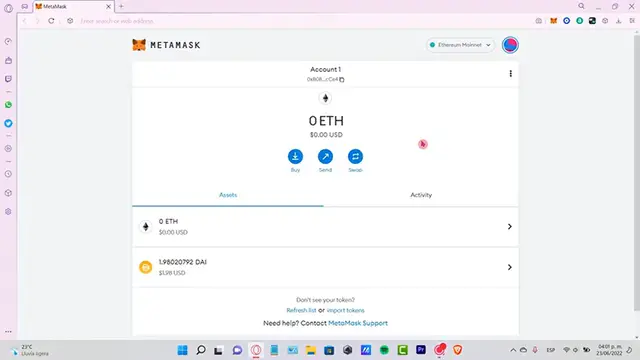
TRONE token. Once you are into your Metamask account the first thing you
0:13
want to locate is the swap section. Let's see if we can make the transaction inside
0:18
the Ethereum mainnet. So first of all we need to locate the token that we want to
0:23
make the swap for. In our case let's look for the USDT token. After you select the
0:28
amount that you want to send and swap, select the token that you want to
0:32
receive. In our case that would be the TRX token. As you can see the TRX token
0:38
it's not available into the Ethereum mainnet. The reason why is because the
0:42
TRONE token operates inside the VMV smart chain. So what we need to do is to
0:47
send our USDT token into the smart chain. And for that let's try to use any
0:52
swap. In here we want to select our USDT and select the amount that we want to
0:57
make the trade for. Down in here we can select exactly the same token but now we
1:02
want to select the VMV smart chain. After you make the conversion by clicking
1:07
into swap let's go back into our Metamask. Now let's select our network. In
1:12
that case that would be the smart chain network. If you don't have this network
1:16
into your Metamask you can go into chainlist.org so you can connect your
1:20
Metamask wallet, look for the Binance smart chain mainnet and you can add that
1:25
to Metamask. And you can add automatically to Metamask. Now that we have the Binance
1:30
smart chain network let's go into swap. I'm gonna look for the USDT token and
1:35
I'm gonna try to look for the TRX token. Now that we can make the conversion let's
1:40
go ahead and review the swap. In my case it won't let me because I don't have
1:43
enough money for making the conversion but you guys just go ahead and select the confirm option. After you make the conversion and the confirmation you can
1:51
go back into your account and look for the token that you just make the swap
1:55
for. If you don't see the token you can go into import token and this one is
1:59
going to be asking us for a contract token address. In that case let's go into
2:03
coinmarketcap.com and look for the TRX token. Once we locate that we want to
2:09
copy this address and paste it right into our Metamask account. The token
2:13
symbol and a token decimal is going to be added automatically. I'm going to go into add custom token. I'm going to import the tokens and I'm gonna see that
2:20
my TRX token is now available into my Metamask account. Now I should see that
2:25
my assets are now available into my BMV token. Just in case you have any
2:29
questions you can leave it down below in the comment section. Thank you for watching the video don't forget to Like and subscribe to the channel guys if you
2:35
want to see more about Metamask and I'll see you next time
#Software
#Investing
#Web Services