Up next in 10


How to Convert BTC to TRX on Trust Wallet (Step by Step)
Show More Show Less View Video Transcript
0:00
how to convert your Bitcoin to Trone in Trash Wallet
0:05
Hey guys, welcome to this new video. In today's tutorial, we're going to see how to convert the Bitcoin into the Trone token
0:13
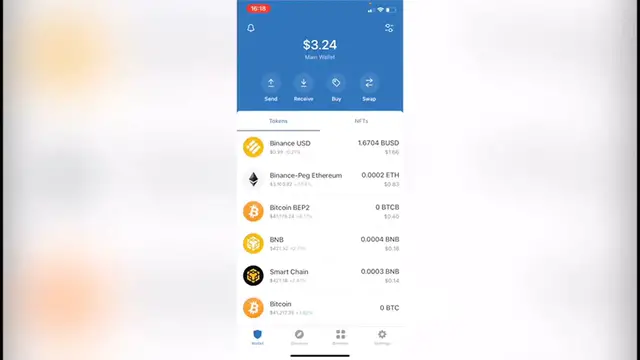
using our Trash Wallet. So as you can see, I'm already in here and the first thing you want to do is to focus
0:18
where it says swap. So I'm going to click into swap. Now, if you select the first one that says you pay
0:23
you want to go for BTC. In this case, I have my Bitcoins of the BEP2 network
0:30
So I'm going to select this one, the first one. And after that, you're going to select the one that says you get. Okay
0:36
So as you can see, I have this token that is operating within the BEP2 network
0:42
but just in case you don't want to see that, you want to go back because there are a few tokens that are not able
0:49
to make the swap for within Trash Wallet. So you want to hit into done so you can go back
0:56
and in browser, you want to search for pancake swap that finance
1:00
slash swap. So as you can see, I have it already on my history. So I want to click in here. And now after that
1:07
I'm going to select connect wallet and let's hit it into Trash Wallet
1:11
so we can see all our assets, right? So now that we are in here, we want to select our Bitcoins
1:17
So I'm going to hit into BTCB because this is the network that I'm
1:21
using. Now. I want to select the one that says cake so I can change
1:25
that. So what you want to do now is to select the amount that you
1:29
want to be sending into your wallet. Now, in this case, I'm going to select the Binance coin so you can see what happens
1:37
after I make the confirmation and it says confirm the swap. So I'm going to hit into confirm swap and this one is going to
1:44
redirect us into our Trash Wallet so we can make the confirmation. Now in order to make the transaction, we need to pay the network
1:51
fee and to pay the network fee of this one. This one has to be paid with the Binance coin
1:57
So if you don't have Binance coin, you can't do the transaction
2:01
Now as you can see, I have a Binance coin, but I don't have a lot of that. So I'm going to need a little bit more to make the
2:07
transaction. But let's see what happens after you hit into confirm just in case that you have already your smart chain token to make
2:14
the network fee to pay for everything. Then you hit into continue
2:18
and let's see what happened next. I'm going to exit this page and I'm going to go back into my Trash Wallet and you're going
2:24
to see all your assets. And then if you don't see the token that
2:29
you just make the swap for, you click into manage token list and you tap TRX. In this case, that will be the Trone one and
2:37
you enable that you were making the transaction. If you're not sure the network that we were using, then enable all the Trones
2:44
so you can see right into your assets. So I'm going to scroll down and as you can see in my assets
2:49
it's the Trone already imported. So there you have it guys. It was really simple. Don't forget to like the video and subscribe
2:55
to this channel if this was useful for you and you want to see more about this app. Thank you for watching the video and I'll
3:01
be seeing you guys on the next one
#Software
#Banking
#Investing