Up next in 10


How To Connect Twitter To Opensea (Step by Step)
Show More Show Less View Video Transcript
0:00
How to connect your Twitter to OpenSea
0:05
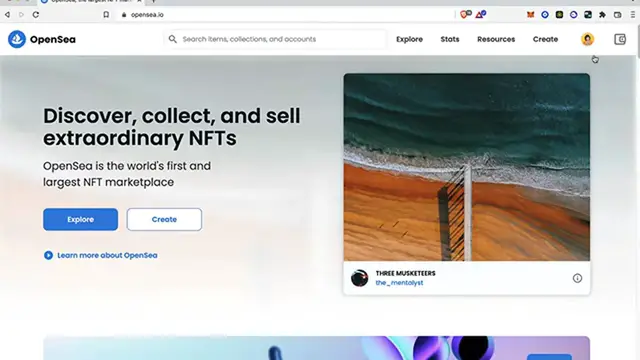
As you can see I already have my OpenSea already opened. And what I want to do is to go into my profile
0:10
But just in case you haven't signed in yet or you don't have an account
0:14
Just go ahead and go into profile. And in order to continue, the OpenSea is going to ask us to use a wallet
0:21
So in that case I'm going to use my Coinbase wallet. You can use Metamask which is the most popular
0:26
But just go ahead and select the wallet that you use. And after that you want to connect your wallet to your website
0:32
And now that you have your account in here you might see. If this is the first time you are in here
0:36
You might see that everything is quite empty. But you don't have to worry about that guys
0:41
Because the first thing you want to do is to go into the settings. And this one asks us for a signature request
0:47
So I'm going to go into sign. And then you have to use your passcode. And after that you're going to see your profile settings
0:53
Now after you've done with your username, your bio and your email
0:56
And if you want to put your profile images and all that. There's the social connections
1:01
So what you want to do is to connect the Twitter section. Now as you can see this one is not enabled
1:05
So what I want to do is to select the option that says connect. And this one is going to be recommending to authorize OpenSea NFT Marketplace to access your account
1:14
Now just in case you don't see this icon, this new pop-up window
1:20
What you guys want to do is to open a new tab. And go to twitter.com
1:24
Now once you are in here, what you guys want to do is to go into your profile and sign in
1:30
And after you keep that signed in, you want to go back into OpenSea
1:35
So you can see now that the pop-up of the Twitter authorized application has been opened
1:41
So let's go into your authorized application. It says redirection you back
1:46
So what I want to do is to see that my account has been connected properly
1:51
So the last thing I want to do is to select this one that says save. And I want to go into my profile once again
1:57
So I'm going to select my Coinbase wallet again. And now as you can see, these are my icons of the pages that are now added into my OpenSea account
2:08
So if I select the Twitter option, I'm going to select this one. And as you can see, my account has been already linked into OpenSea
2:16
And you can use the same thing with Instagram. And if you have your own website, you can do that as well
2:21
So there you have it, guys. Don't forget to like and subscribe to the channel if you want to see more about OpenSea
2:26
Thank you for watching the video. And I'll see you guys on the next one
#Online Goodies
#Social Network Apps & Add-Ons
#Photo & Video Sharing
#Photo & Image Sharing
#Other
#Video Sharing