live_tv
Livestream Starting Soon
00
Hours
:
00
Minutes
:
00
Seconds
Up next in 10


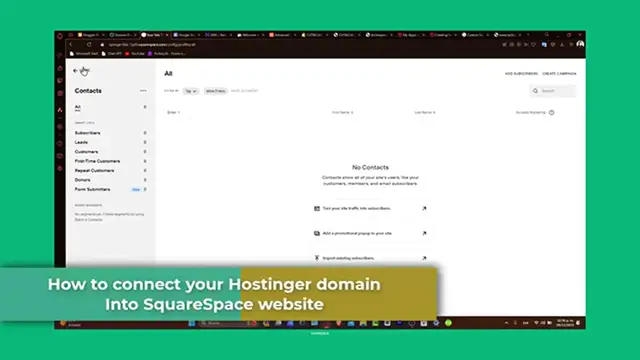
How To Connect Hostinger Domain To Squarespace 2024 (Step By Step)
Show More Show Less View Video Transcript
0:00
Welcome back everybody to Techspress, in this tutorial, let's guide you through how to
0:04
connect your Hostinger domain to your Squarespace website. Having a custom domain is crucial for branding and making your website more accessible, whether
0:12
you are setting up a new site in Squarespace or updating an existing one, this tutorial
0:16
will help you to link your Hostinger domain seamlessly. So let's get started
0:20
Prepare first of all your Hostinger domain. First things first, you want to go directly into Hostinger, access your Hostinger account
0:28
and navigate to your domain management area, here you will see all the domains that you
0:33
have available into your account. Now what you want to do is to find the domain you wish to connect and click into the Manage
0:40
into settings. Now accessing the DNS settings is the Hostinger, once you have selected your domain, access
0:45
into the DNS settings in the left part where it says DNS and the name servers
0:51
We'll be modifying these settings to point your domain to your Squarespace website
0:55
DNS changes can take a while to propagate, so be patient. Now configure your domain into Squarespace
1:01
Let's set up your domain into Squarespace, login into your Squarespace account, which
1:05
in my case we are now in here, and then what you want to do is to go directly into the settings
1:10
So let's go back into Home, let's go into Settings, and once we are here, go directly
1:14
into Domains. Inside Domains, what you want to do is to choose the option that says I want to connect
1:21
a domain I own. Now here, what you want to do is to enter the hosting domain name and proceed with the
1:28
connection process. In our case, let's try to go with textpressvideos.online. So I'm going to copy it, paste it in here, and go for continue
1:38
Now updating a DNS request in Hostinger. Squarespace will provide you with the specific DNS settings which you need to enter back
1:46
into your Hostinger DNS settings. This usually includes CNAME and a record
1:52
Now carefully add these records to your Hostinger domains by choosing Connect Domain
1:57
So here, you wanted to select a provider, and you wanted to look out for Hostinger
2:01
If you don't see Hostinger in here, you don't have to worry about that, you can go directly
2:05
into other. Now, let's go into Connect Domain. Now here, textpressvideos is connected to your site
2:12
I'm going to hit now to continue, and here are my DNS settings
2:16
What you want to do is to copy all of this info, or choose only one of the following
2:21
here to add it into your domains. So I'm going to try to go directly with my CNAME
2:27
Here's the name of my host. So I'm going to go here, I go for the name of my host, and back in here, verify.squarespace.com
2:36
And lastly, I'm going to do exactly the same thing, but with triple W. Verifying the domain connection
2:41
After updating a DNS setting into the Hostinger, you go into the Squarespace to verify your domain
2:48
After those steps, confirm that your Hostinger domain is correctly pointing to Squarespace site
2:53
Once verified, your Hostinger domain will be successfully connected to your Squarespace site
2:58
You should see that into your refreshed records, you may see that all of them should be as
3:03
record found. And now, the process is into review. This might be taking a few hours to make the process, but this is how we can successfully
3:13
do it. And there you have it. You have connected your Hostinger domain to your Squarespace website
3:19
This integration not only enhances your site professionalism, but also makes it easier
3:23
for the audience to find you online. If this tutorial was helpful, please give us a thumbs up
3:28
Subscribe to Techspress for more Squarespace domain management tips. Have any questions or experience with connecting domains to Squarespace
3:34
You can send them into the comments below. Thank you for watching. Best of luck with your newly connected domains
3:39
Stay tuned for more helpful tech tutorials from Techpress. See you next time
#Public Relations
#Software
#Web Services
#File Sharing & Hosting