Up next in 10


How to Change Wallet on Phantom (Step by Step)
Show More Show Less View Video Transcript
0:00
How to change wallet on phantom
0:02
Hello people, welcome to this new video. In today's tutorial, I'm going to show you real quick
0:08
It's going to be a very simple tutorial how we can change our wallet
0:12
from phantom wallet. So the first thing you want to do after you create
0:15
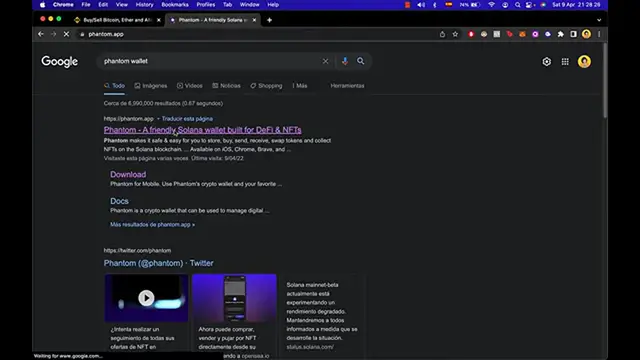
our phantom, let's say you already have a phantom wallet. So after you go into download and you install it on the browser
0:23
that you're using, in this case, I'm using Chrome, you need to go and click on
0:27
install, you're going to see it right in here on your extensions. So once you import or create your wallet, you're going to see here
0:34
all our assets and information about our wallet. So what can we do to change the wallet we're using
0:40
So you're going to click in here and we're going to scroll down where it says add and connect wallet. If you already had another wallet and you want to
0:47
import that, you want to click where it says import private key
0:51
You just need to select a name that you want to create on your
0:55
wallet and you have to paste the private key. It's going to look like this
0:59
after you paste it and that should do it. In my case, I'm going to create a new wallet
1:03
So you can see how we can generate a new wallet on our
1:07
phantom wallet. So let's go ahead and create a new one. So as you can see, it's just a matter
1:11
of seconds. Here's my wallet and this is called wallet number two
1:15
This ends with JAB and the other wallet ends with YNM. So there you have it guys, really, really simple
1:23
Hopefully this was a very useful video for you guys. Don't forget to like and subscribe
1:27
to this channel if you want to see more about this kind of situations
1:31
Thank you for watching this video and I'll be seeing you guys on the next one