Up next in 10


How To Change Navigation Menu Colors In WordPress (2024)
Show More Show Less View Video Transcript
0:00
How to change navigation menu colors in WordPress
0:03
Hello everyone, welcome back to another video. I hope you all are doing great and are having an
0:08
amazing and absolutely incredible day. I bring you back with yet another video and in this video
0:14
we're going to be talking about how you're going to be able to change your menu colors in WordPress
0:18
in the easiest, most simplest way possible. So, without further ado, let's get straight into the
0:25
workings of this. Now when it comes to changing the actual menu color, what needs to happen
0:33
is there's three steps that could, you know, actually work through with this. So the navigation
0:39
menu color can be changed through code, okay, it can be changed through some external page builder
0:45
or website editor essentially, and then finally it could be changed through, you know, WordPress
0:52
settings. So we're going to be talking about all three of those ways. I'm going to be showing you
0:56
all three of those ways and trust me, it's going to be really fun, it's going to be really easy to
1:00
work with and we're going to have a lot of fun with it. So please do make sure to fully watch
1:05
this video till the end to get the whole gist of this with the whole detail. So yeah, without further
1:12
ado, let's get straight into video. So to basically start things off, what we are going to be doing
1:21
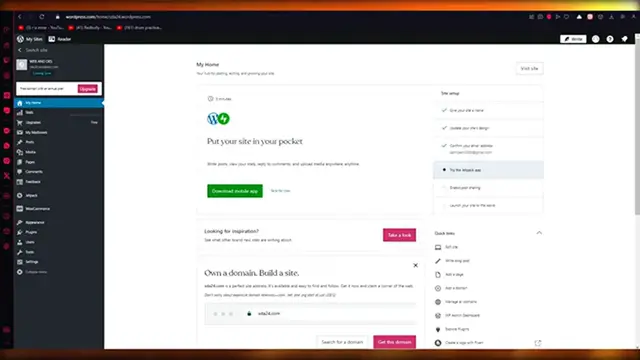
is, first of all, we're going to go ahead into our, you know, basic dashboard over here and in
1:29
the basic dashboard there's a few things to, you know, keep in par for yourself. Now obviously
1:36
when it comes to, you could say, the basic navigation guide, the basic navigation has
1:44
this separate, you could say, viewing or visibility. So if I were to go ahead into my website
1:52
or, you know, essentially view my website, I'm just going to open it up, there we go. So I'm
1:58
going to click on wizard site and this is my website, you know, there's no header or anything like that
2:04
But if I go ahead and click on inspect element, over here is where I can access my actual header
2:13
and you can access your header or, you know, your navigation menu by obviously finding your
2:21
code for your div class. So around this is going to be, you know, your division for your navigation
2:29
menu. So you can obviously change the color through code. Now when it comes to changing the color
2:36
through code, that is obviously a bit tricky. So you're going to need to find the, you know
2:41
divisional code. Once you've found your divisional code, then you're going to start going into colors
2:47
Okay, you're going to find in whichever section they've given you colors. In our case, we have
2:54
color over here, you know, there's our land and there's other classes where you can obviously
3:00
add your own colors as well. So pretty easy, pretty incredible stuff to get your head around
3:06
And obviously you can mess around with the styling of it as well. But obviously depends on
3:12
however well you are working when it comes to coding. So that's one of the ways that you can
3:18
actually change the color of the navigation menu. But obviously that's code and not a lot of people
3:25
you know, enjoy working with code. Now one other thing that you can do is basically like, let's say
3:34
I like some coloring scheme, right? So I'm going to come here and you know, you can go to any site
3:42
which color scheme you like. So let's say I like some color scheme from Nike's website
3:47
I'm going to open up inspect element in Nike's website. Once you open up the inspect element
3:52
you're going to, you know, find the navigation bar for Nike. Let's say this is going to be their
3:59
navigation bar. So you're going to come here, you're going to click on copy. Okay. And I'm
4:03
going to go ahead and copy the element. Now over here, you're going to click on edit page. Once you
4:09
click on edit page, it's going to open up a few widgets for you with the editors on the left-hand
4:15
side with the workings in. And that is exactly what we are going to get our head into. So once
4:22
you're over here, we're going to click on this plus icon. So it gives us a whole thing on the
4:27
left-hand side. And once you do this, you can actually go ahead into your additional CSS to
4:34
customize things for your page. And obviously in the CSS, you can give your site an identity
4:44
You can give it a background image, menus, widgets, homepage settings, and a whole lot more
4:49
So in our case, you know, you could either add tools through here. Okay. Or I'm going to come
4:57
back over here. I'm going to click on view pages. And once you're in view pages, you could obviously
5:03
add things through the plugin tools as well, using the additional CSS. So again, when it comes to the
5:11
overall working of your editorial things the CSS outer could be done through the main editor
5:20
or you could do it through the plugins. Like if I go on plugins over here, I'm going to go ahead
5:24
and just write CSS. And you can see, you can start adding different, simple CSS into your website
5:32
You can see simple custom CSS plugin again for the workings of your page. And obviously if you
5:42
know how to work with CSS, trust me, I would a hundred percent tell you to go with it because
5:47
you know, when it comes to working with CSS, it makes life much easier for you. And you know
5:53
because it gives you a variety of features. It gives you this whole world of features that you
5:58
can add to your page. And it's just much easier and much, you know, better to work with. Now
6:06
basically one more things you can do is you can add an actual plugin and this plugin is going to
6:13
be a page editor. So in our case, you have definitely heard of this. It's called elementary
6:18
website builder. And in this elementary website builder, you can style your navigation menu
6:25
using the editor. Okay. And this editor basically allows you to add all the different types of
6:32
designs to add. Okay. You can add any type of design with any type of stylings as well, to be
6:39
honest. And you can add different additional CSS through elementary as well, but elementary doesn't
6:46
allow you, like it allows you to add code, but you can also just do this through the normal drag and
6:52
drop technique. Okay. You don't need to go ahead into code. So yeah, pretty simple and pretty easy
7:00
to do all of this, you know, by just one click on Elementor. So yeah, pretty simple, pretty easy
7:07
stuff. And obviously in the end, I would definitely prefer the users to go ahead and use the
7:17
additional CSS option, but in the case you don't want to do that, it's totally fine because I
7:25
understand a lot of people don't like working with code. Okay. So yeah, basically that's about it
7:33
These are the different ways how you can, you know, add different attributes and things into your page
7:39
and you know, actually color your navigation menu. So that's essentially about it for this video
7:46
Now, if you enjoyed watching this video all the way till the end, please make sure to drop down a
7:52
like and subscribe to the channel. And if you want to see more videos like this in the future
7:57
let me know down in the comments below and I'll be making more for you, but yeah, that's pretty
8:02
much about it. Thank you for watching till the end and I'll see all of you next time. Goodbye
#Reference