Up next in 10


How to CANCEL an AMAZON ORDER already shipped or made by mistake 2024
Show More Show Less View Video Transcript
0:00
Hey guys, welcome to this new video. In today's tutorial, let's take a look of how we can cancel
0:04
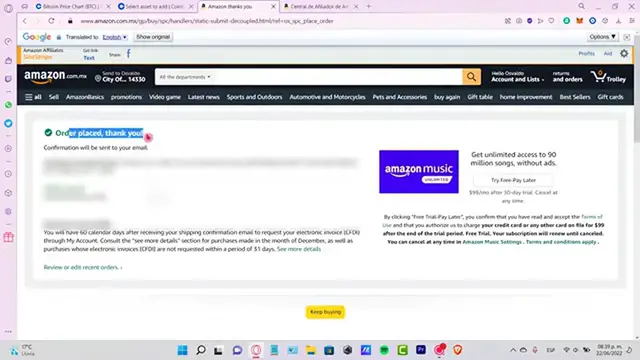
the purchase of the week. Okay, so now let's say I just make an order. Here's an order
0:08
please. It says, thank you. Confirmation will be sent through your email. And the moment you send
0:14
this order, what you can do just in case that you make a mistake, you can go into review or edit
0:20
recent orders here. Now what we can do, which says estimate delivery for Friday. What I can
0:27
do is to select this option that says cancel products. And now what's going to happen is
0:32
when it says product purchased one of, and this is the item that we just bought. This is the price
0:38
And this is the gift option, just in case you get a gift option. Now there's a reason for
0:44
cancellation here. This is totally optional, but I strongly recommend you guys to put a reason why
0:49
because sometimes they just won't let you cancel the option. So here you can place the order
0:56
please. By error, the order will not arrive on time. The ship goes too high. In our case
1:00
let's go into this was a mistake. So once less cancel the selected items in this order here
1:06
So let's wait just a couple of seconds here. And as you can see, this order has been canceled
1:12
So if I go into my orders, once again, I'm going to see that my order that was listed a few seconds
1:18
ago is no longer in here. But just in case you're not able to cancel here, your orders in our case
1:24
which is canceled this purchase, but in just in case it wasn't, uh, you weren't able to make the
1:30
transaction, what you can do is to go into your account and look for the help section. If you
1:36
don't see it running here, you want to scroll a little bit down and look for the support section
1:41
Now, once you're in here, you want to find the delivery order or return here. So once you're
1:47
here, it's going to be saying what product you need help with. So what you guys need to do is
1:51
define the order you use placed in our case, that would be this one. So once you select that order
1:57
it's going to be asking you, how can we help with this article? So what you want to do is to select
2:02
the, the section that says I want to, um, to cancel the order. And then we want to do is to go into
2:10
how can we help? Let's go into other, just in case you don't see the recommended here
2:15
And let's go into chat with us. Or if you want to, you can go into request a phone call
2:20
I strongly recommend you guys to request a phone call because this is the best way that they can
2:26
be contact us. And they can be helping us really, really quickly, just in case that you make a
2:30
purchase and the order was already placed or is trying to be send it. So what you're going to try
2:36
to do is to tell them to try to the product and cancel that. So if you want to, you can request
2:43
a call now, or you can start a chat now. So it's going to be popping up a new chat service where
2:50
you can talk with this guy. So you can tell them how they can help you. What's the situation of
2:56
your account. That's the only way and the best way you can cancel on a specific, um, item that
3:03
was recently purchased or an order that you have more than one account guys. So there you have it
3:09
guys. Hopefully it was very useful for you. Let me know you have any question. Don't forget to
3:12
like and subscribe to the channel guys. If you want to see more about Amazon, thank you for
3:16
watching the video and I'll see you next time
#Online Communities
#Consumer Resources
#Customer Services